Appearance
Running a feature, step by step
This guide takes one feature through a whole round and into the next: creating it, naming who owns and approves each step, scheduling and baselining the phase, starting it, doing the work through your sprints, reviewing each step, dealing with what QA finds, and shipping it. Each step says who can do it, and links to the page with the rules in full.
Videos
The pictures come from the demo workspace's Online booking for backwater cruises (FTR-1): Phase 1 — counter replacement is finished and shipped; Phase 2 — seat selection is running, with its HLD step waiting for review.
A feature differs from a project in one way that matters throughout: a phase is a round, not a grouping. Phase 2 runs the whole step list again, with its own owners' work, its own approvals and its own baseline. See Features.
Who does what, at a glance
| Step | Who can do it |
|---|---|
| Create the feature, add or edit phases, set a phase's start date, start the feature | People with project management (workspace admins always have it) |
| Name owners and approvers, set a step's estimate | The step's owners, or people with project management |
| Baseline or re-baseline a phase by hand | People with project management |
| Move a step's status, link and create its tasks, log issues, send it for review | The step's owners |
| Approve a step, or request changes | The step's approvers |
| Plan its tasks into sprints, work them on the boards | Anyone in the task's department |
| Read the feature, comment, link a pull request | Anyone in one of the feature's departments |
| Put a phase in a release and ship it | People with project management |
1. Create the feature
Features → New feature. Name it, choose the departments involved — they decide who sees the feature and who may own or approve a step — and say what it is for.
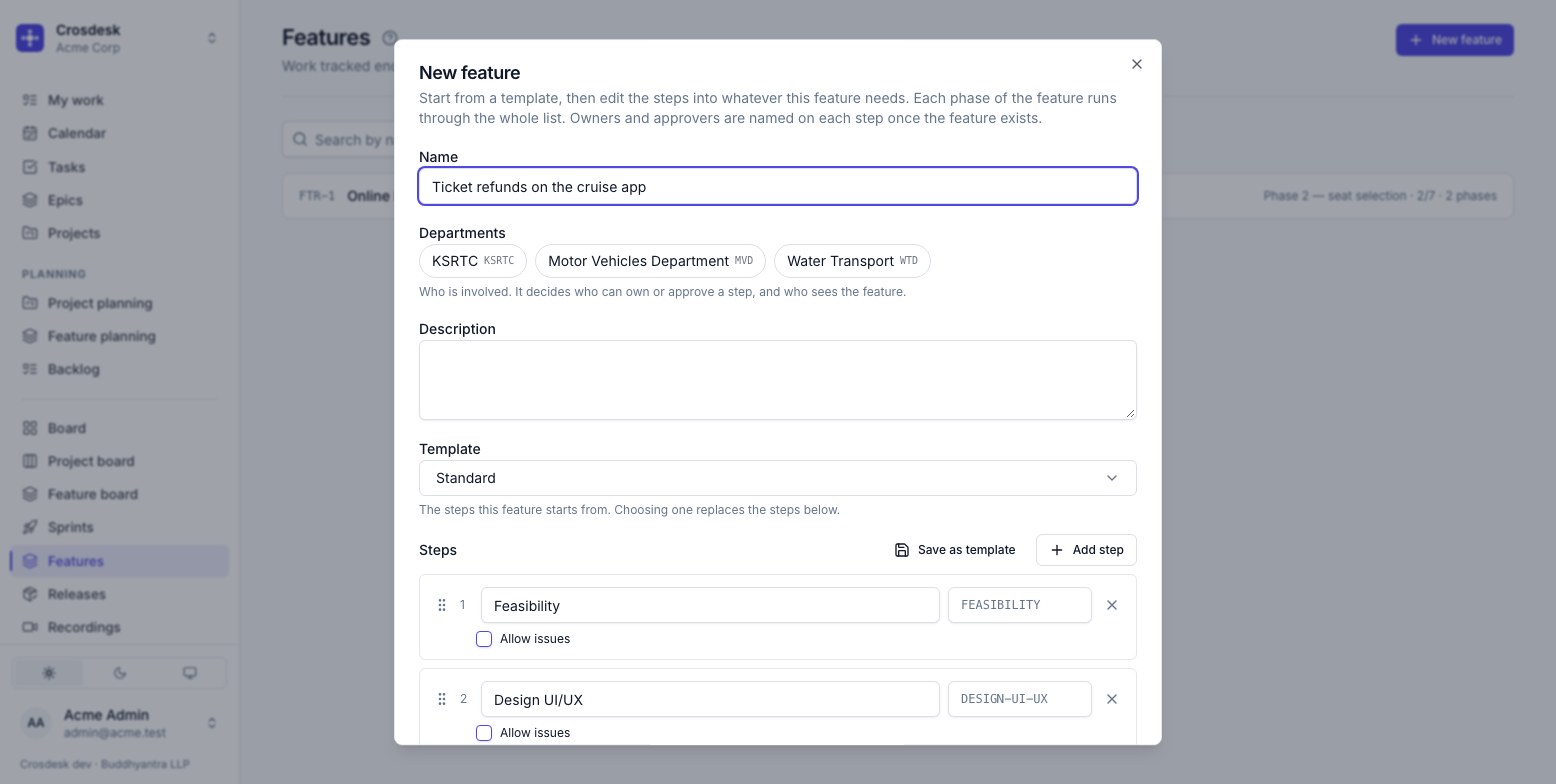
The steps come from a template — your workspace's default is selected, usually Standard: Feasibility, Design UI/UX, HLD, LLD, Split tasks and estimation, Development, Code review, QA, Release. Rename, remove, add and reorder them into what this feature needs. Tick Allow issues on the steps where defects are logged — QA, typically. Each step's label (HLD) is what pull requests write to name it. If you will start more features this shape, Save as template.
Owners, approvers and estimates are not asked for here — they are set on each step next, once the feature exists. The feature is created as a draft, with Phase 1.
2. Name the people and estimate each step
Open the feature and click a step. Its header holds the four things a step needs:
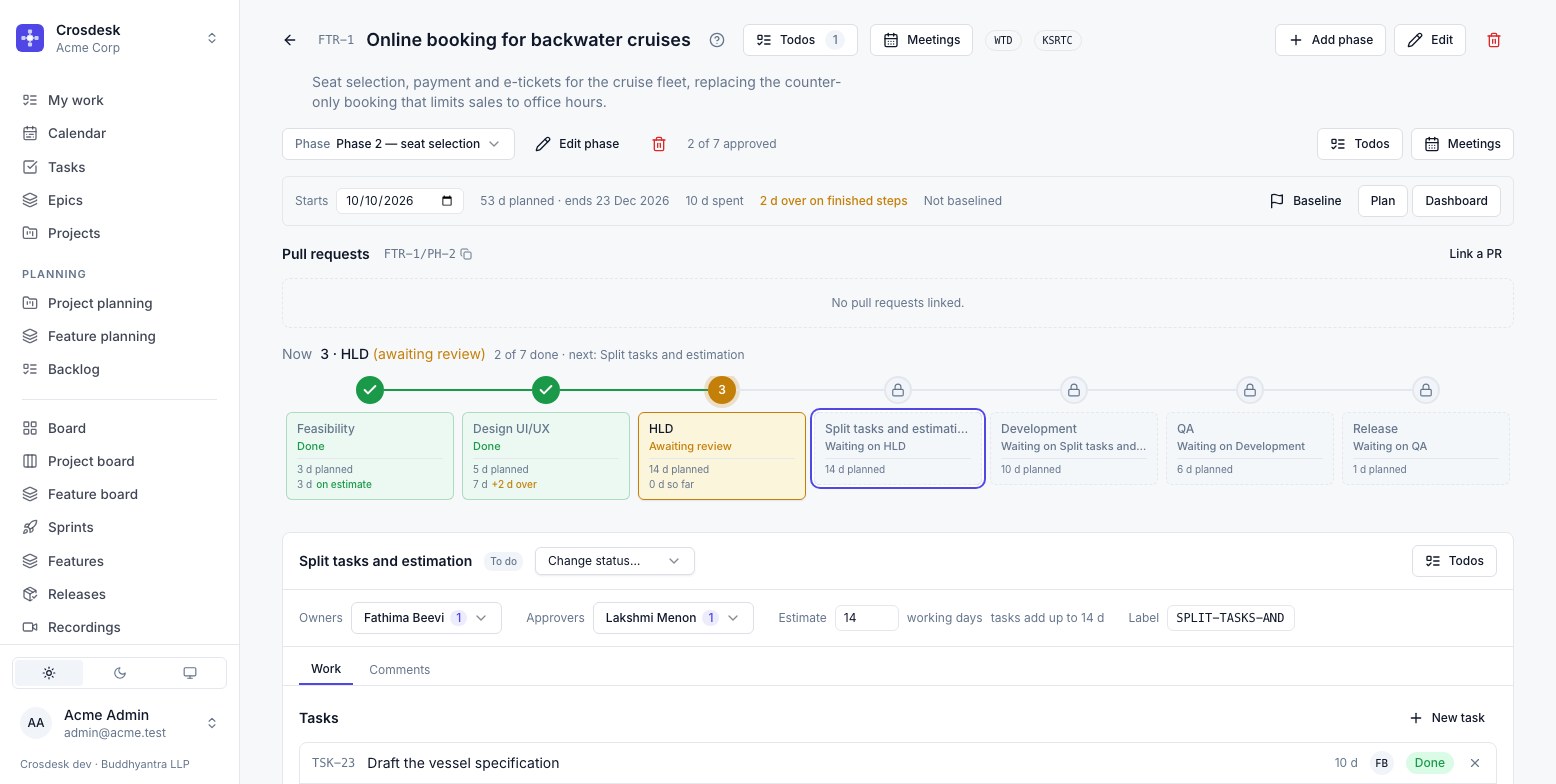
- Owners — who does the work and says when it is done.
- Approvers — who signs it off. Every step needs one before the feature can start: steps run strictly in order, and a step nobody can approve is a phase that can never finish. If a step needs no review, name its owner as its own approver.
- Estimate — working days. Optional, but every unestimated step leaves a hole in the timeline, and the phase's totals and baseline wait until every step has one.
- Label — the step's name in pull request references (
FTR-1/PH-2/HLD).
What you set carries into the next phase, so the second round starts from what the first learned.
3. Schedule the phase
On the phase line, set Starts — the day this round begins. Steps run in order, so one date plus each step's estimate lays the whole round out around weekends and holidays. The line then reads 53 d planned · ends 23 Dec 2026, and each step card shows its planned window.
4. Take a baseline
A baseline is the phase's promise: each step's window and estimate, recorded at one moment. Moving the start date or an estimate afterwards moves the live plan, not the promise — which is what lets the dashboard say how far the round has slipped.
Baseline on the phase line takes one. It needs a start date and an estimate on every step.
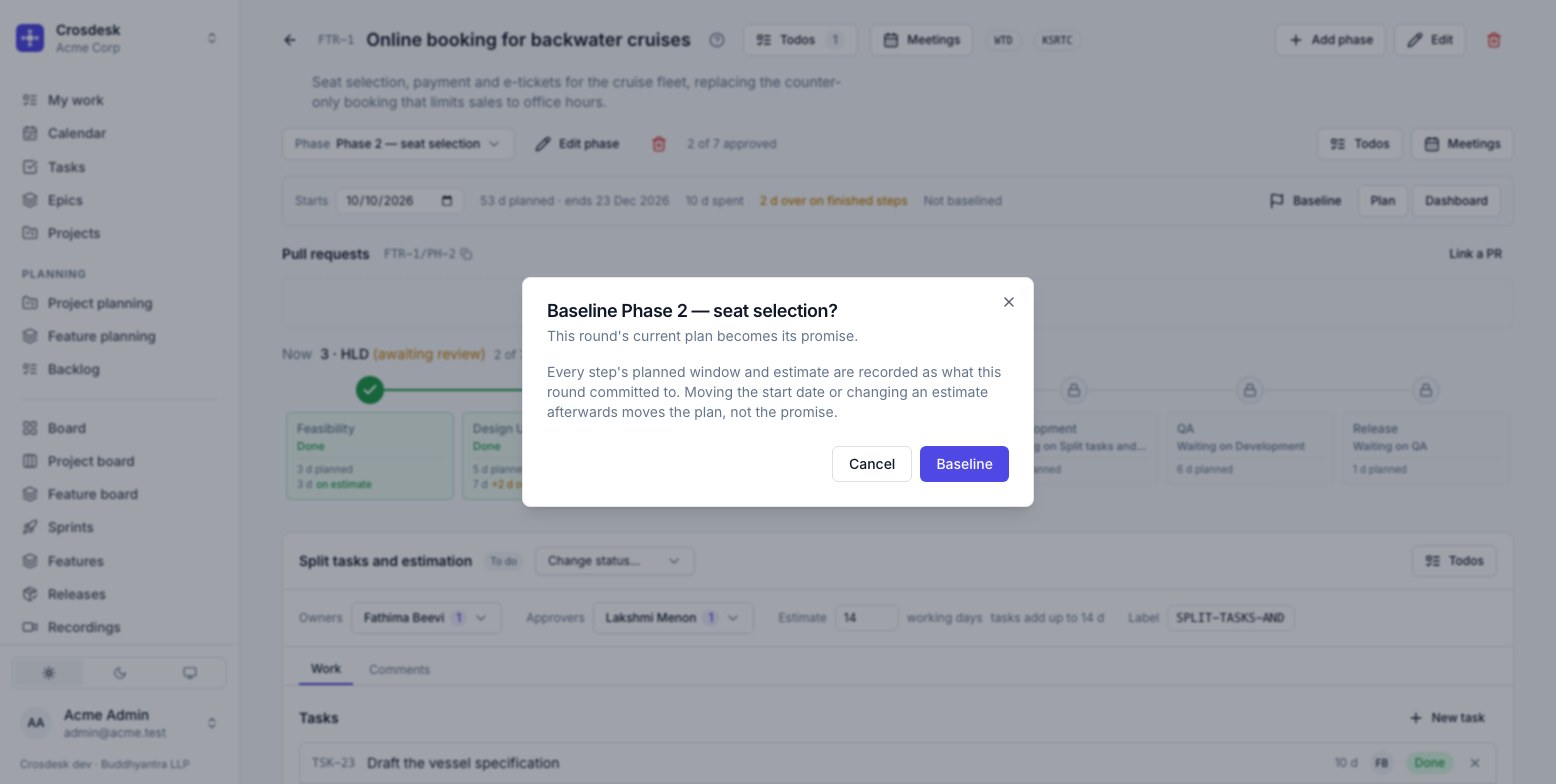
You do not have to: when a phase's first step starts, a baseline is taken automatically if the phase has none and its plan is complete. Starting is never refused for want of one.
- Only people with project management can press Baseline or Re-baseline.
- The automatic baseline is taken by whoever starts the first step — for a later phase, often its owner, who need not have project management. It is recorded under their name, and the dashboard's history marks it as taken on start. It never replaces an existing baseline: only a person with project management can move a promise once it is made.
- Re-baseline replaces the promise — the way a team says the old dates no longer apply. Every baseline is logged on the dashboard with who took it and how far the promise moved.
5. Start the feature
Start feature (project management) moves Phase 1's first step to In progress. It refuses, naming the steps, if any step has no approver. From here the steps run strictly in order: a step cannot leave To do while an earlier one is unapproved, and the track shows a padlock on each step still waiting.
6. Do the work through tasks
A step's work is tasks — the same tasks your sprints and boards already carry.
- On the step, New task creates one already linked; or link an existing one. From a task's own page, its Feature field chooses the step.
- A task belongs to one step at a time, and only to a feature that involves its department.
- A step is never estimated below its tasks: linking an 8-day task to a 5-day step raises it to 8, and the step says tasks add up to 8 d.
Then plan them like any other work:
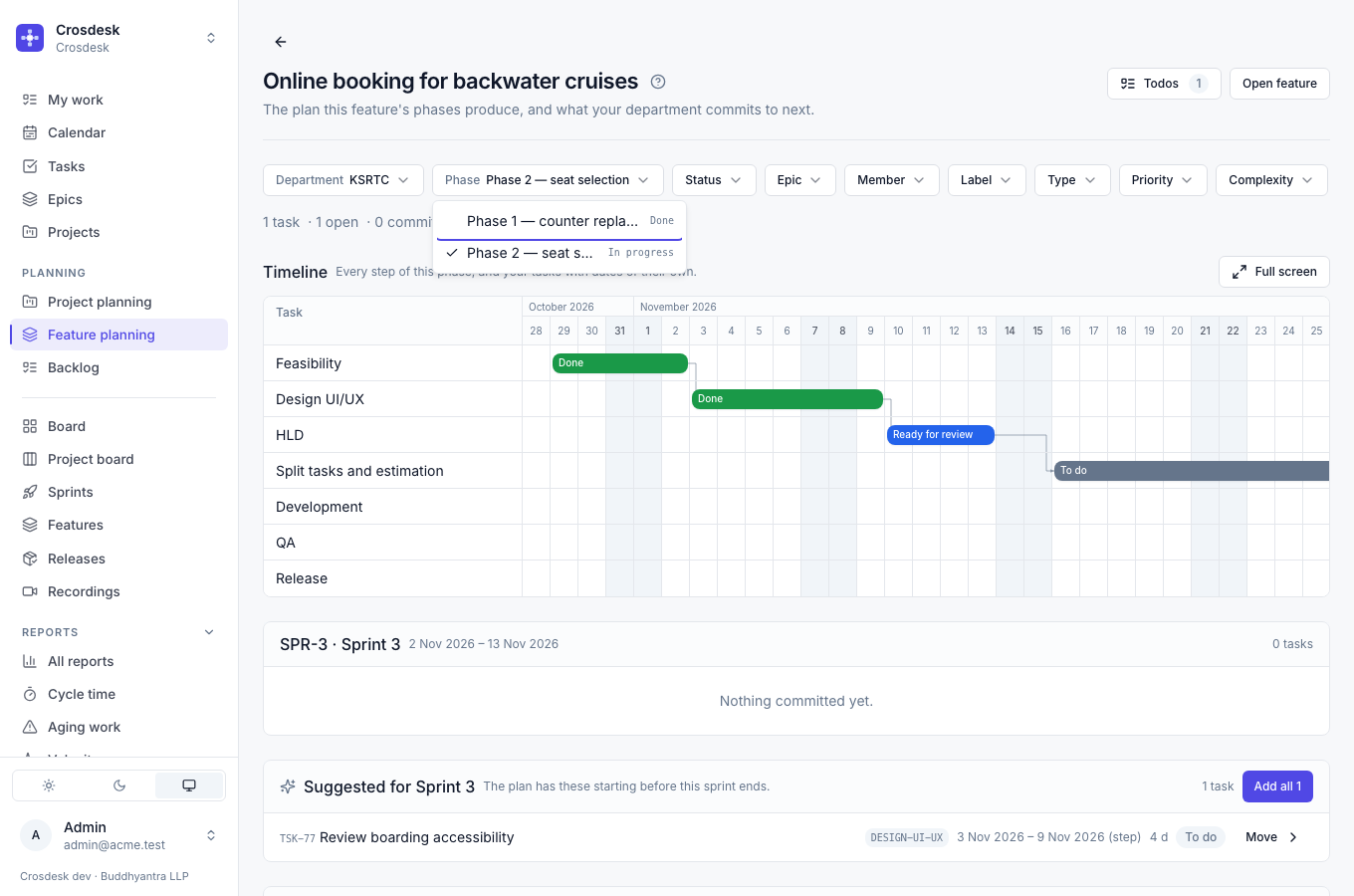
Planning → Feature planning shows the phase's timeline beside your department's sprints, suggests what should go into the next one, and lets you Move each task in. See Planning a feature into sprints.
The Backlog's Feature phase filter narrows the backlog to one round's work.
The Feature board shows that work in columns, one phase and one department at a time.
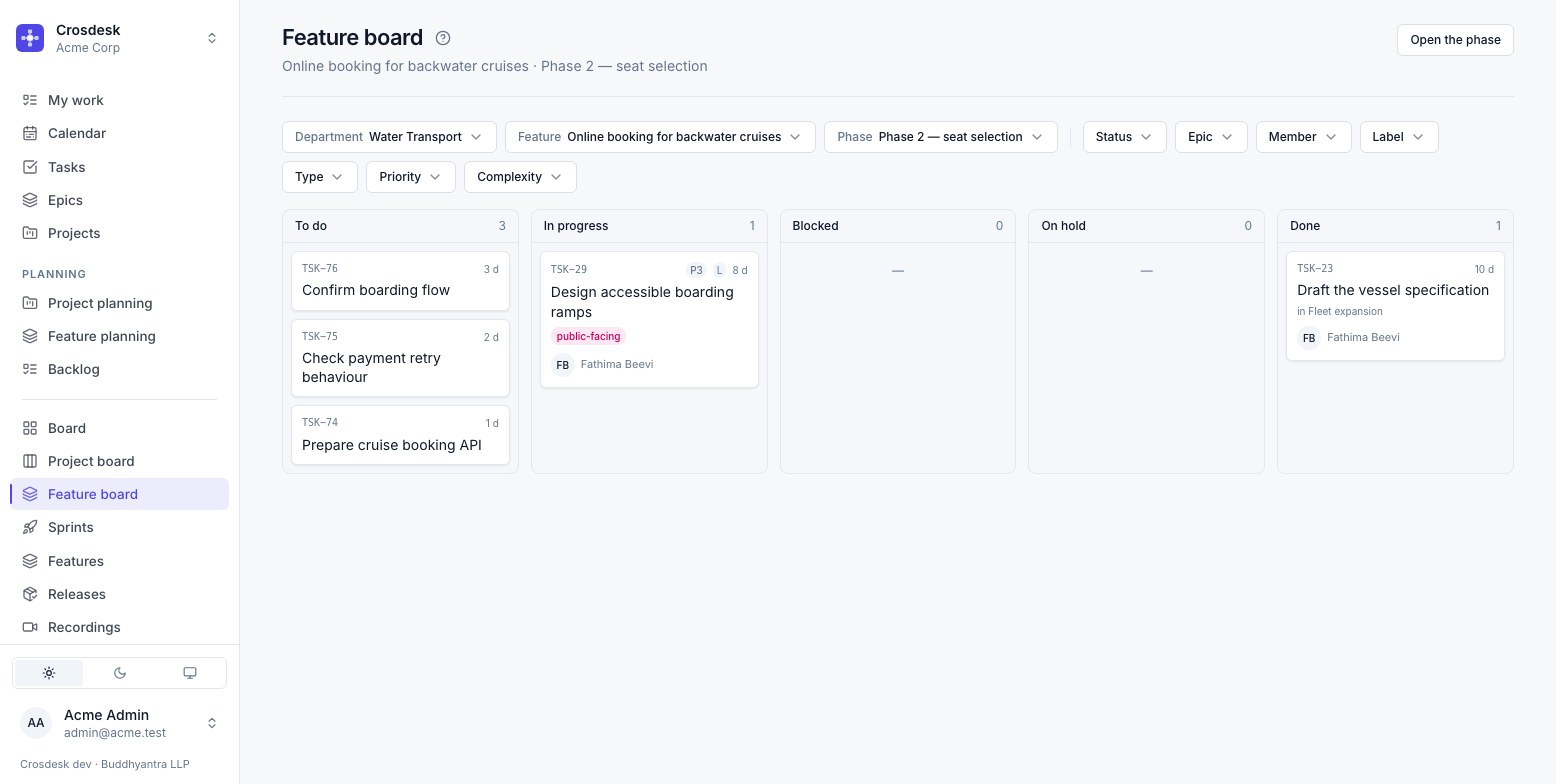
A phase's work is the tasks linked to its steps, the bugs converted from its steps' issues, and the subtasks of either — the same set on the plan, the backlog filter and the board.
7. Send each step for review
When the work is done, an owner sets the step to Ready for review. Only an owner can — the point of the gate is that the person doing the work says when it is done, so being a manager does not substitute.
If the step has open issues in your departments, the handoff stops and lists them, with two answers: Review issues to go and deal with them, or Move to won't fix and … to close them all deliberately and send it in one go.
8. Approve, or ask for changes
The approver opens the step and sees two buttons beside its status:
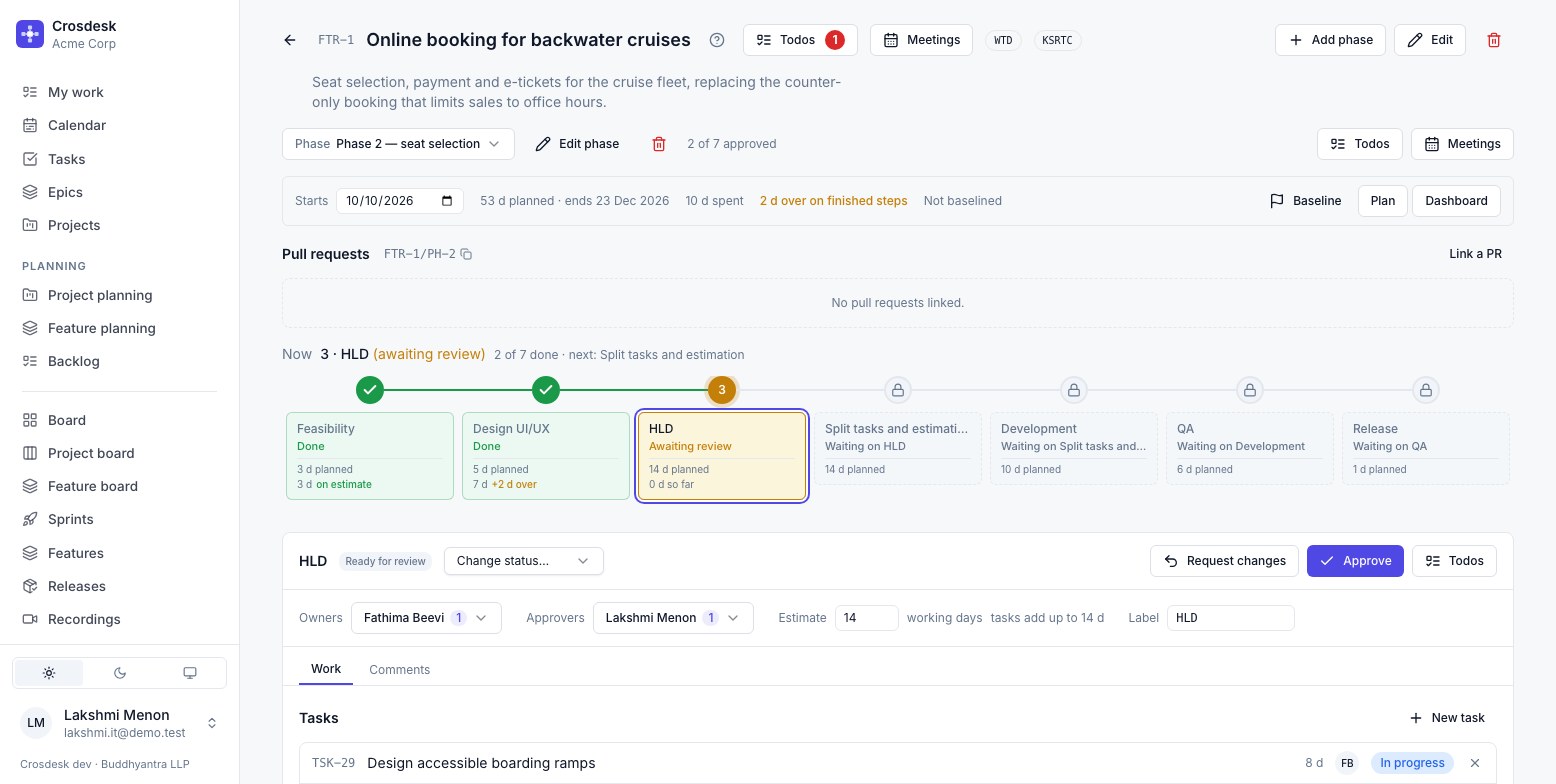
- Approve marks the step Done and moves the next step to In progress. Open issues stop this too — they are often logged during review.
- Request changes needs a comment saying what, and hands the step back to its owners. There is no reject: work comes back with a reason. The step's clock keeps running through the rework.
9. Log and settle issues
On a step that allows them, Log issue records what was found — a title and the department that should see it — and the issue opens to be assigned, prioritised and described.
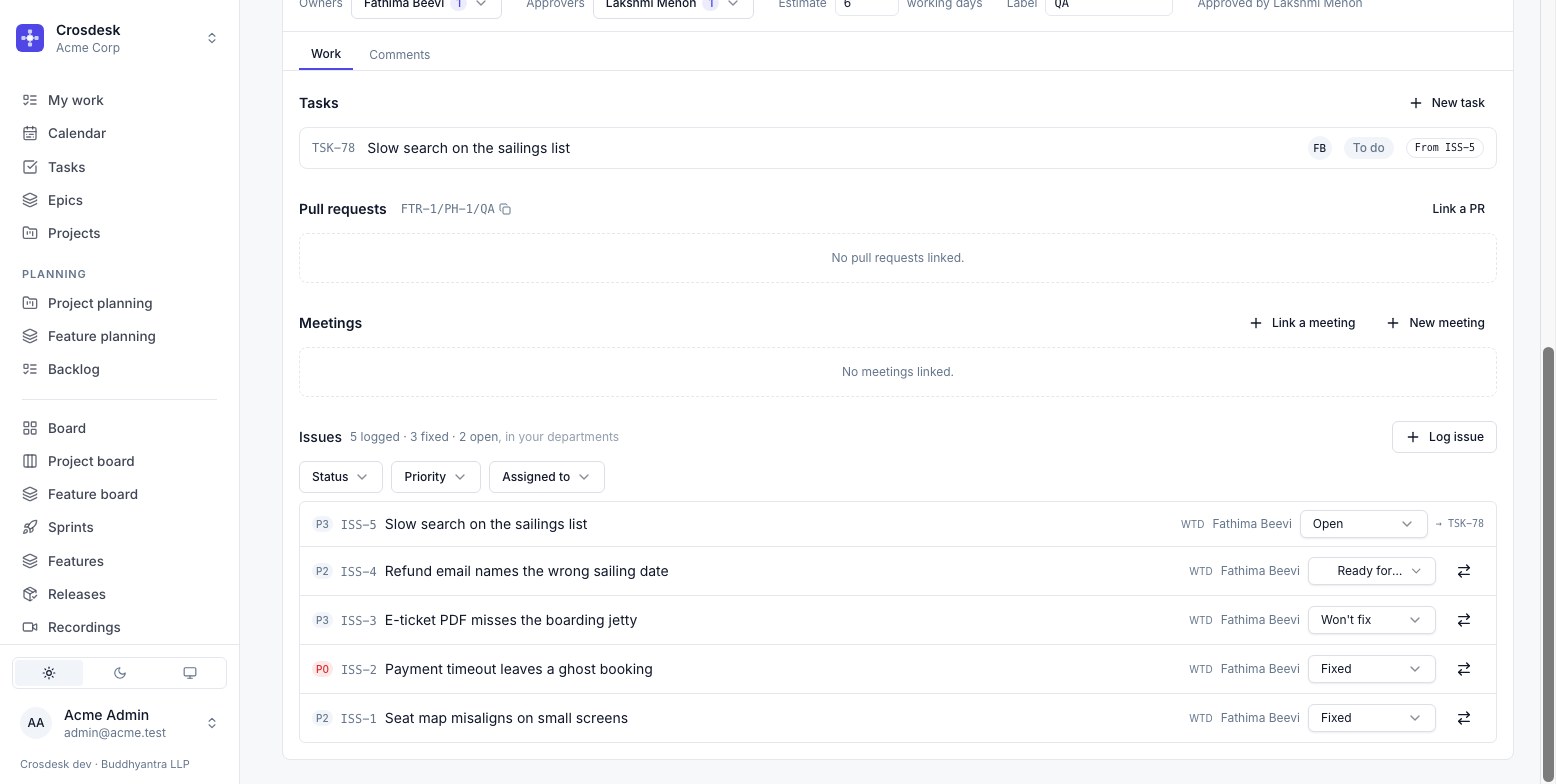
Issues move Open → In progress → Ready for testing → Fixed, or to Won't fix. Ready for testing still counts as open — a fix nobody has confirmed is not fixed. When the fix is real work, convert the issue to a task: the issue closes as won't fix with a link to the task, which carries the work into sprints and onto this phase's board. The tally — 5 logged · 3 fixed · 2 open, in your departments — counts only issues you can see.
10. Follow it on the dashboard
Reports → Feature dashboard, or Dashboard on the phase line. What each phase promised, against what it is costing.
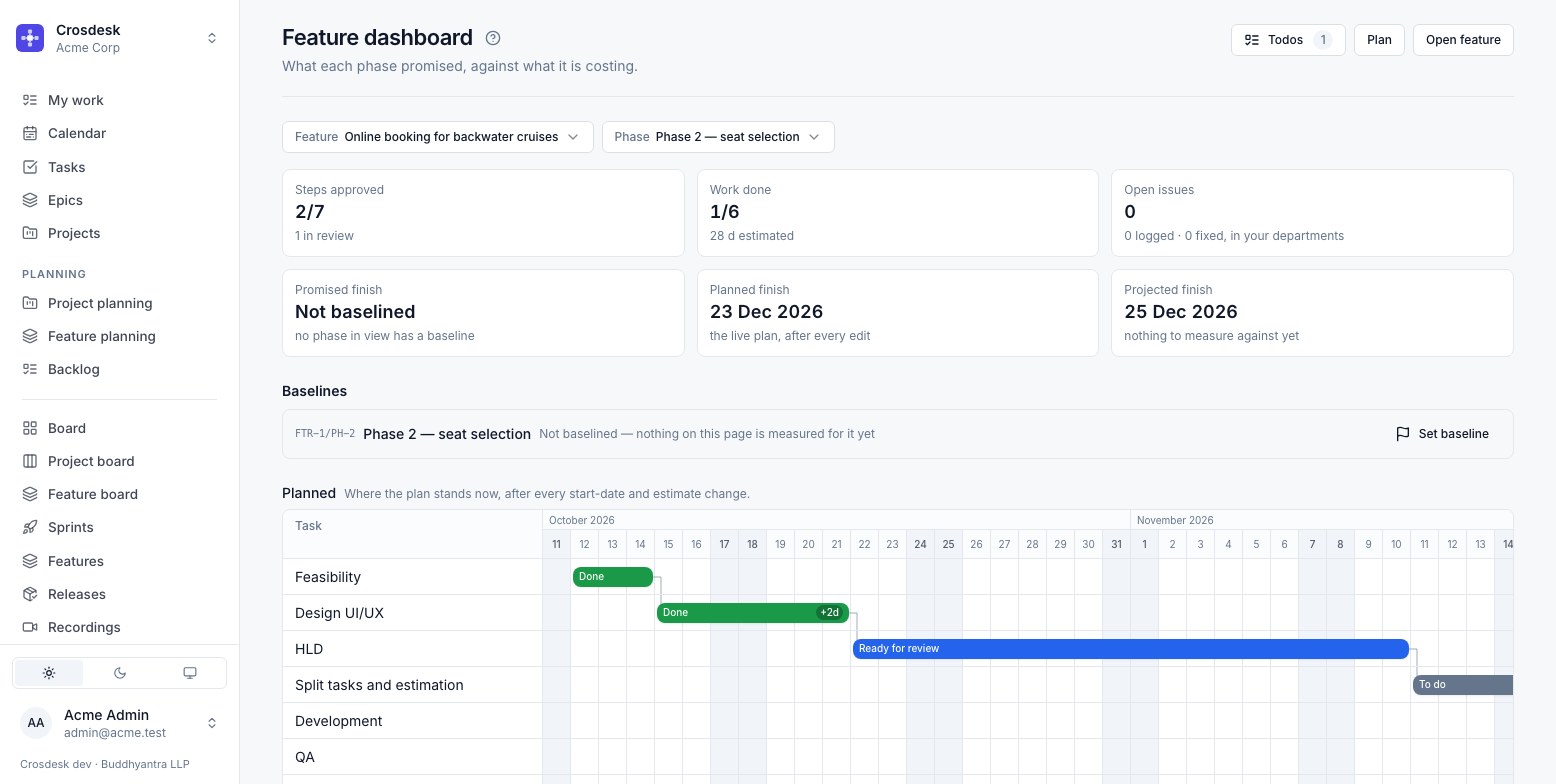
Promised is the baseline, Planned the live plan after every edit, Actual what really happened. How the plan moved lists each slip with its cause, each estimate change and each baseline. A phase never baselined says so — Not baselined — and its variances stay blank rather than reading zero; Set baseline is there for people with project management.
11. Ship it, and run the next round
- Approving the last step marks the phase Done. Add the phase to a release — in any status, so a release can be assembled while the round is still running. Shipping the release finishes every task it carries, but changes no phase: the phase is done when its steps are approved. Phase 1 above shows Released in 1.4.0.
- Add phase (project management) starts the next round: a name, and a description of what makes it different from the last. It copies the step list with its owners, approvers and estimates, as they stand.
- Set the new phase's Starts, adjust estimates, and either Baseline it or let its first step's start take the baseline — then work it exactly as above.
Related
- Features — every rule behind these steps
- Releases — what a phase ships in
- Reports — the feature dashboard in full
- Linking pull requests —
FTR-1/PH-2/HLDand friends - Running a project — the other kind of long-running work