Appearance
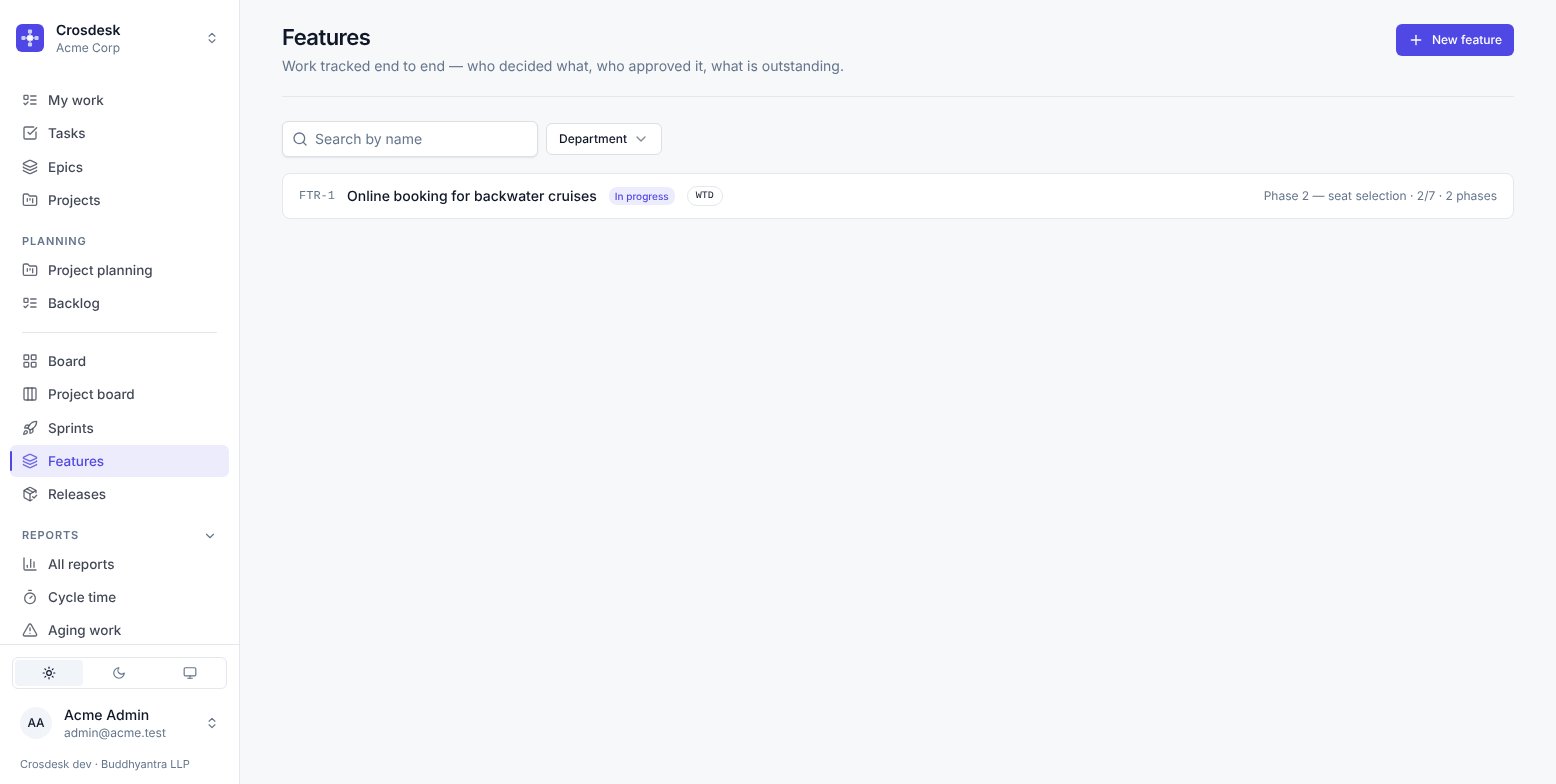
Features
Work tracked end to end — who decided what, who approved it, and what is outstanding.
Videos
A feature is for work too long and too consequential for a single task: it runs for months, passes through several hands, and somebody will later ask who signed off on what.
New to features? Running a feature, step by step walks one through a whole round with pictures; this page is the reference for every rule along the way.
Phases and steps
A phase is a round, not a grouping. Phase 2 runs the whole step list again, with its own statuses and its own approvals. "Phase 1 — counter replacement" and "Phase 2 — seat selection" are two complete passes through the same process.
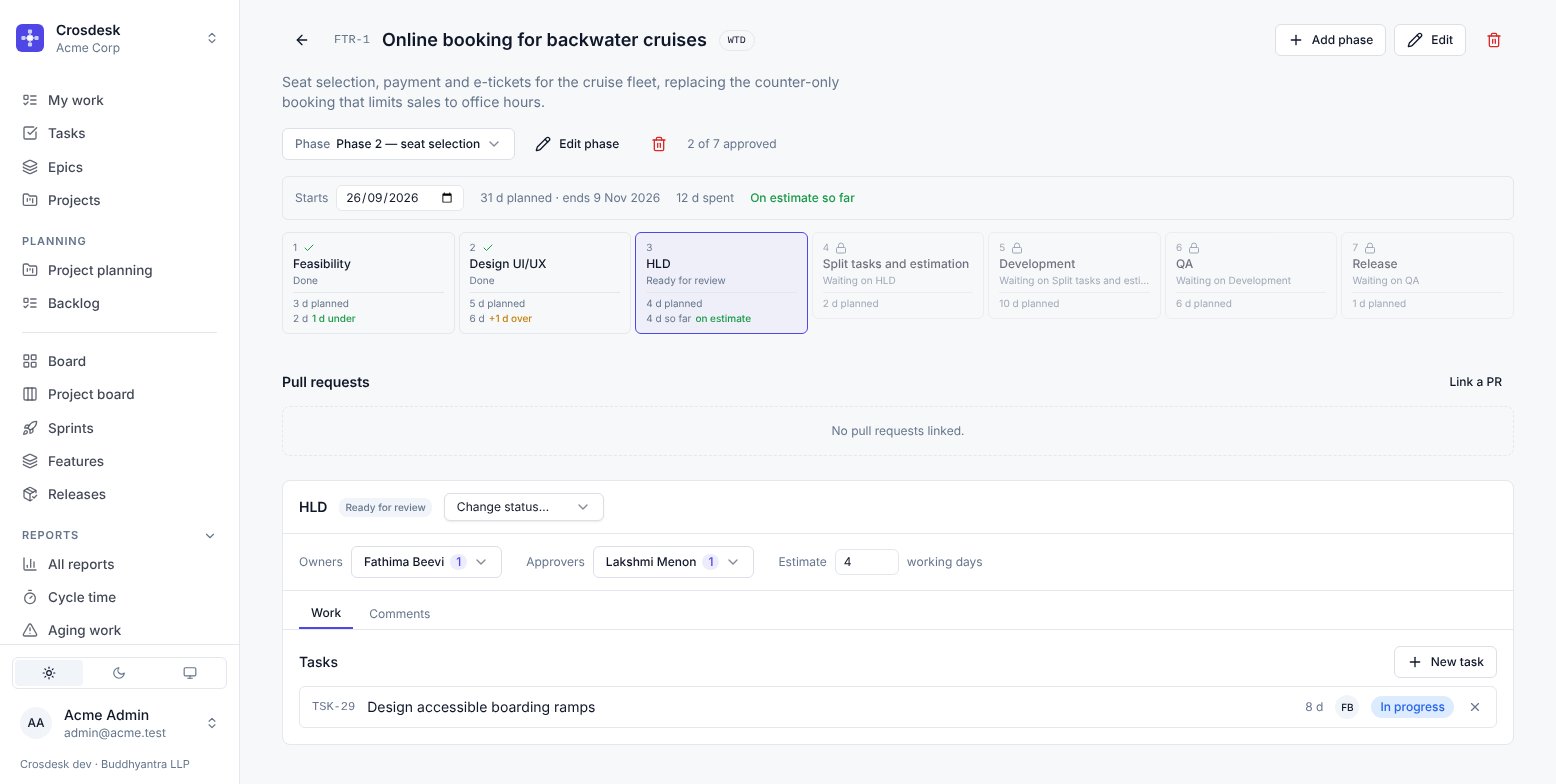
The rail across the top is the selected phase's steps. A tick means approved; a padlock means the step is waiting on an earlier one. Under each step is its estimate and, once it has started, how long it actually took — see The timeline.
Add phase opens a dialog for a name and a description, and the page switches to the new round once it is made. The description is worth filling in: a phase repeats the same step list, so "Phase 3" on its own says nothing about what makes it different from Phase 2. Edit phase changes both later.
Deleting a phase removes that round and everything inside it — its steps, their comments and issues. The other phases are untouched, and linked tasks survive as ordinary tasks. A phase that a release carried is refused: removing it would change what a shipped version says it contained. The phase shows Added to release while that release is a draft, and Released in after it ships.
Creating a feature
New feature asks for a name, departments and the step list. The steps come from a template, and you edit them into whatever this feature needs.
Templates
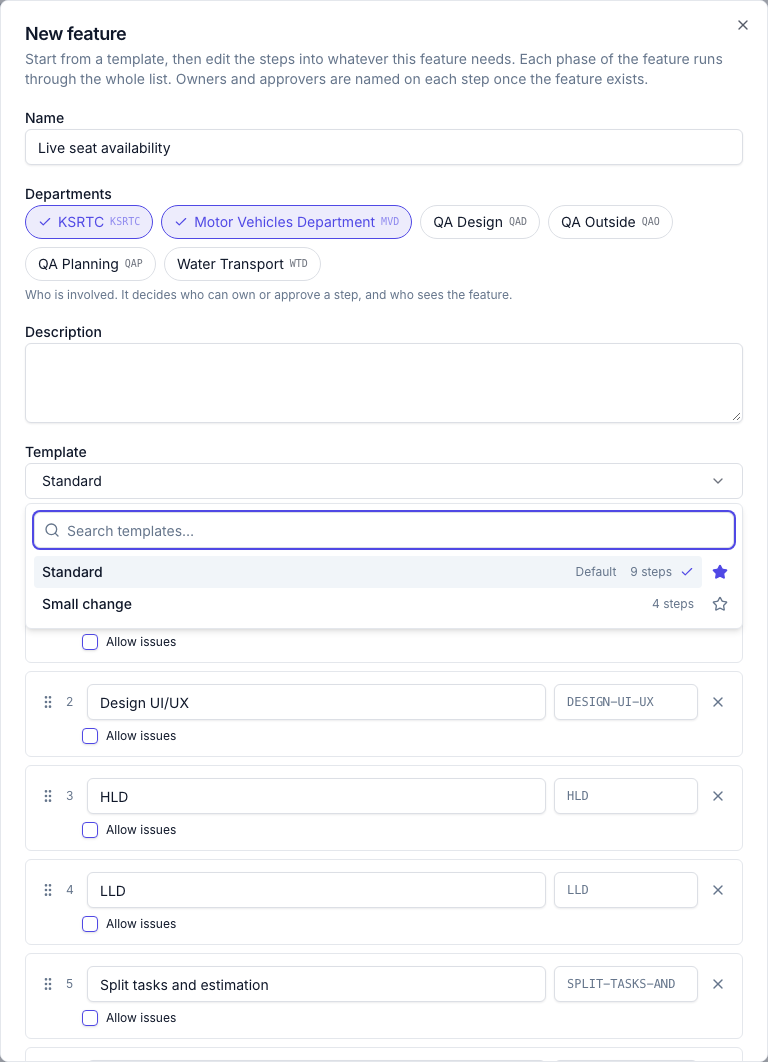
The Template field opens on your workspace's default and lists every template, with a search box. Choosing one replaces the steps below; once you change them, the field says edited. Every workspace starts with Standard — Feasibility, Design UI/UX, HLD, LLD, Split tasks and estimation, Development, Code review, QA, Release — as its default.
Save as template, above the steps, keeps the list as it stands under a name you give it — each step's name, label and Allow issues. Tick Make it the default for new features to have the next New feature open on it. Names are unique in the workspace.
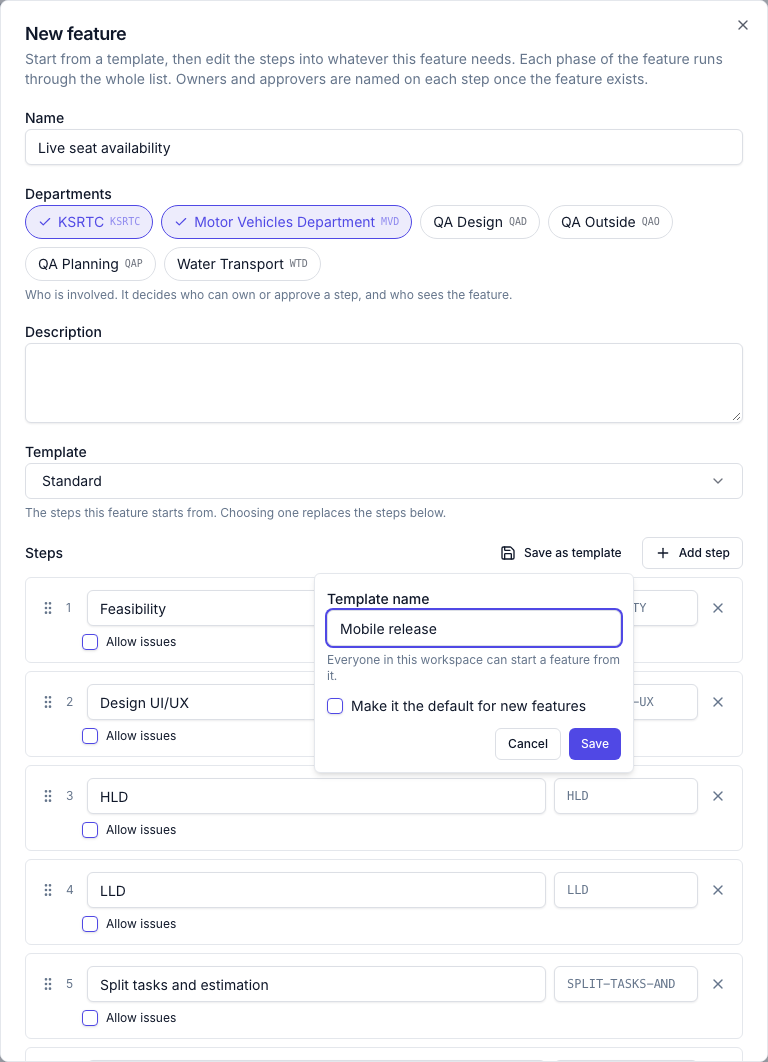
The star on a template's row makes it the default. There is always exactly one.
Templates belong to the workspace, not a department: everyone in it sees all of them. Saving one and choosing the default need the project management permission, like creating a feature.
A feature copies the steps it was created from and keeps no link to the template, so nothing that later happens to a template changes a feature that exists.
Each step has a label: what a pull request writes to name it, such as HLD in FTR-7/PH-2/HLD. Leave it empty and it's made from the name: Design UI/UX becomes DESIGN-UI-UX. Labels are uppercase letters, digits and hyphens, up to sixteen, and each step in the list needs its own. You can change a step's label later, on the step. The next phase starts with the new label, and phases already under way keep theirs.
Each step has one switch, Allow issues: things can be logged against this step. It is on for QA by default. A step's work is the tasks linked to it — a step does not carry a project.
Drag the handle to reorder, or focus it and press Alt+↑ / Alt+↓.
Owners, approvers and estimates are not set here. Naming people and guessing durations for nine steps before the feature exists is the slowest part of starting one, and the part most likely to be wrong. You set all three on each step afterwards, and what you set carries into the next phase — so the second round starts from what the first one learned.
The stages of a phase
A phase draws its stages as a track, one marker per stage, so where the round has got to reads at a glance:
- Done: a green marker with a tick, and the line up to it filled in green.
- Now: the stage being worked on, its marker filled in its status colour with a halo — blue In progress, amber Awaiting review or On hold, red Changes requested.
- Up next: the first stage still to do, hollow and outlined.
- Later: hollow and dashed. A stage that cannot start yet shows a padlock and the stage it is waiting on.
The line above the track says the same in words — Now 3 · HLD (awaiting review) · 2 of 7 done · next: Split tasks — because colour alone is not an answer. The stage you have open has a ring around its card; open any stage by clicking it.
The phase's pull requests sit above the track: they belong to the round as a whole, not to the stage you have open.
The timeline
Steps run strictly in order, so one start date plus an estimate per step lays the whole round out. Set the phase's Starts date and give each step an estimate in working days, and Crosdesk computes the rest — routing around weekends and holidays, using the same working calendar a project canvas does.
Each step card then shows two lines:
3 d planned
8 d  +5 d over
The first is the estimate. The second is what it actually took and how far past the estimate that is — amber when over, green when under or exactly on it. A step still running says "8 d so far" rather than implying a final number.
A step's clock starts when it first leaves To do and stops when it is approved. A step sent back with changes requested and picked up again keeps its original start, so the figure covers the rework rather than restarting the count.
Estimates are optional
Nothing refuses to start a feature over a missing estimate — a step with no estimate simply is not on the timeline, and the ones after it say "waiting on an earlier estimate". That differs from a project canvas, which refuses to Verify an unestimated card, because a canvas exists to produce dates and one gap makes the whole plan wrong. A phase runs in order whether or not anyone estimated it.
While any step is unestimated, the phase's totals are withheld. No "31 d planned · ends 17 Nov" appears, because a total over six of seven steps is not a smaller plan — it is an unknown one, and a partial figure invites being read as the whole answer. The bar says how many are missing instead.
The phase line
Once every step is estimated, the bar across the top reads:
31 d planned · ends 17 Nov 2026 · 29 d spent · 12 d over on finished steps
"On finished steps" is doing real work there. The variance counts only steps that are approved — adding a half-run step would show every phase over-running on its first morning, since it has spent days and delivered none of its estimate yet.
Starting
A feature begins as a draft. Start feature begins it and moves the first step to In progress.
Every step needs an approver before a feature can start. Steps run strictly in order, so a step nobody can approve is a phase that can never finish. The refusal names the steps that are missing one. If a step genuinely needs no review, name its owner as its own approver.
Working a step
| Who | What they can do |
|---|---|
| Owner | Change status, link and create tasks, log issues, send for review |
| Approver | Approve, or request changes with a comment |
| Anyone who can see the feature | Read, comment, link a pull request |
Ready for review is the owner's handoff. Only an owner can send it — being a manager does not substitute, because the point of the gate is that the person doing the work says when it is done.
The approver then either approves — which marks the step Done and moves the next one to In progress — or requests changes, which needs a comment and hands it back. There is no reject: work comes back with a reason, it does not get thrown away.
Open issues stop the handoff
A step with open issues under it — Open, In progress, or Ready for testing — cannot be sent for review or approved. Pressing either button lists the open issues instead, with two answers:
- Review issues closes the list and takes you to the step's issues, so you can fix, test or close each one and press the button again.
- Move to won't fix and … closes every listed issue as Won't fix and then sends for review or approves, in one go. Each closed issue gets an audit log entry.
There is no "do it anyway": a step approved with defects still open under it is the thing this prevents. Approving checks again, because issues are usually logged during review. Only issues in your departments count — the same ones the issue list shows you — so an approver who sees more departments than the owner may be stopped by issues the owner never saw.
Steps run strictly in order
A step cannot leave To do while an earlier one is unapproved, and the timeline draws a padlock and names what it is waiting on rather than offering a control that would be refused.
Tasks on a step
Link an existing task or create one straight onto the step — or, from the task itself, choose the stage with the task's Feature field (see Tasks). The task carries a breadcrumb back — FTR-1 · Phase 2 — seat selection · HLD — so somebody who opened it from a sprint board can see it is part of a feature.
A task belongs to one step at a time, and only to a feature that involves its department.
A step's estimate and its tasks
A step is never estimated below the tasks linked to it. Beside the step's estimate, tasks add up to 12 d says what that floor is.
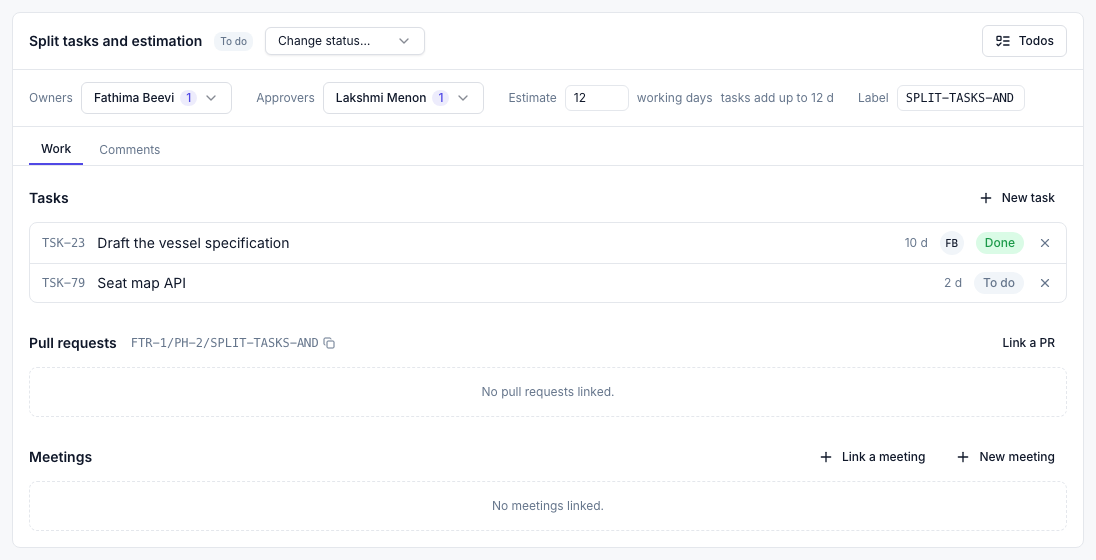
- A step with no estimate takes its tasks' total as soon as estimated work is linked to it.
- A step estimated below its tasks rises to their total — when a task is linked, created on the step, or re-estimated (a subtask's estimate counts through its parent, once).
- You cannot set a step below its tasks, or clear its estimate while they have one. The refusal says what they add up to.
- Nothing lowers it for you. Unlinking a task, or a task's estimate falling, leaves the step where it was: it may hold work no task names yet.
- Issues are not counted — nor the bugs converted from them. Fixing what review found is rework against the step's estimate, and is what the dashboard's variance is there to show.
Every change to a step's estimate, by a person or by its tasks, is written to the history on the feature dashboard — HLD was re-estimated, 3 d → 5 d or HLD grew to cover its tasks, 3 d → 5 d — in a draft feature too. The baseline does not move with it.
Issues
On steps that allow them. An issue is something found — a QA defect, most often. It has a number (ISS-9), a title, a department, a priority and an assignee. Issue numbers are shared with a release's QA issues, so ISS-9 names exactly one issue in the workspace.
Log issue asks for the title and the department only — the department decides who can see it. The issue then opens, and the rest is set there: status, priority, Assign to (people in the issue's department, or nobody), the description, recordings and files.
Its status moves Open → In progress → Ready for testing → Fixed, or to Won't fix at any point. Ready for testing means the fix is in and someone other than the fixer should confirm it. It counts as open in the tally: a fix nobody has confirmed is not yet a fixed issue. Won't fix counts as dealt with — it was looked at and deliberately left.
Converting an issue to a task keeps the issue. The issue is marked converted and linked to the new task. Deleting it would make the tally stop adding up the moment somebody deferred one, and the tally is the whole value of the panel.
Converting closes the issue as Won't fix — the task carries the work from there, so the issue no longer holds the step's tally open. An issue already Fixed stays Fixed. The task shows From issue with the issue's title, which opens the issue on a page of its own; a recording's link to an issue opens that page too.
The issue's recordings are linked to the task too, and stay on the issue. Whoever fixes the bug finds them on the task, and the open task keeps them until it is done — closing the issue alone would have started their thirty days. A recording that was deleted is left behind.
Filter the list by Status, Priority and Assigned to — you are listed first, so my issues is one click. The filters are kept in the address, so a link shows what you saw.
The tally reads "14 logged · 9 fixed · 5 open, in your departments" — and says in your departments because issues carry a department and are filtered to yours. Two people on the same step can honestly see different totals.
An issue can carry recordings — open it and use Link screen recording, or Record this bug to record one already linked. A recording linked to an issue can go thirty days after the issue is fixed or set to won't fix; Ready for testing keeps it, because the tester checks the fix against it. See Recordings.
Pull requests on a phase, a step or an issue
A round of work ships as a round, so pull requests usually link to the phase. A pull request that is one step's work can link to the step, and the fix for an issue to the issue. Anyone who can see the feature can add a link to a phase or a step; an issue's links follow the issue's department.
Each one shows the reference a pull request writes to link itself, with a copy button:
FTR-7/PH-2for phase 2. Phases are numbered 1, 2, 3 in the order they were added.FTR-7/PH-2/HLDfor that phase's HLD step.ISS-9for an issue.
FTR-7 on its own links to the current phase. See Linking pull requests.
Editing and deleting a feature
Edit changes the name, description and departments. Departments matter most: they decide who can see the feature and who may own or approve a step, so a feature created against the wrong one is corrected here rather than by starting again.
Delete asks first, and says what goes — the feature with every phase, step, comment and issue in it. Tasks linked to its steps are not deleted; they go back to being ordinary tasks.
Permissions
Everyone can see a feature in their departments and work the steps they are named on. Creating a feature, editing it, adding, editing or deleting a phase, and deleting the feature need project management.
Related
- Releases — a finished phase is what a release carries
Todos and meetings
The feature, the phase and each stage have their own Todos and meetings:
- The feature — Todos and Meetings beside its name. Meetings opens a window with the meetings linked to the feature, Link a meeting and New meeting.
- The phase — the same two buttons at the end of the phase's line, beside the phase picker.
- A stage — Todos at the right of the stage's header, and a Meetings section under the stage's Pull requests, in the same shape: the linked meetings, or No meetings linked.
Meetings you are not on show only as a count. Linking work does not grant diary access. A stage's reference — FTR-1/PH-2/HLD, the text a pull request names to link itself — is shown beside its Pull requests. See Todos and Calendar and meetings.
Planning a feature into sprints
Planning → Feature planning lists the features that are drafts or running, in departments you are in. Open one to plan its work into your sprints.
Choose a department first. A sprint belongs to one department, so "which sprint does this go in" has no answer until you say whose sprints you mean; only the feature's departments that you are also in are offered. Then choose a phase — one at a time, and always one: the page opens on the earliest phase that is not done (the last phase, once all are), and the choice cannot be emptied.
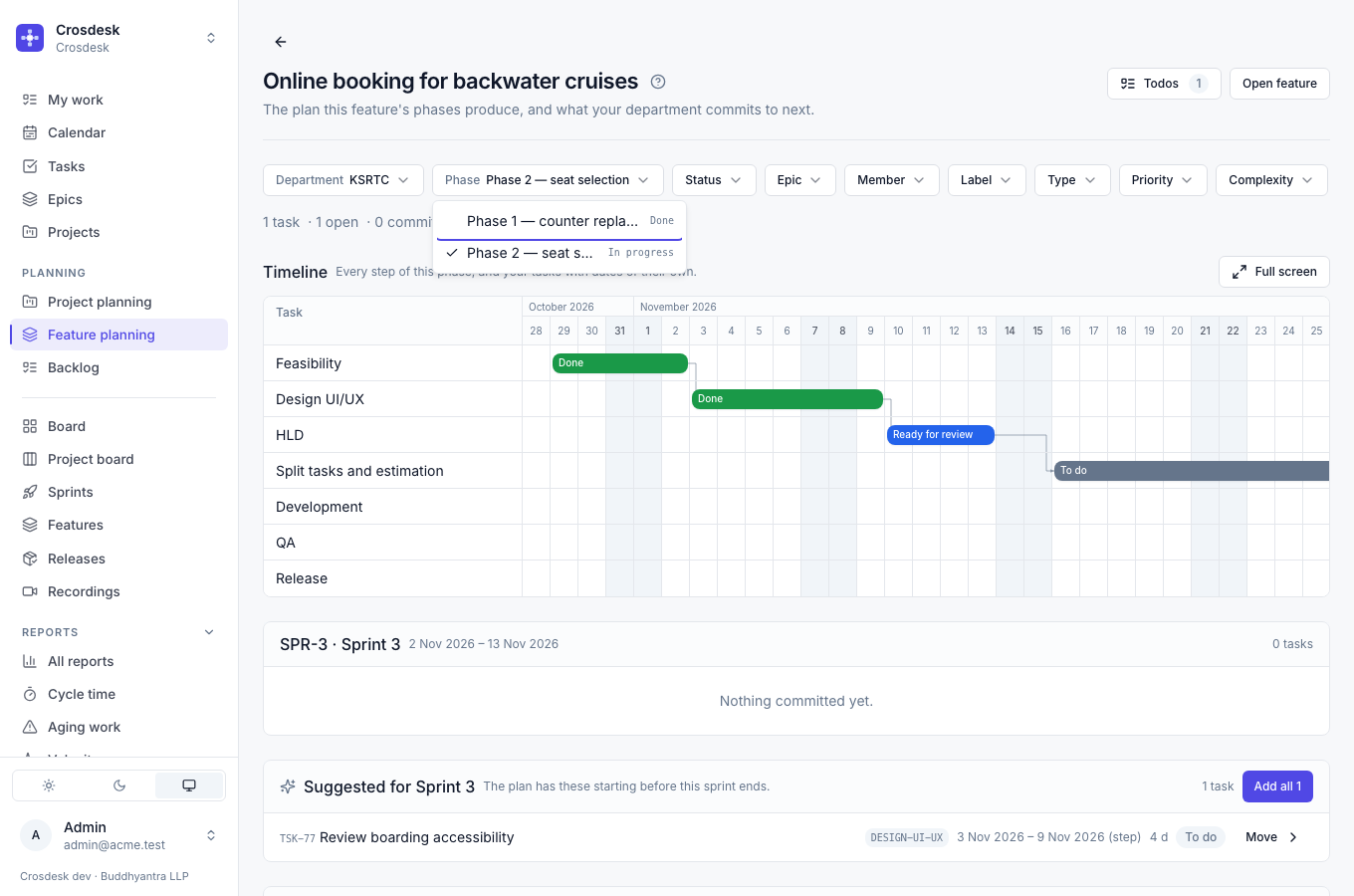
The page shows:
- Timeline — every step of the chosen phase, laid out from each phase's start date and the steps' estimates, plus any of your tasks that already have dates from a verified project. Click a step to open it.
- Your sprints — the running sprint (shown, never changed), then each upcoming one, with what it holds. Will not fit marks committed work whose dates now start after the sprint ends — usually because a phase's start date moved.
- Suggested — backlog work the plan puts before an upcoming sprint ends. Add all commits it. Blocked, on-hold and unestimated work is never suggested.
- Backlog — your department's uncommitted work on this phase, under the step it serves.
- Done, folded away, and Other departments — how much work the other teams hold on this phase, as totals.
What counts as a step's work: tasks linked to it, bugs converted from its issues, and the subtasks of either. A row shows the step it serves, and From ISS-9 when it came from an issue.
Where a task's dates come from. A task on a verified project has dates of its own, and those are used. Otherwise it takes its step's planned window, marked (step). With no window at all the row says why: Phase not scheduled, Step not estimated, or Waiting on an earlier estimate. A phase that cannot be laid out is also named once above the timeline — Phase 2 has no start date — set one; and Build has no estimate — with links to where each is fixed, and marked no start date or not estimated in the Phase picker. The feature dashboard shows the same line.
Moving work into a sprint is ordinary planning and needs no permission, as on the backlog.
The baseline
A phase's baseline is its promise: each step's planned window and estimate, recorded at one moment. The live plan moves whenever someone changes the phase's start date or an estimate; the baseline does not. The feature dashboard measures what happened against it, which is why its variances are blank until a phase has one.
- Baseline on the phase line takes one (workspace project management permission). It needs a start date and an estimate on every step, and names the steps that are missing one.
- When a phase's first step starts, a baseline is taken automatically if the phase has none and can be baselined. Starting is never refused for want of one. It is taken by whoever starts the step — for a later phase usually its owner, who need not have project management — and is recorded under their name, marked on the dashboard as taken on start. It never replaces a baseline that exists.
- Re-baseline replaces the promise — the way a team says the old dates no longer apply. Like Baseline, it needs project management: an owner can start a round, and so take its first promise, but never move one. Both are logged on the dashboard, with who did it.
The phase line also links to the phase's Plan and Dashboard.