Appearance
Documents
Specs, scopes and notes that sit beside the work they describe. A document lives in a department's folder, has a draft its editors write, and versions they save and release. Everyone in the workspace can read every version, so a version can be reviewed before it is released.
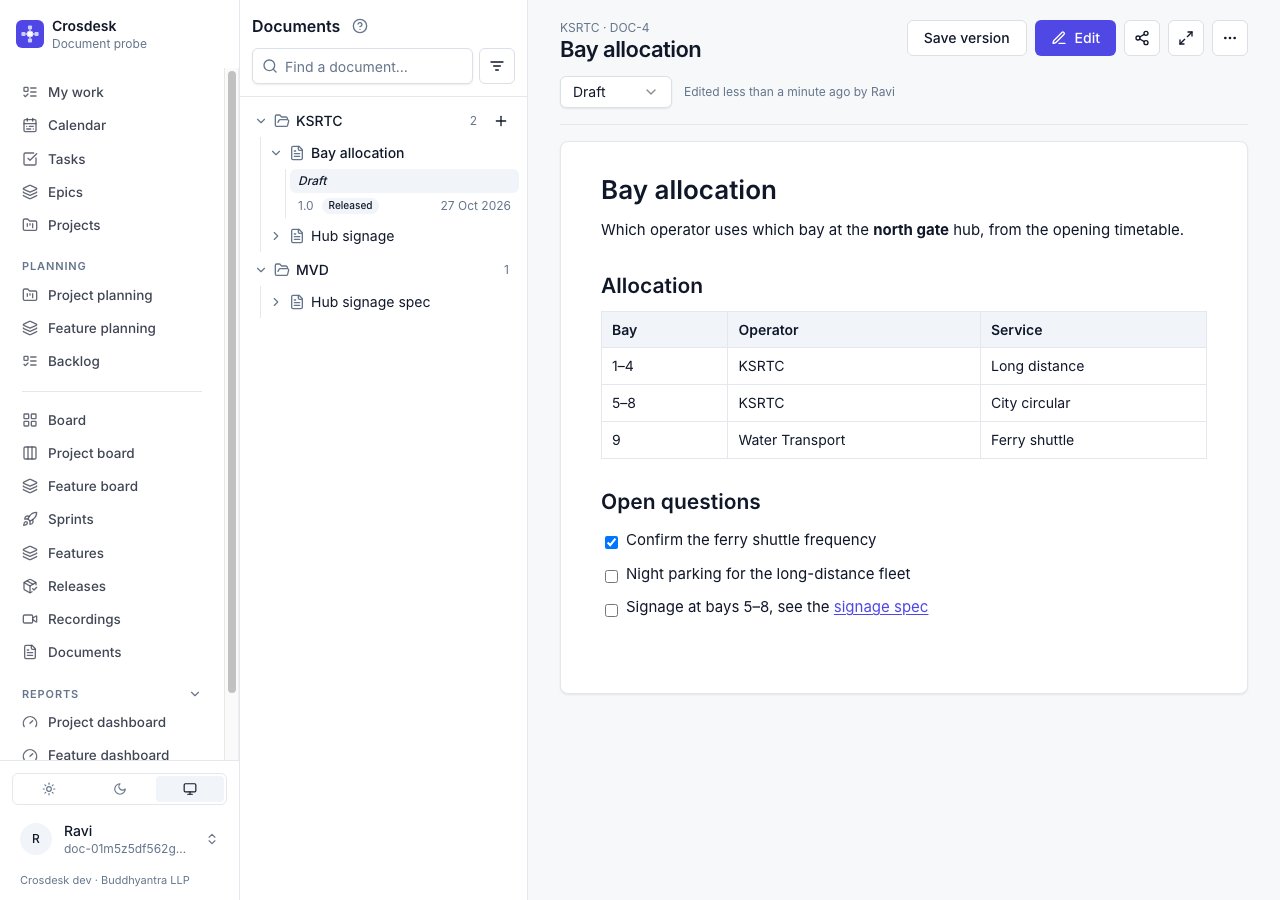
The explorer
Documents in the menu opens the explorer on the left and the open document on the right. The top level is the workspace's departments. Under each are its documents, and under each document its versions: Draft first, then the saved versions, newest first (v1.1, v1.0), with a small released mark on the ones that have been released. A name too long for the column ends in an ellipsis; point at it to read it whole.
- Find a document… narrows the tree to matching names and references (
DOC-12). - The filter button beside the search has Show only archived. While it is on, the button carries a dot.
- The + beside a department creates a document there. It appears on departments you belong to; an admin sees it on every department.
On a phone, Browse documents opens the explorer as a panel.
Creating a document
Choose + beside the department and give the document a name. A name must be unique within its department; two departments may each have a Budget. You become the document's owner and its first editor, and its draft opens, empty.
Writing the draft
Choose Edit on the draft. The toolbar has everything a document can hold:
| Toolbar | Shortcut |
|---|---|
| Text style: Paragraph, Heading 1–3 | Ctrl+Alt+0–3 (⌘⌥ on a Mac) |
| Bold, Italic, Strikethrough, Inline code | Ctrl+B, Ctrl+I, Ctrl+Shift+S, Ctrl+E |
| Link | Ctrl+K |
| Bulleted list, Numbered list, Checklist | Ctrl+Shift+8, Ctrl+Shift+7, Ctrl+Shift+9 |
| Quote, Code block (with a language), Divider | |
| Table, and rows and columns once you are in one | |
| Undo, Redo | Ctrl+Z, Ctrl+Shift+Z |
You never type formatting characters. ## or *word* stays exactly as typed. Text pasted from a web page or a word processor keeps its headings, lists, links and tables; colours, fonts and alignment are dropped, because a document cannot keep them.
The draft saves as you type; the header says Saving… and Saved. Choose Done when you stop.
One editor at a time. While you edit, the draft is yours: other editors see Mona is editing the draft and cannot start until you choose Done, or two minutes after you stop. If somebody takes over after that, or an admin discards the draft, your editing stops and says why. Nothing is written over anyone's work.
Images
Image on the toolbar adds pictures; you can also paste or drag them in. PNG, JPEG, GIF and WebP, up to 2 MB each unless your operator has set another limit. An image is stored with the workspace's files and shown to everyone who can read the document. An image pasted from another website as a link is not loaded — a placeholder shows where it was; download it and add it instead.
Taking an image out of the draft deletes it once nothing else shows it: a saved version keeps the images it shows for as long as it exists. An image added in the last two minutes is kept until you choose Done, in case the text naming it has not been saved yet.
Saving a version
Save version turns the draft as it is now into a numbered version that never changes. You choose the number:
- It starts at the next minor version —
1.0for the first,1.3after1.2. - Next minor and Next major (
2.0) fill it in, or type another. - It must be two whole numbers with a dot (
1.0,2.10), and higher than every saved version. - What changed is optional and shows beside the version.
The draft stays as it is, ready for the next change. Saving is refused when nothing has changed since the last version.
Releasing
Open a saved version and choose Release. Any saved version can be released, and more than one may be. The current release is the highest released version — what a plain link to the document opens. A release cannot be withdrawn; to replace it, release a later version.
Links and sharing
The Copy link button copies a link to the version on screen:
…/documents/DOC-12?version=1.3opens version 1.3.…/documents/DOC-12?version=draftopens the draft. It may have changed by the time it is read.…/documents/DOC-12opens the current release.
If a link names a version that does not exist, the current release opens with a line saying so. A plain link to a document with nothing released yet shows Not found; its draft and saved versions still open from the explorer.
Full screen hides the explorer and the menu; Escape leaves it.
Comments
Anyone in the workspace can comment on any version, the draft included, so a version can be reviewed before it is released.
- To comment on a passage, select it; a comment button appears in the right-hand margin beside it.
- To comment on a whole line, point at the line and choose the comment button beside it.
- While editing, Ctrl+Alt+M (⌘⌥M on a Mac) comments on the selection, or on the line the cursor is in.
Comments are hidden until you ask for them. The Comments button in the header shows how many threads are unresolved, in red while there are any; choosing it shows the panel and highlights the commented text. Starting a comment shows them too.
Each thread starts closed, showing the quoted line, who started it and their first comment. Choosing it opens the whole thread and scrolls to the text; opening another closes it, and the arrow at its top closes it again. Choosing a highlight opens its thread. On a narrow screen the panel opens as a sheet from the side.
Anyone can Reply. Whoever started a thread, and the document's editors, can Resolve it and Reopen it. You can edit or delete your own comments; a deleted comment with replies stays as Comment deleted, and a thread with nothing left in it disappears.
Comments stay on the version they were made on. A saved version never changes, so its comments never move. On the draft, a comment follows its text as the draft is edited; if that text is deleted, the thread is marked Outdated and stays until someone resolves it. Saving a version does not copy the draft's comments to it.
Only pending hides resolved threads, and Hide comments (the crossed-out eye) puts the panel and the highlights away again. Both are your own view and are kept in the link you share. An archived document's comments can be read but not added to.
Linking documents to work
A document can be linked to the work it describes — tasks, issues, projects, features, phases, stages and releases. A link always opens the document's current release, so only documents with a released version can be linked.
- From the work: the Documents section, beside Pull requests, has Link document. Search by name or reference (
DOC-12); only released documents are offered. - From the document: Linked work, below the page, has Link work — the same picker as a meeting's, with releases as well. It is available once a version has been released.
Opening a linked document selects it in the explorer, with its current release marked. A document with nothing released says No released version. A link shows only what you can see: work in a department you are not in is left out of a document's Linked work. Unlinking leaves the document and the work untouched.
Editors and the owner
More actions → Copy as Markdown copies the version on screen as Markdown text — while you are writing, the draft as it stands in the editor.
More actions → Editors lists who may edit. Editors write the draft, save versions, release, and rename or move the document. The owner and workspace admins add and remove editors, and can make another editor the owner. The owner cannot be removed. An admin who wants to edit adds themselves.
The pencil after the document's name — Rename or move — changes the name or the department. Moving needs the same right as creating: the department must be one of yours.
Discarding and archiving
Discard changes puts the draft back to the latest saved version, or empties it if nothing has been saved. Editors can do it, and so can an admin, to clear a draft somebody abandoned.
More actions → Archive document (owner or admin) takes the document out of the explorer and frees its name. Every version's text stays readable from its link and under Show only archived, and Unarchive document brings it back, unless its name has been taken in the meantime. Archiving a document deletes its images, from every version; they don't come back when it is unarchived.
More actions → Archive version (editors), on a saved version, takes just that version out of the explorer. It's never the version a link opens — if it was the current release, the next released version takes its place — and it can't be released or commented on, though its text stays readable from its own link. Images that only this version shows are deleted. Unarchive version puts it back in the list.
Asking an agent
An agent you have connected works with documents as you do, with your access:
- With Read work, it finds documents by name, reference or department, reads any version — the draft, a saved version, the current release — and lists the work a document is linked to, or the documents linked to a piece of work. "Summarise DOC-6", "Which documents are linked to REL-5?"
- With Change work, it creates a document in one of your departments, and, where you are an editor, writes the draft, saves a version and releases it, and links a released document to work or unlinks it. "Add a section on night parking to DOC-6's draft, then save it as 1.2".
It edits the draft under the same one-editor rule: it takes the draft, reads it, writes, and lets go, so it never writes over anyone's change. While someone has the draft open for editing, it is refused and tells you who has it. It can replace the whole draft or add to its end, in plain Markdown — headings, lists, checklists, tables, links. It can't add images, and an image its new text leaves out is taken out of the draft as it would be for you. Releasing cannot be withdrawn, so a well-behaved agent asks you first.
It can't comment on a document, archive one or archive a version — those stay with people. Everything it does is in the audit log as you, via its token's name.