Appearance
Calendar and meetings
Your Calendar contains meetings you organise and meetings you are invited to. Other people cannot read them, including workspace admins who are not invited. A meeting's work links do not give anyone access to its diary entry.
Your calendar
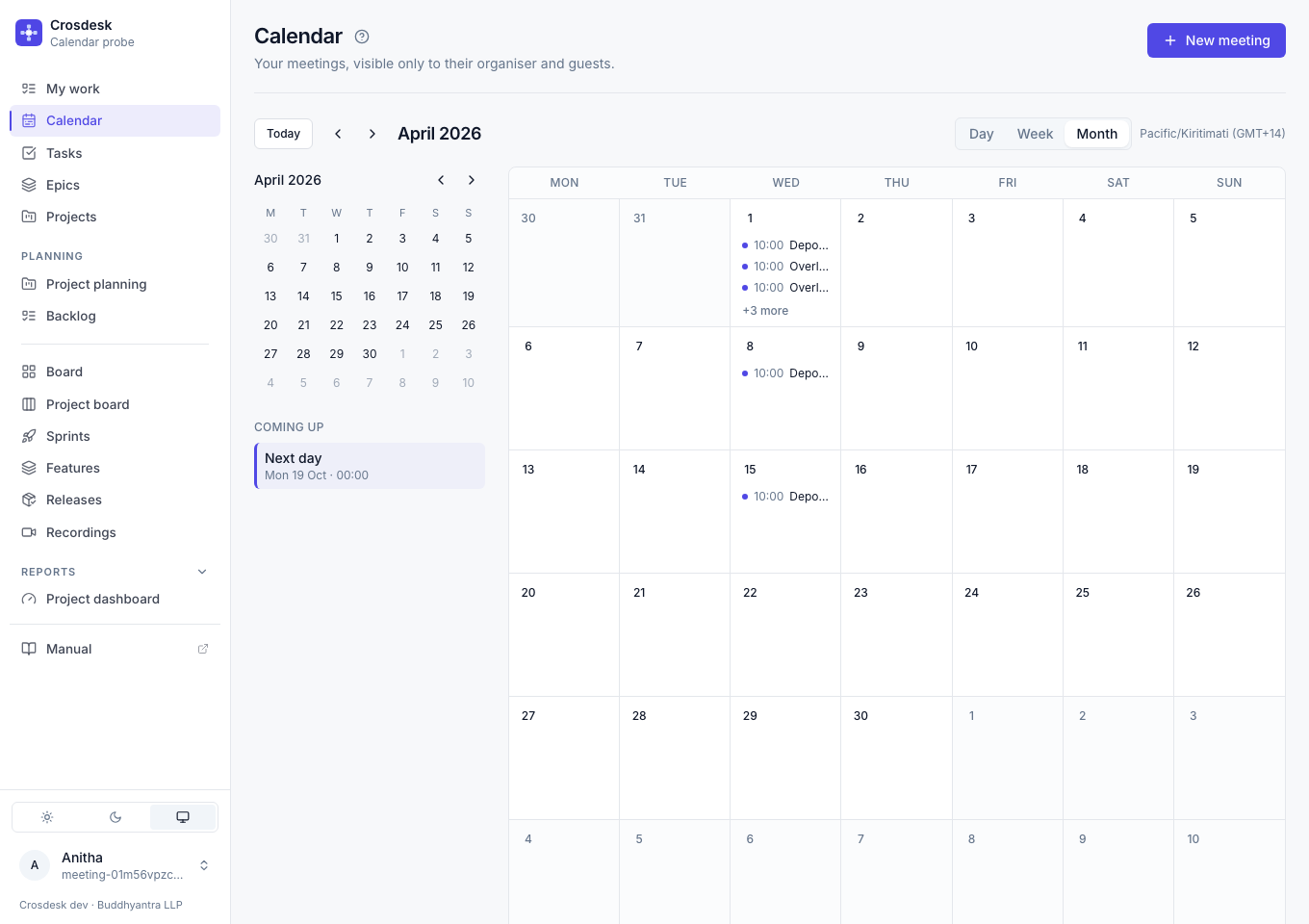
Choose Day, Week or Month at the top right. The arrows move through the dates, and Today returns to the workspace's current day. The period on screen is the heading beside them, and the time zone everything is shown in is named at the end of the line. The view and selected date are in the address, so you can bookmark or share that view.
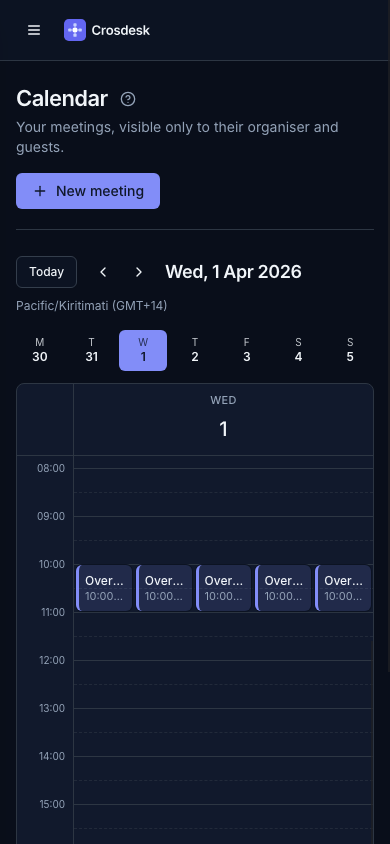
On a wide screen a small month sits on the left: choose a day to jump to it. Under it, Coming up lists your next meetings over the coming week. On a phone the calendar shows one day, with the week's days above it to tap.
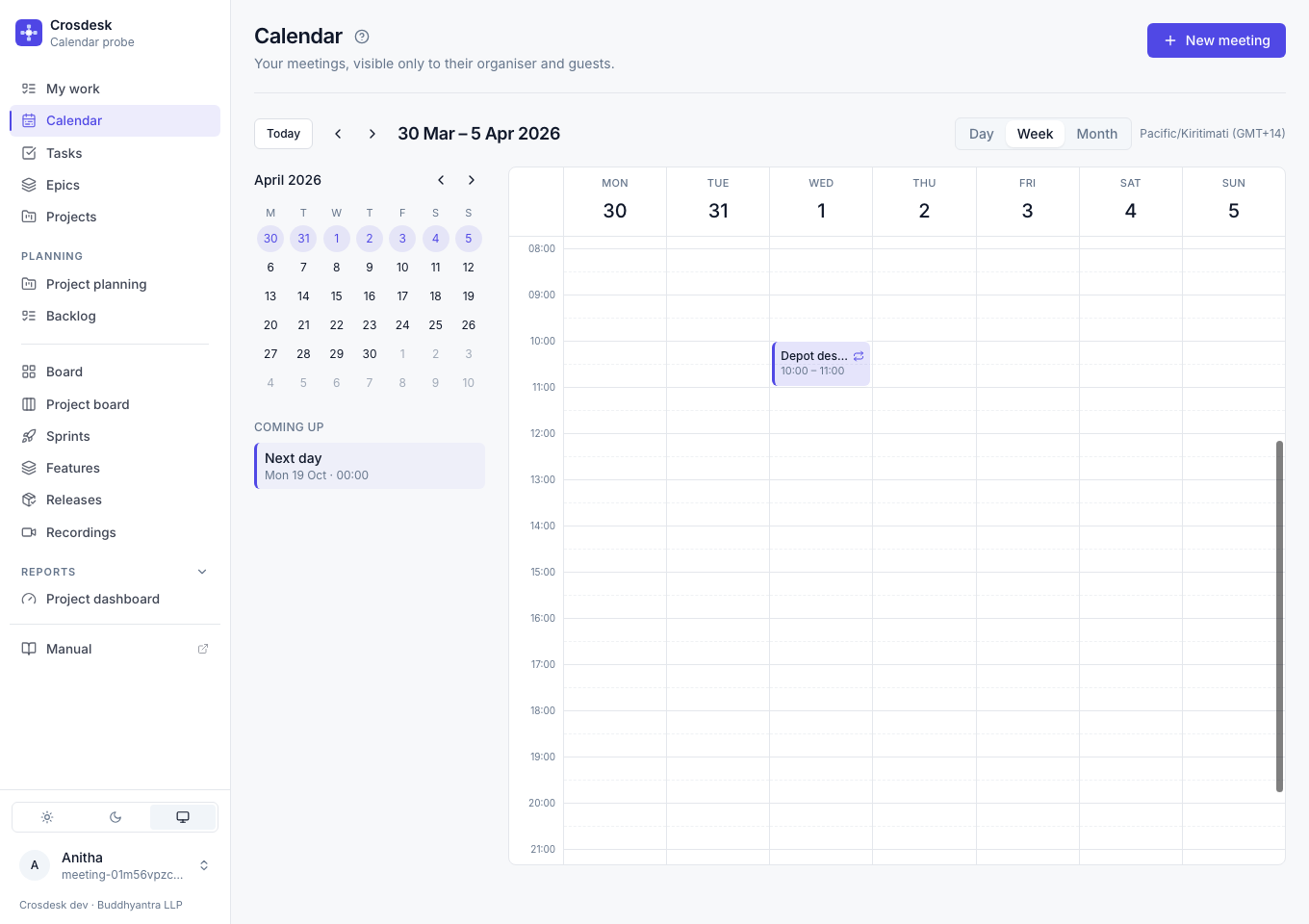
Week and Day show all-day meetings above the time grid. Meetings that overlap sit side by side; a short meeting shows its title and time on one line. Point at a meeting, in any view, to see when it runs, who organised it, and whether it repeats or has a video call. The red line with a dot marks the current time on today's column. Month shows up to three meetings per day with their times; choose a day's number or +N more to open that day, or anywhere else in the day to create a meeting.
Select a time slot (hovering shows the time it would start), an empty part of a month day, or New meeting to create a meeting. Enter its title, time and duration. Under Guests, choose Add guests to invite workspace members; each guest is shown by name, with × to remove them. Paste an https video-call link if there is one. Guests receive no email invitation; the meeting appears in their calendar.
Repeating meetings
Choose Repeat weekly, select the weekdays, then set Every N weeks and when it Ends: never, on a date, or after a number of meetings. The first meeting must fall on a selected weekday.
The meeting keeps the time zone it was created in. A 10:00 weekly meeting stays at 10:00 in that zone through daylight-saving changes. The calendar displays it on the workspace's current clock; the edit form names the series' stored time zone. If a scheduled time falls into a spring clock gap, it moves forward by that gap; an autumn time that occurs twice uses the earlier instant. All-day meetings follow local midnights, including 23-hour and 25-hour days.
Open, edit or cancel
Open a meeting to see when it runs — Mon, 12 Oct 2026 · 10:00–10:30 — its people, details and work links, or choose Join to open its video link. Edit opens the form in the same window; the back arrow returns to the meeting. Copy link copies the address of that occurrence. It shares the address, not access: someone who is not the organiser or a guest sees it as unavailable. Invite them to share access.
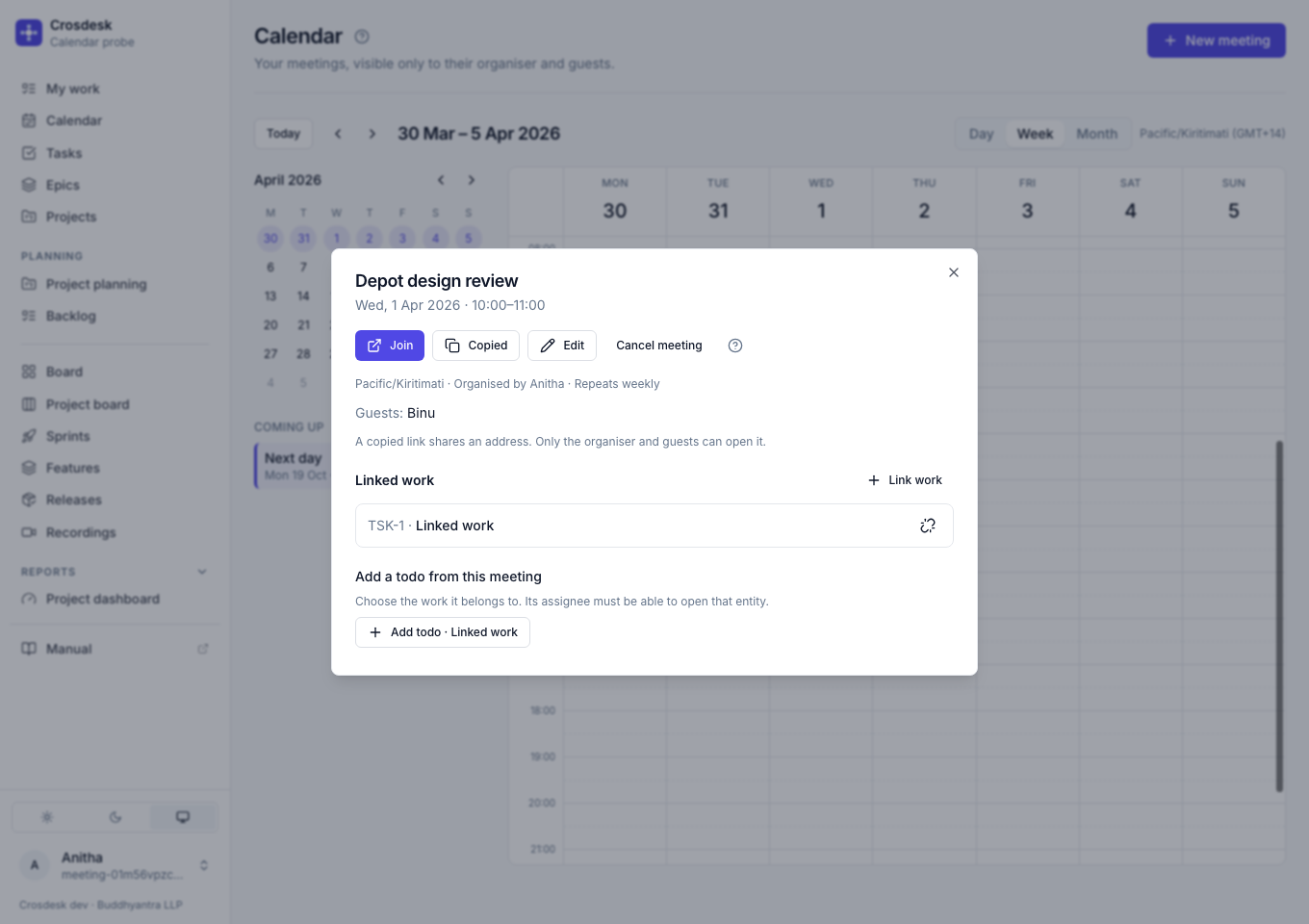
The organiser can edit or cancel. A workspace admin can also do so when invited. Other guests can read the meeting and manage work links they can see.
For a repeating meeting, choose:
- Only this occurrence to move its time, change its duration, or cancel it. Other details and guests belong to the series; choose one of the other scopes to change those.
- This and following to end the old series here and start a new one. With a count-limited series, the form starts with the remaining count. A later occurrence you moved or cancelled stays moved or cancelled in the new series, unless the new schedule no longer has it.
- All occurrences to change the series. Changing its schedule clears individual moves and cancellations; changing its title or description alone preserves them.
Cancelling a meeting keeps the todos it produced. A cancelled occurrence still counts towards a series' occurrence limit; it does not create an extra meeting at the end.
Link work and record actions
A meeting can link to tasks, issues, projects, features, phases and stages. Link work opens a search: choose the kind, then type. For Stage and Phase, typing a feature's name lists its stages, grouped under the feature and phase, in order, each with its status; typing a stage's name (HLD) lists that stage in every feature. Use the arrow keys and Enter, or click. Work already linked is ticked. Finished work is not offered: a done task, project, feature or phase, and an issue that is fixed or won't be fixed, are left out of the results. Under a phase still running, a done stage is listed greyed out with Done, so the phase reads whole, and cannot be chosen. Results come twenty at a time, newest first — type to narrow them. People on the same meeting may see different links, because the entity's own department rules still apply.
Tasks, issues and feature stages have a Meetings section — at the bottom of a task or issue, and under a stage's pull requests; a feature and a phase have a Meetings button that opens the same list in a window. Use Link a meeting to search past and upcoming meetings in your diary or paste a meeting link. Completed meetings are disabled here; open one from Calendar, choose Link work to link an unfinished task, then Add todo beside it. Use New meeting to create one already linked to that entity. The picker searches every non-cancelled series you organise or are invited to, without a date window; use More meetings for further results. Meetings you are not invited to are shown only as +N meetings you are not in, with no titles.
In a meeting, choose Add todo beside a linked entity. The todo stays on that entity, with the meeting attached. You can also choose a linked meeting when adding a todo on the entity. People who can see the entity but are not on the meeting receive no meeting title on that todo.
The audit trail records meeting changes without copying titles, descriptions, video links or people lists into it. Audit access does not grant diary access.
Meetings on My work
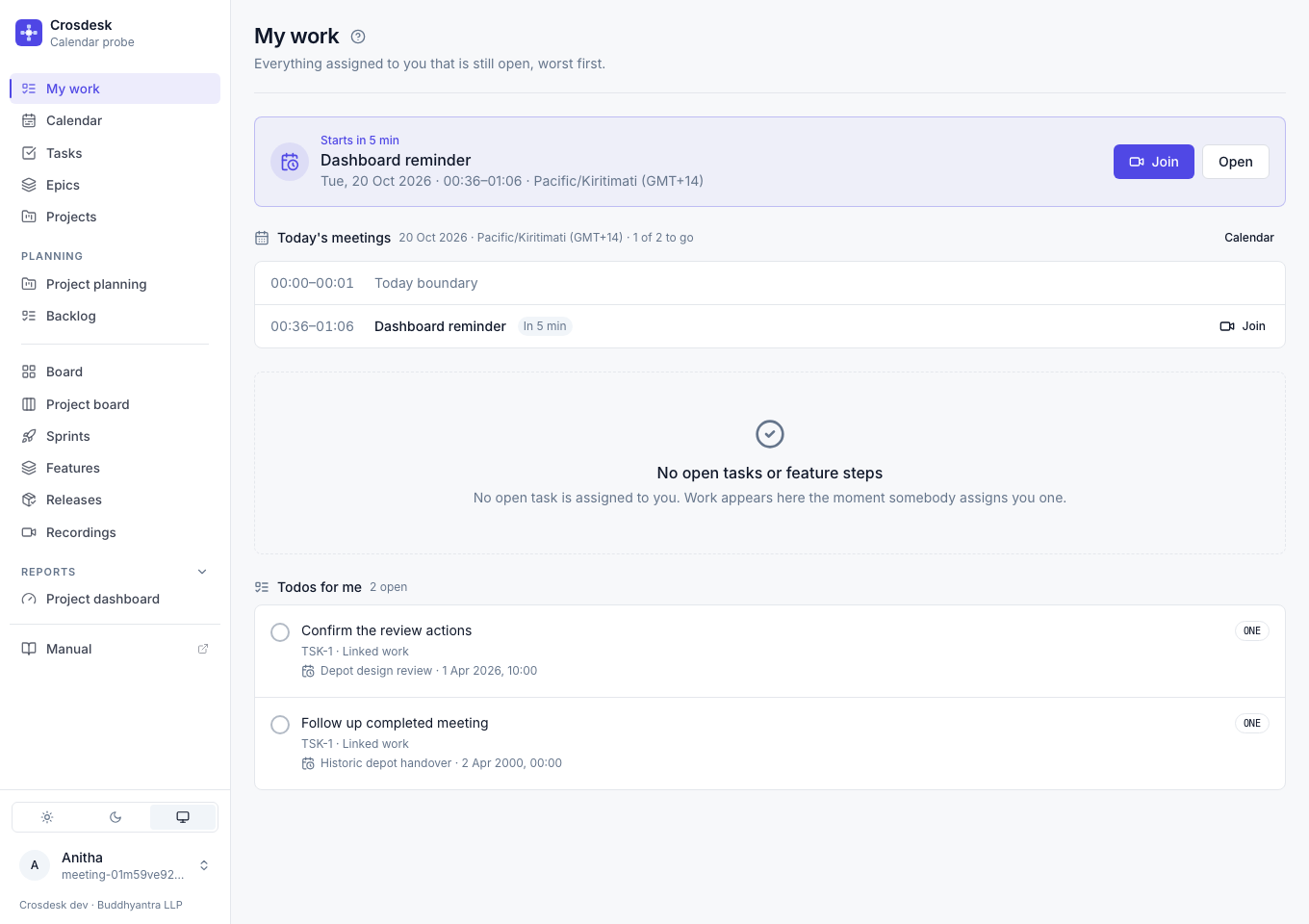
Today's meetings lists your meetings in time order for the workspace's day, with how many are still to go. Meetings that have ended are greyed out, one in progress is marked Now, and the next one says how long until it starts. Choose a row to open its meeting dialog without leaving My work, Join on a row with a video link to open it, or Calendar for the full calendar. Only meetings you organise or are invited to appear here.
The reminder banner appears from the meeting's chosen reminder time until the meeting ends. It shows the earliest meeting whose reminder is active, including a meeting already in progress, and counts down — Starts in 5 min, then In progress · ends in 20 min. Choose Join to open its video link, or Open for the meeting dialog. A meeting with reminders turned off has no banner. Reminders can begin before midnight for a meeting on a later day.
Browser notifications, email reminders and external guests are not available.
Video calls
Paste an https link from any service into Video-call link. When the instance operator has chosen Zoom or Google Meet, the form also offers Add Zoom meeting or Add Google Meet: choose it, and Crosdesk makes the room when you save — not when you click, so closing the form makes nothing. With Zoom or Google Workspace delegation, the organiser hosts through the account with the same email address as their Crosdesk account; an invited admin makes the room for them. With personal Google accounts, the person adding the room owns it through their connected Google account, as explained below.
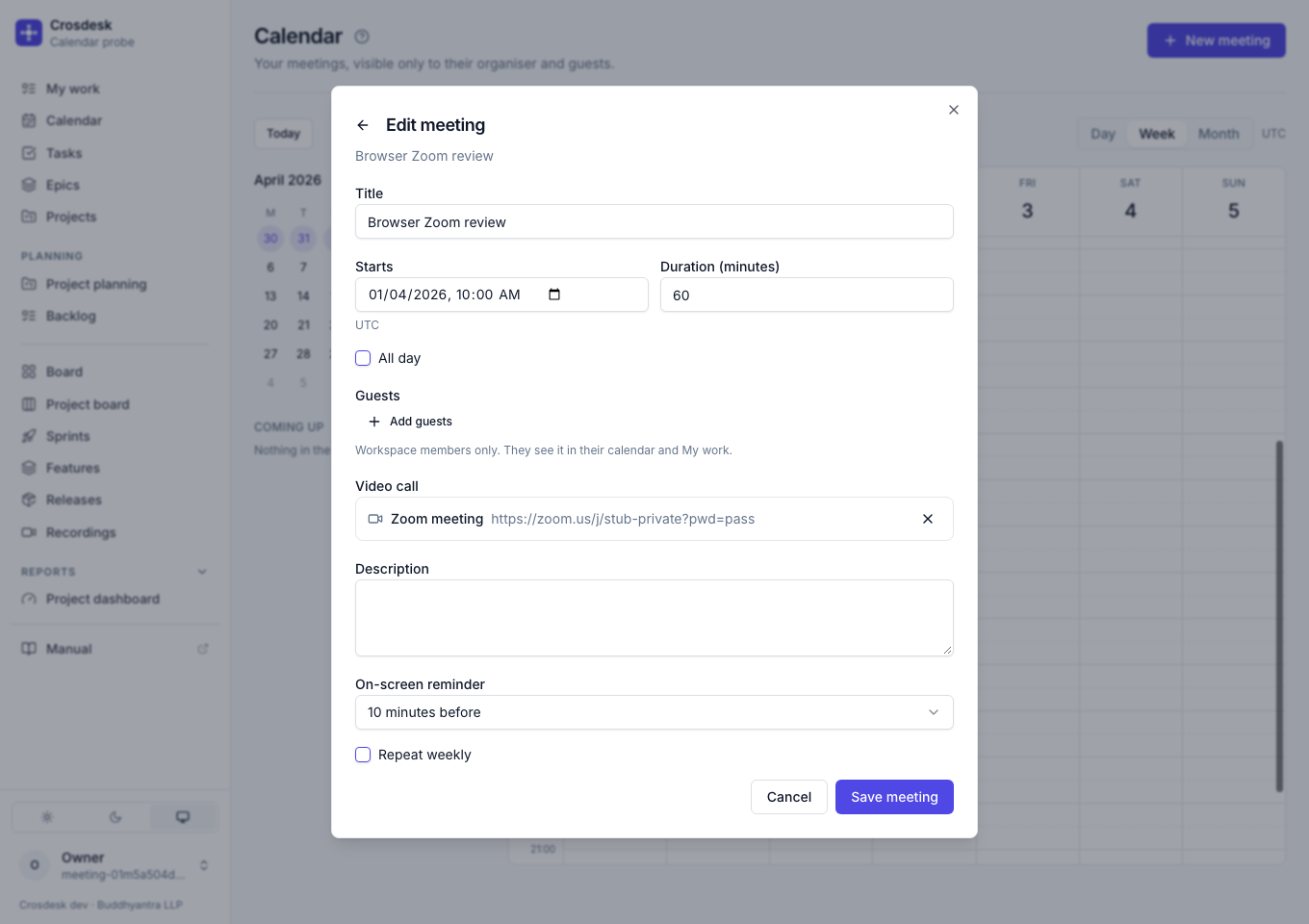
A repeating meeting has one room for every occurrence, and This and following keeps it. The room has no time of its own, so renaming, moving or cancelling the meeting changes nothing in Zoom or Google Meet. Use the remove button beside the room to go back to a pasted link; Crosdesk stops pointing at the room, and the room stays with the provider. A room cannot be added to one occurrence only.
Adding a room in one click
A meeting with no video link offers its room straight away. Open the meeting, and choose Add Google Meet or Add Zoom meeting, whichever the instance uses. The room is made at once, with no Edit and no Save, and the dialog shows Join. To use a link from somewhere else, choose Paste a link beside it instead.
Anyone invited may do this, not only the organiser. The link is for the whole series, and the meeting shows who added it. Once a meeting has a link, only the person who added it, the organiser and invited workspace admins may change or remove it.
Your own Google account
When the instance operator chooses Google Meet with personal accounts, the rooms you add are made with your connected Google account. You own them, even when somebody else organised the Crosdesk meeting. Your Google address can differ from the address you use to sign in to Crosdesk. The operator first completes the Google Meet setup.
Connect Google
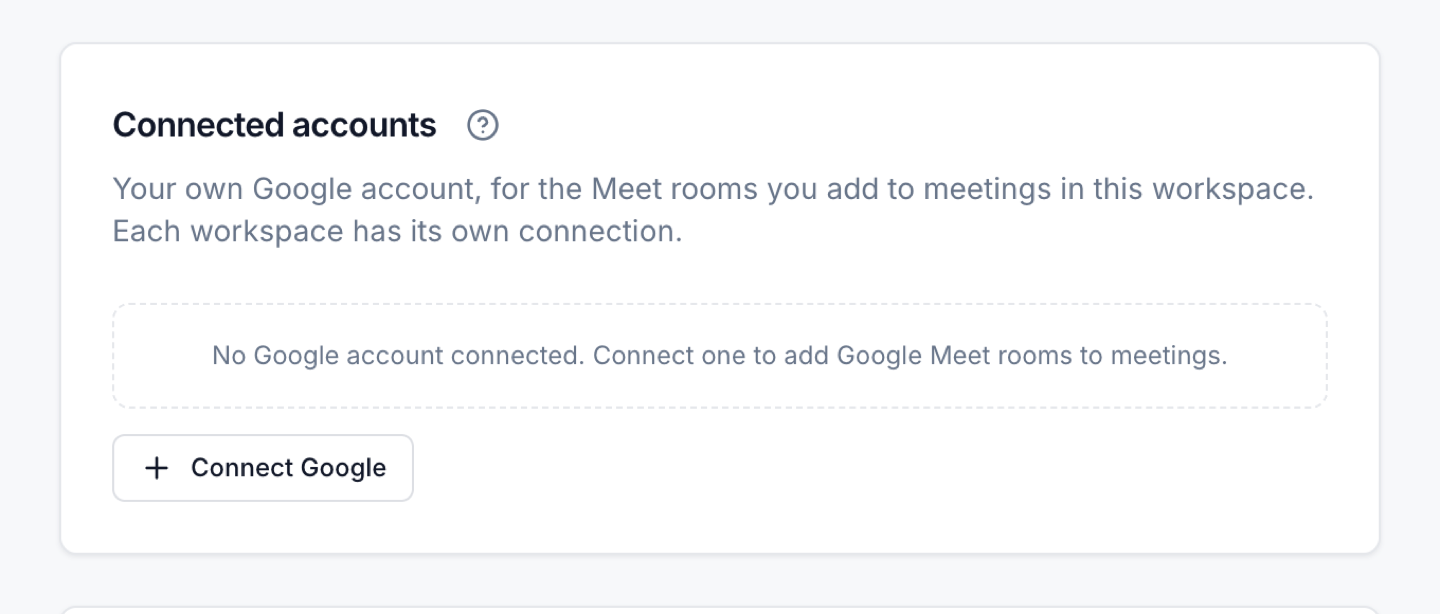
- Open the Crosdesk workspace where you want to use Meet. Choose your name in the navigation, then Connected accounts, or open My profile and scroll to Connected accounts.
- Choose Connect Google.
- On Google's account chooser, select the Google account that should own your Meet rooms. If the operator's app is in Testing, this must be one of its registered test accounts.
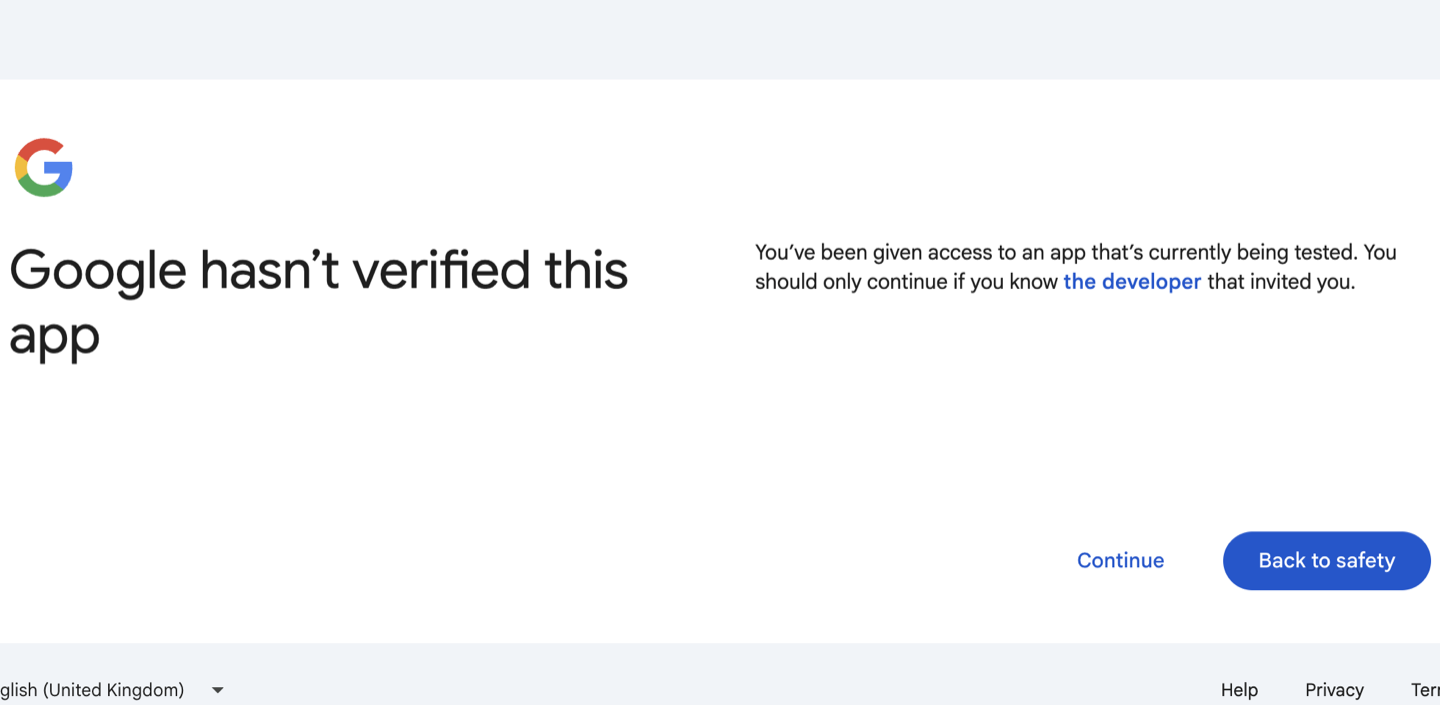
- Google may show Google hasn't verified this app for a test app. Confirm with your operator that it is their Crosdesk app before choosing Continue. If Google instead blocks access, ask the operator to add your Google address as a test user or complete publishing.
- Review the Google account and app shown on the next screen, then choose Continue.
- On your first connection, allow Create, edit and see information about your Google Meet conferences created by the app, then choose Continue. Leave that permission ticked: without it, Crosdesk cannot create rooms. It also asks for your email address and OpenID identity; it asks for no Calendar, Drive or Gmail access.
If you have connected before, Google may say the app already has some access instead of showing a new checkbox. Choose the services link to review the existing permissions, choose Done, then Continue. Google's app label may be your Crosdesk hostname.
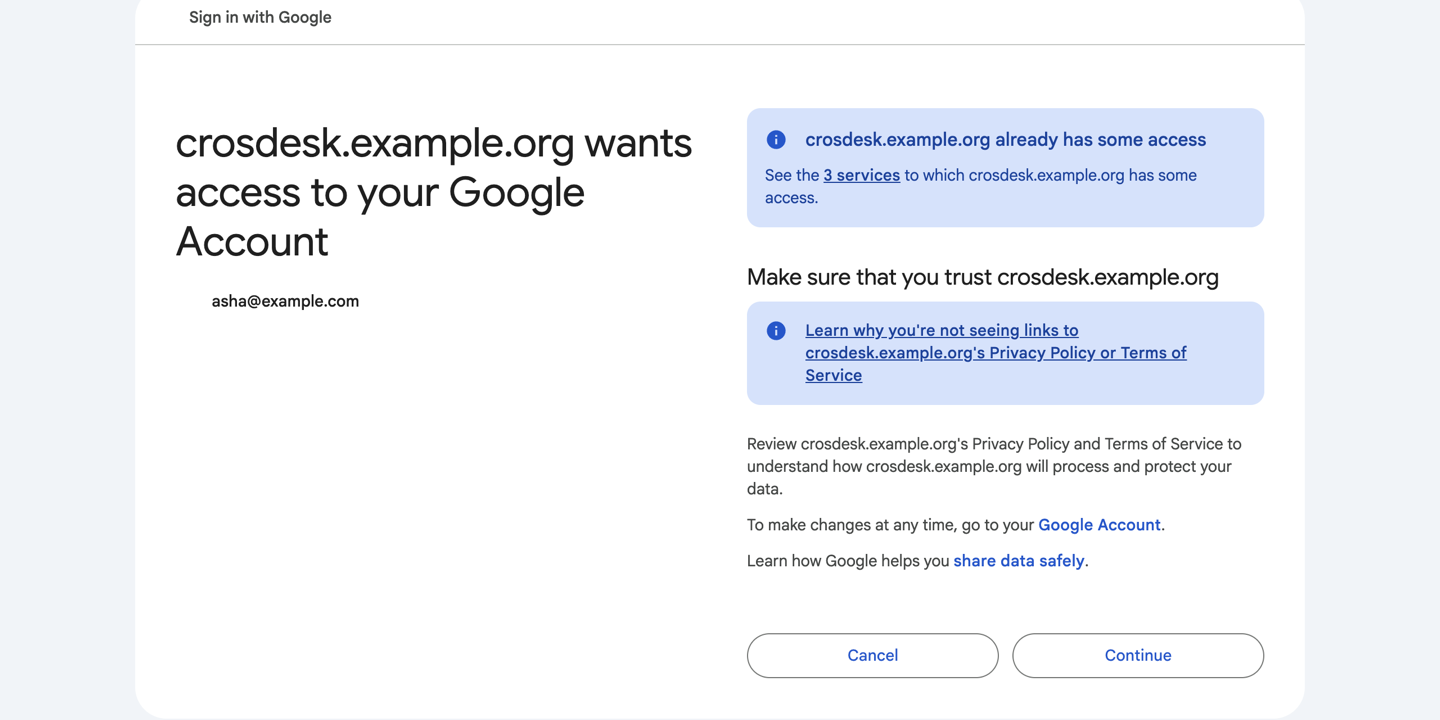
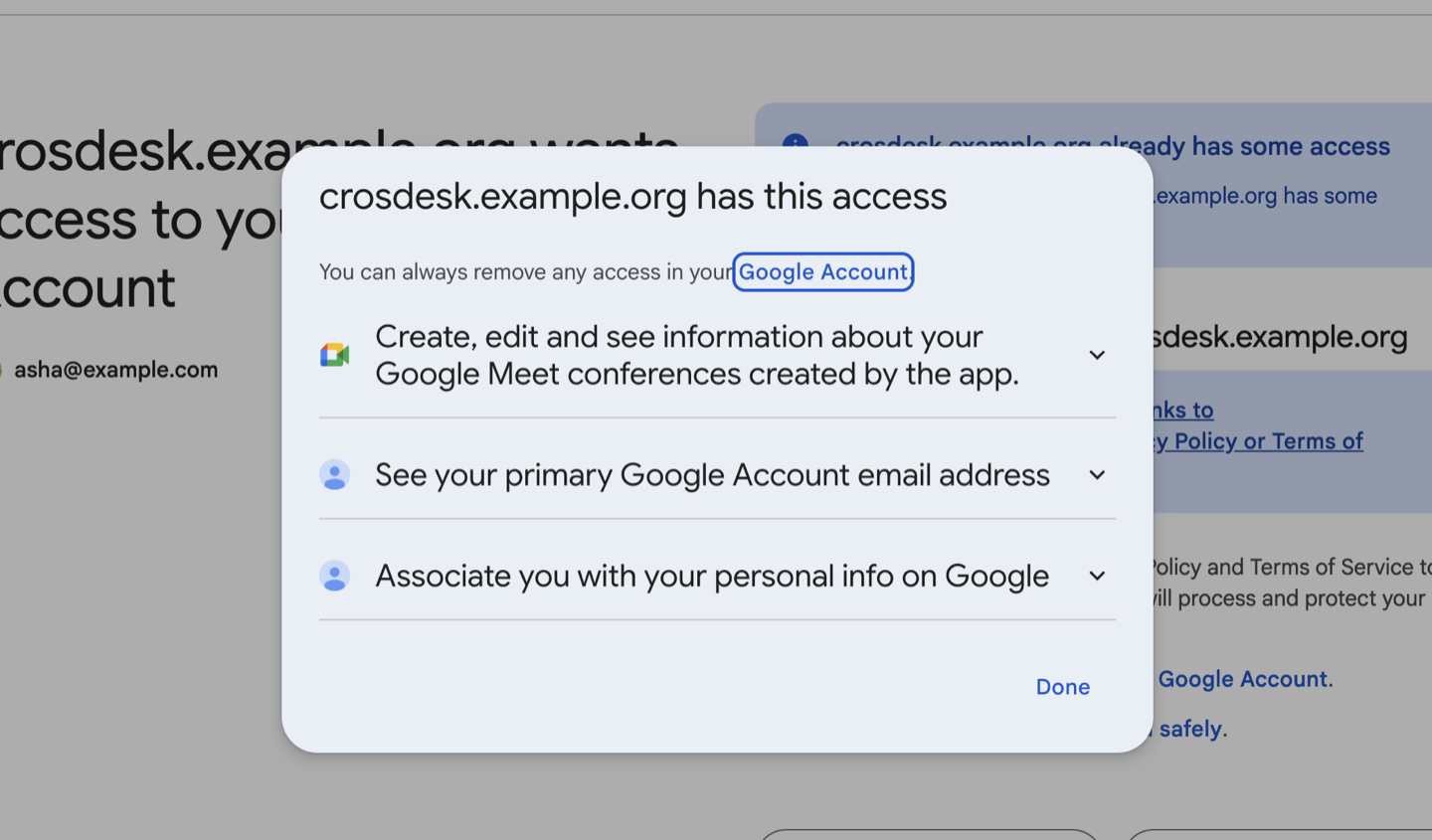
- Google returns you to the same workspace's profile. Confirm that Google is connected appears and that the card shows the Google address you chose and the connection date.
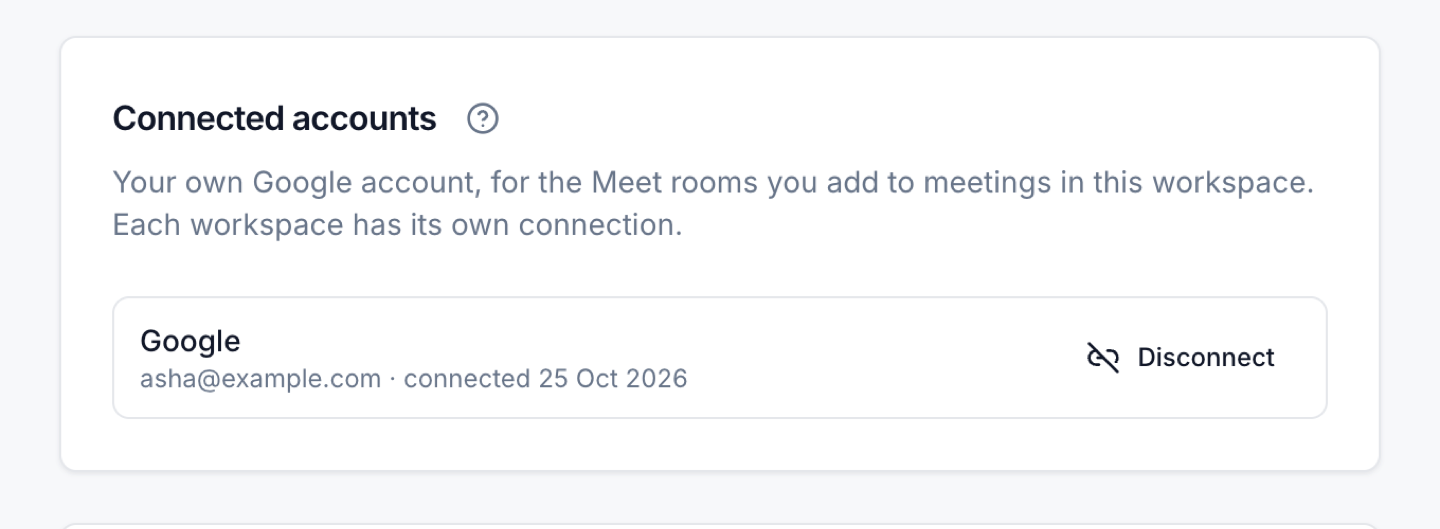
Each workspace has its own connection. If you move to another workspace, repeat these steps there. Connecting Google for Meet does not add Google as a Crosdesk sign-in method.
Add and join a Meet room
- Open Calendar, then a meeting you organise or are invited to.
- If it has no video link, choose Add Google Meet. For a new meeting, choose New meeting, enter the meeting details, choose Add Google Meet in the editor, then save.
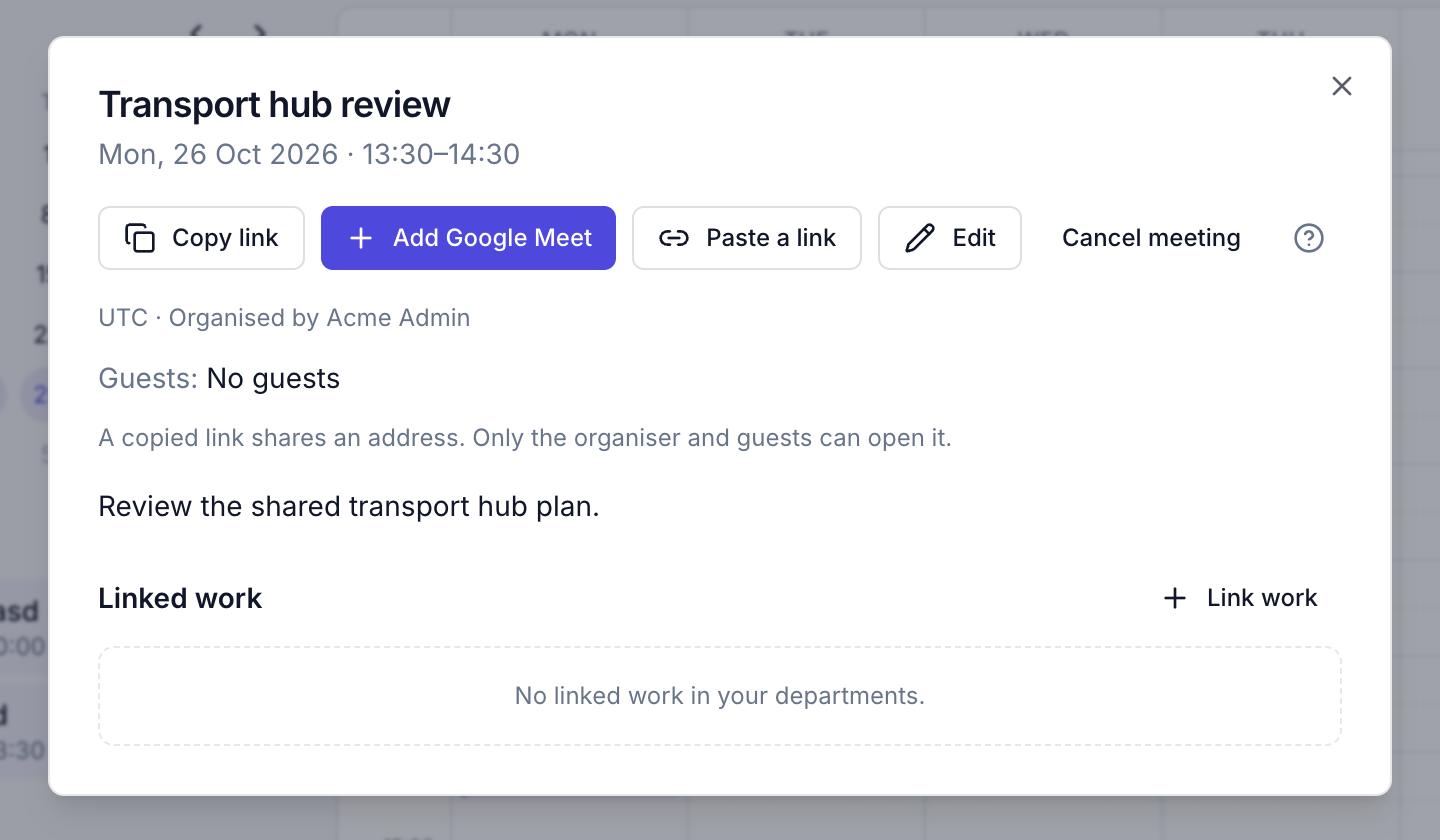
- The saved meeting shows Join Google Meet and who added the video link. Choose Join Google Meet to open the room. Google's own admission and account rules still apply.
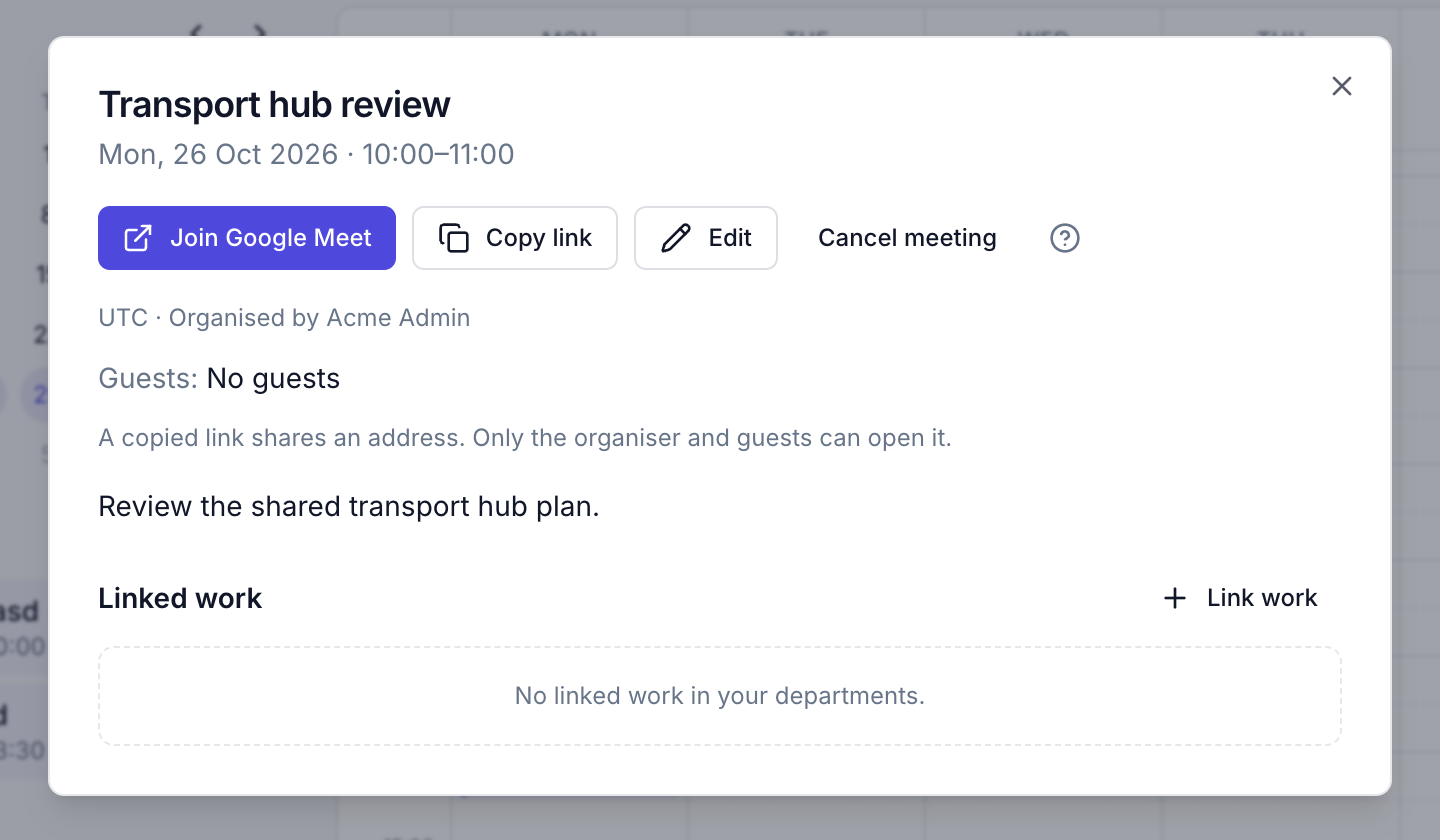
Until you connect in this workspace, Add Google Meet is disabled with a link to your profile. If the meeting already has a video link, use Change video link if you are its adder or an editor. A repeating meeting shares one room across all its occurrences.
Reconnect or disconnect
If Google stops accepting the connection, the card says Expired. Choose Reconnect and complete Google's consent again. An External app still in Testing expires connections after seven days; your operator can finish publishing it for ongoing use.
To stop using your Google account here, choose Disconnect on the card and confirm. Rooms you already made keep working. Removing a room's link, moving a meeting or cancelling it in Crosdesk also leaves the room at Google.
When your organisation uses Google Workspace delegation for rooms, Connected accounts is shown disabled with its reason: there is nothing to connect. The organiser's Workspace account hosts those rooms. Ask your operator which method the installation uses if you are unsure.
The join button names the room — Join Zoom meeting or Join Google Meet — and a pasted link says Join. If saving fails, the form says why: the provider was unreachable (try again), your email is not a user in the Zoom account or Google Workspace domain, or the credentials need the instance operator. If the operator switched providers while the form was open, the button disappears and you can save with a pasted link. See Video calls for setting it up.