Appearance
Todos
A todo is a short line of work on a task, issue, feature, phase, step or project. It has an assignee and a done checkbox. Use a task when the work needs an estimate, dates or its own status. A todo stays with the entity it belongs to and has no page of its own.
Add a todo
Open Todos on the entity. On a project, open its Project planning page or Project dashboard. The number on the button counts open todos. When some of them are yours, the number is red and counts only yours — so a red badge always means you have something to do here. A grey number is other people's.
Write up to 500 characters of plain text and choose Assigned to. You can also choose From when you record a request on somebody else's behalf. Both people must be active members of this workspace. The assignee must belong to one of the entity's departments or be a workspace admin, so the assignment leads to something they can open.
On a task or issue the form starts with its assignee. On a step with exactly one owner it starts with that owner. Features, phases and projects start without an assignee; you choose who takes the work. You can change any suggested person before adding the todo.
You can also choose a linked meeting when adding a todo. Its title is shown only to people on that meeting. See Calendar and meetings.
What the list shows
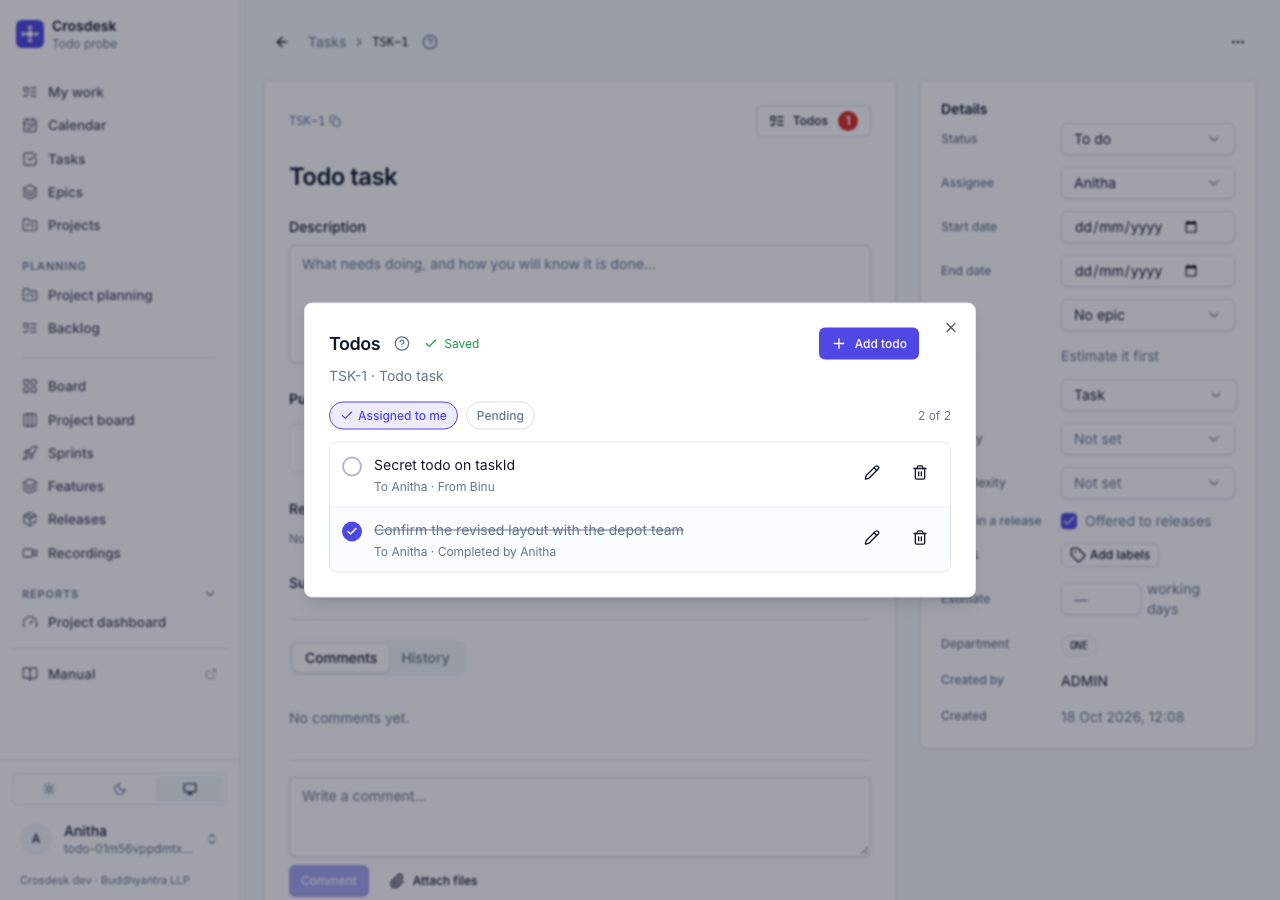
The list opens filtered to Assigned to me and Pending — your open todos on this entity. Turn either off to see more: everyone's, or completed ones too. When the filters hide everything, the list says so; choose Show all to turn both off.
Complete, reopen or edit
Anyone who can see the entity can tick a todo, reopen it, edit its text or change its people. Tick the round box to complete one; a completed todo leaves the Pending view, and with Pending off it shows struck through, naming who ticked it. Each row says who it is to, and who it is from when someone recorded it on another's behalf.
Choose Delete todo and confirm to remove a line. It disappears from the entity and My work. Its text remains in the workspace's records, and the audit trail records who deleted it. The audit trail identifies the entity without copying the todo text.
Todos for me
My work → Todos for me lists your open todos with their source entity, departments and, when present, who they are from. Tick a line there to complete it, or open its text to go to the entity. A feature phase or step opens that exact stage.
Assignment does not grant access. If your department membership changes, todos on entities you can no longer see leave your list. A link to their todos answers as not found.
In the Todos dialog, Add todo sits beside the title; it opens the form above the list. Add todo in the form saves it and hides the form; Cancel discards the draft and hides it. Each linked meeting shows a calendar icon, its title, and its date and time in the workspace zone. My work shows Todos for me below the task lists.