Appearance
Sign-in providers
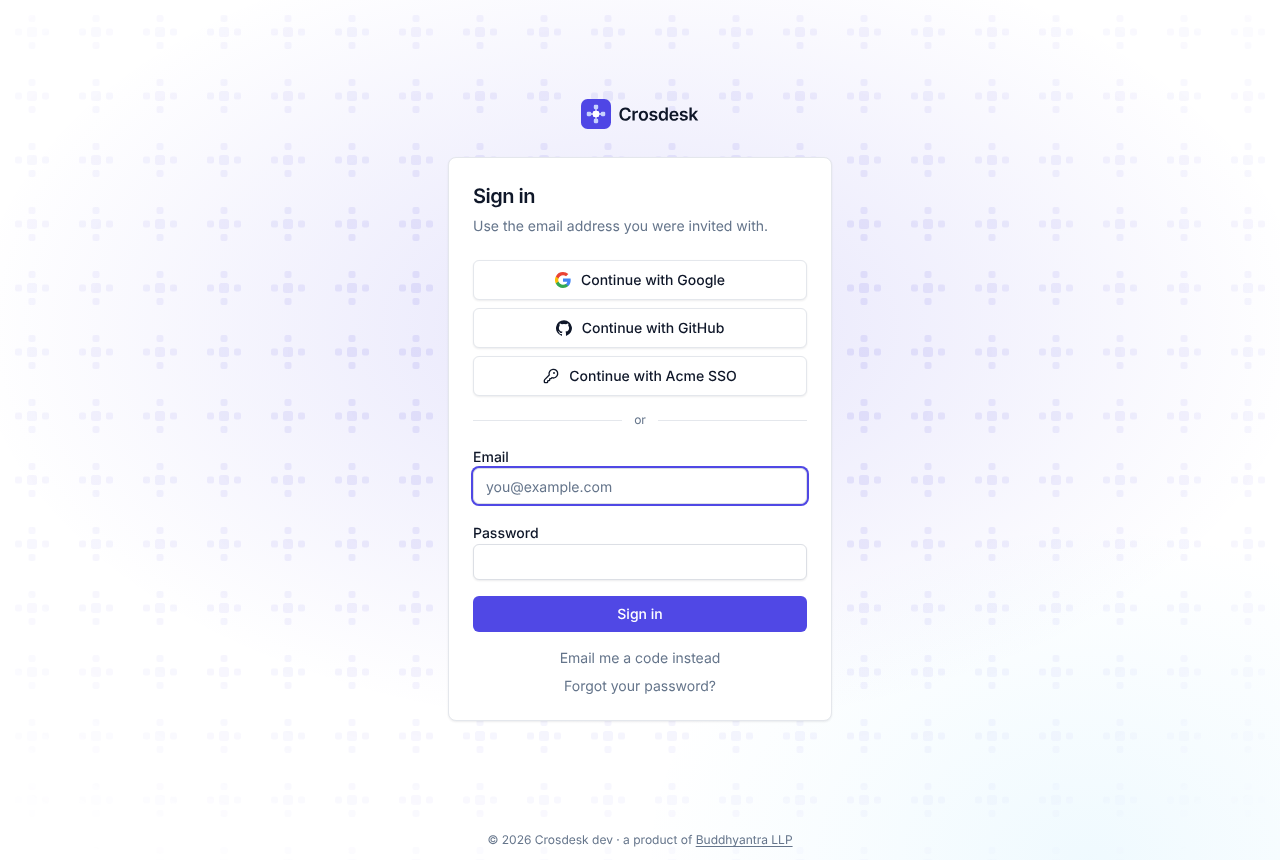
For the instance operator. Google, GitHub (github.com or your own GitHub Enterprise Server) and any OpenID Connect provider — Keycloak, Okta, Microsoft Entra ID, Authentik, Auth0 — can be offered as Continue with … buttons on the sign-in page. They are set up at /super-admin → Settings, one card per provider, and switched on there. Workspace administrators have nothing to configure.
What it does, and what it does not
It is another way to prove who someone is. It does not create accounts or add anyone to a workspace — an invitation still decides that — and it does not apply to the operator's own sign-in at /super-admin, so a provider that breaks can never lock out the person who fixes it.
An outside account is matched to a Crosdesk account by the provider's own id for the person, never by an email or a username. An address only links an existing account the first time, and only when the provider can be trusted to vouch for it.
Setting one up
Every provider needs the same three steps:
- Register Crosdesk with the provider and give it the callback URL shown at the top of that provider's card — copy it from there; it must match exactly.
- Enter the client ID and client secret it gives you. The secret is stored encrypted and is never shown again.
- Test, then set enabled to
true. A provider that is enabled but missing a setting is not offered on the sign-in page.
Google
Google Cloud console → Google Auth Platform → Clients → Create client → Web application, with the callback URL as the authorised redirect URI. Choose Internal under Audience if only your Google Workspace organisation signs in.
Google will not accept a callback URL on a raw IP address or an intranet-only name like crosdesk.internal — Crosdesk needs a real domain for it. Test checks this.
allowedDomains limits sign-in to Google Workspace accounts of those domains — checked on the organisation the Google account belongs to, not its address.
GitHub and GitHub Enterprise Server
Your organisation's Settings → Developer settings → OAuth Apps → New OAuth App, with the callback URL as the Authorization callback URL. For an Enterprise Server, do the same on the server, and put its address in sso.githubEnterprise.url — Crosdesk itself must be able to reach it, not only people's browsers.
allowedOrgs limits sign-in to members of those organisations. If an organisation restricts OAuth App access, an owner must approve the app first.
On an Enterprise Server, verified addresses link existing accounts only when you turn on trustEmail — how a server verifies addresses depends on how it is run.
Any OpenID Connect provider
Register a confidential client using the authorization code flow, with the callback URL as its redirect URI. Enter the provider's issuer exactly as it publishes it, trailing slash and all — Test shows the issuer the provider reports beside what you typed.
Email trust decides whether an address from the provider may link an existing account:
| Setting | Use it when |
|---|---|
never (default) | You are not sure. People connect from their profile instead. |
verified | The provider verifies addresses and says so (email_verified) — Keycloak, Okta, Auth0. |
always | The provider is your directory and assigns addresses itself. |
For Microsoft Entra ID: use a single-tenant issuer (https://login.microsoftonline.com/<tenant-id>/v2.0), keep email trust at never — Entra does not verify the email claim — and set subjectClaim to oid before anyone signs in.
On a private network
Crosdesk's server must reach the provider, as well as people's browsers. If your network uses its own certificate authority, start the API with NODE_EXTRA_CA_CERTS=/path/to/ca.pem; if it goes out through a proxy, set HTTPS_PROXY and NODE_USE_ENV_PROXY=1.
Related
- Signing in — what people see
- Users