Appearance
Agents
People can connect AI agents to Crosdesk with a personal access token, or by signing in from the app, such as claude.ai or Claude Desktop (see Connecting an agent). This screen shows every agent connected to this workspace, both kinds, and lets you stop any of them. Apps connected by sign-in are marked App.
Administrators only. It's under Admin → Agents, once the instance operator has turned agents on.
What an agent can reach
An agent acts as the person who made its token, so it sees their departments and can do what their groups allow. On top of that:
- It never uses the Admin area, even when its person is an administrator. Users, groups, departments, labels, working days, GitHub and this audit log are closed to it.
- It can't delete anything, archive a document or a version, sign anyone in or out, open a meeting, or make or revoke tokens. It can find its person's own meetings by title and link one to work, as any guest can.
- Everything it changes is recorded in the audit log as its person, with the device shown as Agent · and the token's name.
Turning agents off here
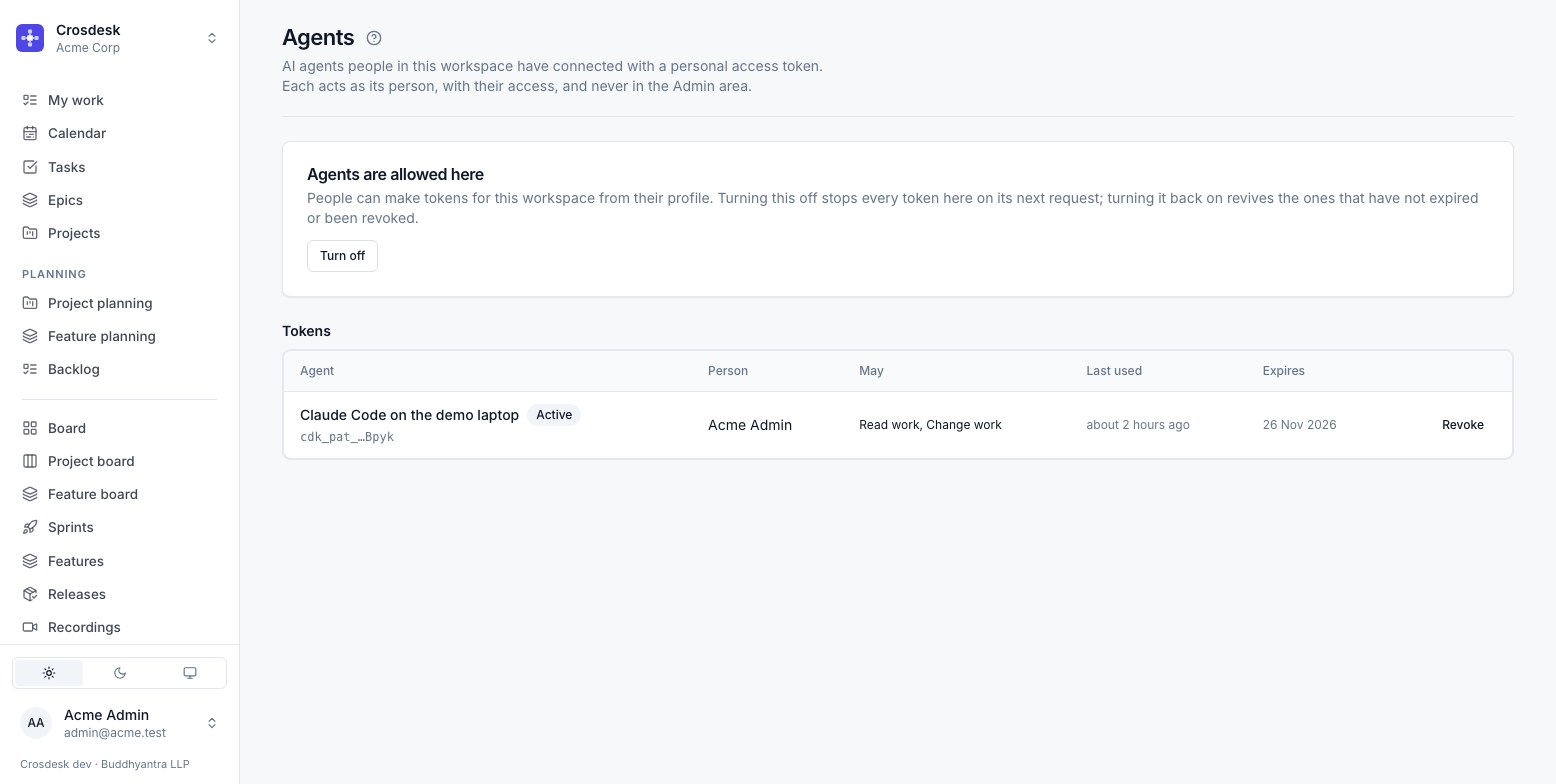
Press Turn off. Every token for this workspace is refused from its next request, and nobody can make a new one for it. Nothing is deleted: press Turn on later and the tokens that haven't expired or been revoked work again.
This switch is for your workspace only. The instance operator's setting decides whether agents exist on the installation at all.
Revoking someone's token
The table lists every token for this workspace: its name, whose it is, what it may do, when it was last used and when it expires. Press Revoke to stop one. Its owner sees it as revoked on their profile and can make a new one, unless agents are turned off here.
Making, revoking and switching are all recorded in the audit log.