Appearance
Finding your way around
The sidebar has four sections. What you see depends on your permissions — if a section below is missing for you, you do not have the capability it needs, and Groups and permissions explains which.
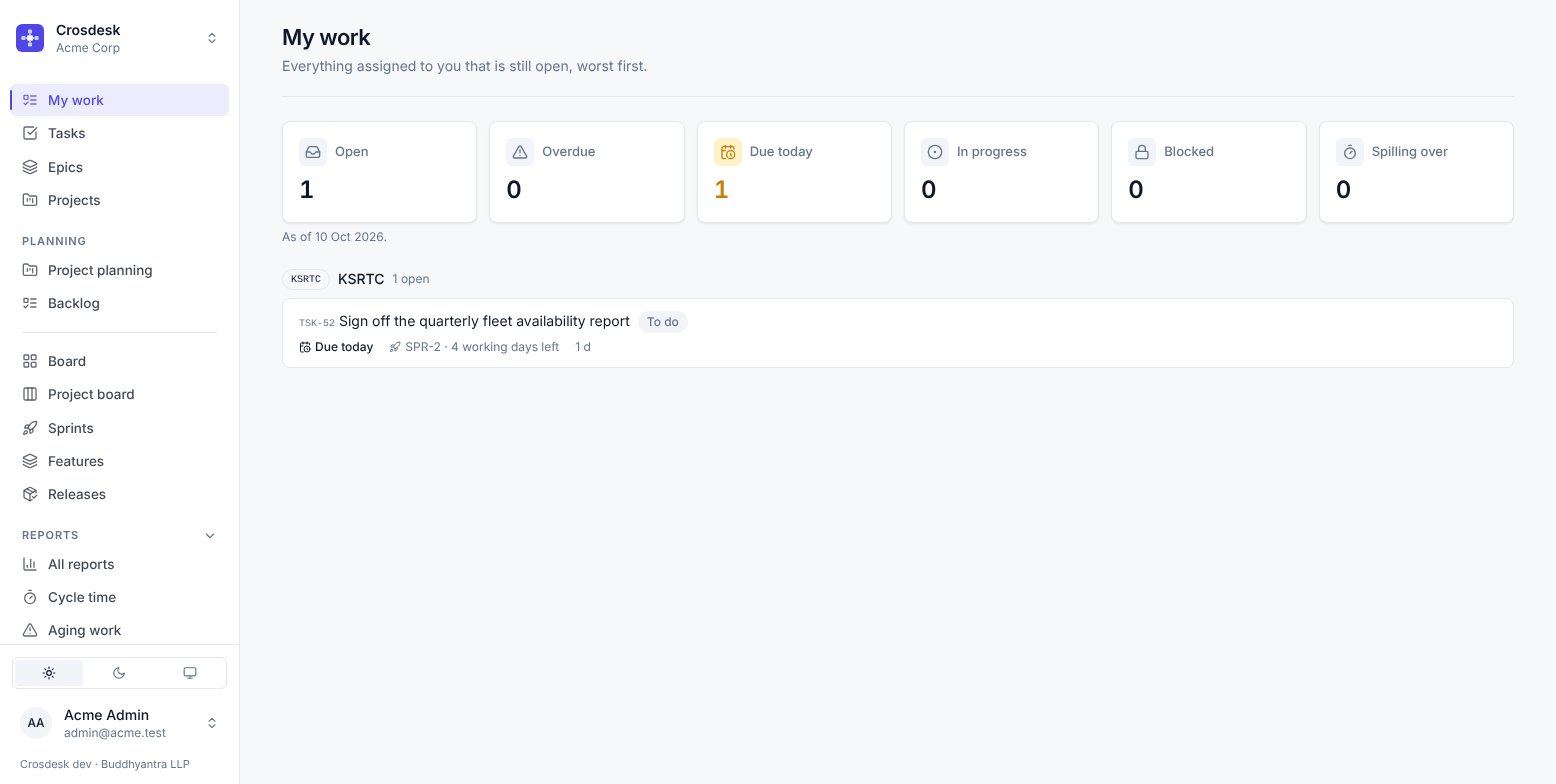
Top — your work and the things it is made of
| Entry | What it is |
|---|---|
| My work | Everything open assigned to you, grouped by department, worst first. Plus today’s meetings, an on-screen meeting reminder, feature steps and todos with your name on them. |
| Calendar | Your private meetings, with day, week and month views. |
| Tasks | Every task in one of your departments. Opens filtered to work that is not on a project yet. |
| Epics | Headings over work that already exists. |
| Projects | Every project you can see, with a link straight to its canvas. |
My work is the page to open first. Every judgement on it — overdue, due today, about to spill out of a sprint — is made by the server, so two people looking at the same task never see it described differently.
The row of numbers across the top counts each of those. A tile turns amber or red only when its number needs you — 0 overdue stays grey — so colour on the page always means "look here".
Alerts for what you manage
Above everything else, My work warns you about things you can act on that have run past their dates — in your own departments, or all of them for an admin. They appear only when there is something to say:
| Alert | Who sees it | When |
|---|---|---|
| Time to start a new sprint | People in a group with Manage sprints | A running sprint's end date is today or already past. End it and start the next; its open tasks carry over. |
| Projects past their planned end | People in a group with Manage projects | A verified project is not done, and the last date on its plan has passed. |
| Feature phases past their planned end | People in a group with Manage projects | A phase is not done, and its last step's planned end has passed. |
A draft project, or a phase with a step that has no estimate, has no planned end yet, so it is never reported late — the planning screens say it is unplanned instead.
Planning — deciding what happens
| Entry | What it is |
|---|---|
| Project planning | The planning view of a project: its tasks as a list, with dates. Not the same page as Projects above, which opens the canvas. |
| Backlog | What is waiting, and what each upcoming sprint is committed to. |
Execution — doing it
| Entry | What it is |
|---|---|
| Board | The sprint board for one department, plus its Unplanned work section. |
| Project board | The same columns, for one project rather than one sprint. |
| Sprints | The current sprint, the next one and the last one, in one place. |
| Features | Long-running work that runs through phases and approvals. |
| Releases | Versions that went out, and the one being assembled. |
| Recordings | Screen recordings of bugs, with their console and network log. Everyone in the workspace sees them. See Recordings. |
| Documents | Specs and notes in department folders, with a draft, saved versions and releases. Everyone in the workspace reads them. See Documents. |
Reports
Thirteen reports, grouped by the question they answer. The section folds away with the arrow beside its heading, and opens itself again whenever you are on one of its pages. Most need the sprint management capability; the index page explains each one. See Reports.
Administration
Only visible to administrators, and folds away like Reports. See the Administration pages.
Things that are everywhere
- Number labels —
TSK-36,PRJ-9,SPR-2,EPC-1,FTR-1,REL-14,DOC-6. They are unique within the workspace and stable forever. Quote them to each other. - Tooltips — hover over a control or reach it with Tab for a short explanation. Press Escape to dismiss it. Disabled controls can explain why they are unavailable; truncated links reveal their full value when the text is cut off.
- Department chips — the small code beside a row (
KSRTC,MVD,WTD) telling you which department's work you are looking at. - Filters live in the address bar. Open a task from a filtered list, press Back, and the list is exactly as you left it — including the page you were on.
- The
?beside a page's title opens the part of this manual about that page, in a new tab, so whatever you were in the middle of stays where it was. Manual, at the foot of the sidebar's list, opens the whole of it. - The theme switcher at the bottom of the sidebar: light, dark, or follow the system. The line under your name gives the version you are running — quote it when you report a problem.
Confirming destructive actions
Deleting or archiving a record asks you to confirm first. Removing saved links, taking work off a board or out of a release, withdrawing an invitation and disconnecting a sign-in method also ask first. The dialog explains what changes and what stays. Cancel leaves everything as it is. While the request runs, the dialog prevents another submission. If the server refuses the change, the dialog stays open with the reason so you can retry or cancel.
On the project canvas, Delete and Backspace ask before removing selected cards and connections, just like their remove buttons. Removing a card keeps its task in the workspace. Unsaved form selections and the document editor's undoable text and table edits remain direct edits.