Appearance
Connecting an agent
An AI agent such as Claude Code, Cursor or any other MCP client can work in Crosdesk for you. It reads your work and, if you let it, creates and changes it. It does this as you, in one workspace, with exactly the access you have there.
There are two ways to connect one:
- Sign in from the app. claude.ai, Claude Desktop and Claude Code ask Crosdesk to let them in; you sign in, choose the workspace, and press Allow. Nothing to copy. See Connecting with sign-in.
- A personal access token, a long secret you make on your profile and paste into the agent's settings. For agents that can't sign in, such as scripts and CI jobs, and for clients that only take a header. See Making a token.
Either way, the agent gets the same access and the same limits.
Not there?
The Agents card only appears once the instance operator has turned agents on. If it's missing, ask whoever runs your Crosdesk.
What an agent can and can't do
- It sees what you see. Work outside your departments doesn't exist for it, exactly as for you.
- It can do only what you can do. If your groups don't let you create projects, your agent can't either.
- It works in one workspace: the one you chose when you made the token. To use an agent in another workspace, make another token.
- It never uses the Admin area or deletes anything, even if you're an administrator.
- Of your meetings it sees only titles and times, and can only link one to a piece of work. It can't open, create, change or cancel a meeting.
- Everything it changes is recorded as yours. The audit log shows the change via the token's name, so it's clear an agent did it.
What you can ask it
Once connected, the agent can look things up for you in plain language and, with Change work, create and change work for you.
| Ask about | For example |
|---|---|
| You | "Who am I in Crosdesk, and what can I manage?" |
| Your work | "What's on my plate today? Anything overdue?" |
| Tasks | "Find the open P0 bugs in KSRTC", "Summarise TSK-42 and its comments" |
| Projects, epics, sprints | "How far along is PRJ-3?", "What's in the current sprint, and what came in ad hoc?" |
| Features and issues | "Where is FTR-1 stuck?", "Show me the open issues on the Design step" |
| Releases | "Will REL-5 make its due date?" |
| Reports | "What's our cycle time this quarter?" (needs Manage sprints, as on screen) |
| Recordings | "Which recordings on TSK-42 caught errors?" |
| Todos and meetings | "What todos do I have open?", "Which meetings are linked to TSK-42?" |
| Documents | "Summarise DOC-6", "What changed in the draft of the signage spec?", "Which documents are linked to REL-5?" |
And with Change work:
| Ask it to | For example |
|---|---|
| Create | "Create a P1 bug in KSRTC for the login crash, assign it to Ravi, 2 days", a subtask, an epic, a project, a feature, an issue, a release |
| Change | "Move TSK-42 to in progress and put it in the current sprint", "Set PRJ-3 to done" |
| Talk | "Comment on TSK-42 that the fix is deployed", "Add a todo for me on ISS-4" |
| Todos | "Add a todo on TSK-42 for Ravi from today's standup" — it links the meeting to the task if it isn't already — "Mark my todo on ISS-4 done" |
| Review a feature step | "Send the Design step for review", "Approve it", "Ask for changes: add tests" |
| Pull requests | "Link github.com/acme/app/pull/7 to TSK-42", "Mark it review requested" |
| Run a sprint or release | "Start next sprint", "Ship REL-5" |
| Documents | "Write a spec for the bay signage in KSRTC", "Add a section on night parking to DOC-6's draft", "Save it as a version and release it", "Link DOC-6 to TSK-42 and REL-5" |
It follows the same rules you do on screen. It can't approve a step you own, can't send a step for review while issues are open unless you tell it to close them as won't fix, and needs Manage projects or Manage sprints wherever you would. When it's refused, it tells you why.
Shipping a release marks everything in it done, ending a sprint writes its record, and releasing a document version cannot be withdrawn. None can simply be undone, so a well-behaved agent asks you first. Tell it plainly when you mean it.
With documents, an agent edits the draft the way you do: it takes the draft, writes, and lets go. While you or another editor has the draft open for editing, it is refused and tells you who has it. It can't archive a document or a version — that stays with people.
You can name things the way you do on screen: TSK-12, PRJ-3, EPC-2, FTR-1, ISS-4, REL-5, and departments by their code.
Answers are kept short on purpose. A list returns at most 50 rows at a time, very long descriptions are cut, and people appear by name only, never with their email address or phone number. Ask the agent to narrow a search rather than to fetch everything.
The instance operator sets how many requests one token may make in a day (2,000 unless changed), so an agent stuck in a loop stops by itself.
Recordings and files
With Upload recordings and files, an agent that made a screen recording itself — a browser it drove, an automated test run — can upload it and attach it to a task or an issue. Files such as screenshots and logs work the same way, attached to a new task, an issue, or a comment.
The video doesn't pass through the chat. The agent asks Crosdesk for an upload, gets back the exact commands to send the file with its token, runs them, and then finishes the upload. This works for agents that can run commands, such as Claude Code.
- Videos must be WebM (Playwright's recordings already are).
- An agent's recording is marked An AI agent's own recording in the viewer. If the agent had no console or network log to send, the recording simply shows none.
- Like every recording, it's visible to the whole workspace and expires on its own.
Connecting with sign-in
Give the app your Crosdesk address followed by /api/mcp, for example https://desk.example.com/api/mcp:
- claude.ai: Settings → Connectors → Add custom connector, and paste the address.
- Claude Desktop: the same, under Settings → Connectors.
- Claude Code:
claude mcp add --transport http crosdesk https://desk.example.com/api/mcp, then run/mcpin Claude Code and choose Authenticate.
The app opens a Crosdesk page in your browser. Sign in if you aren't already, then:
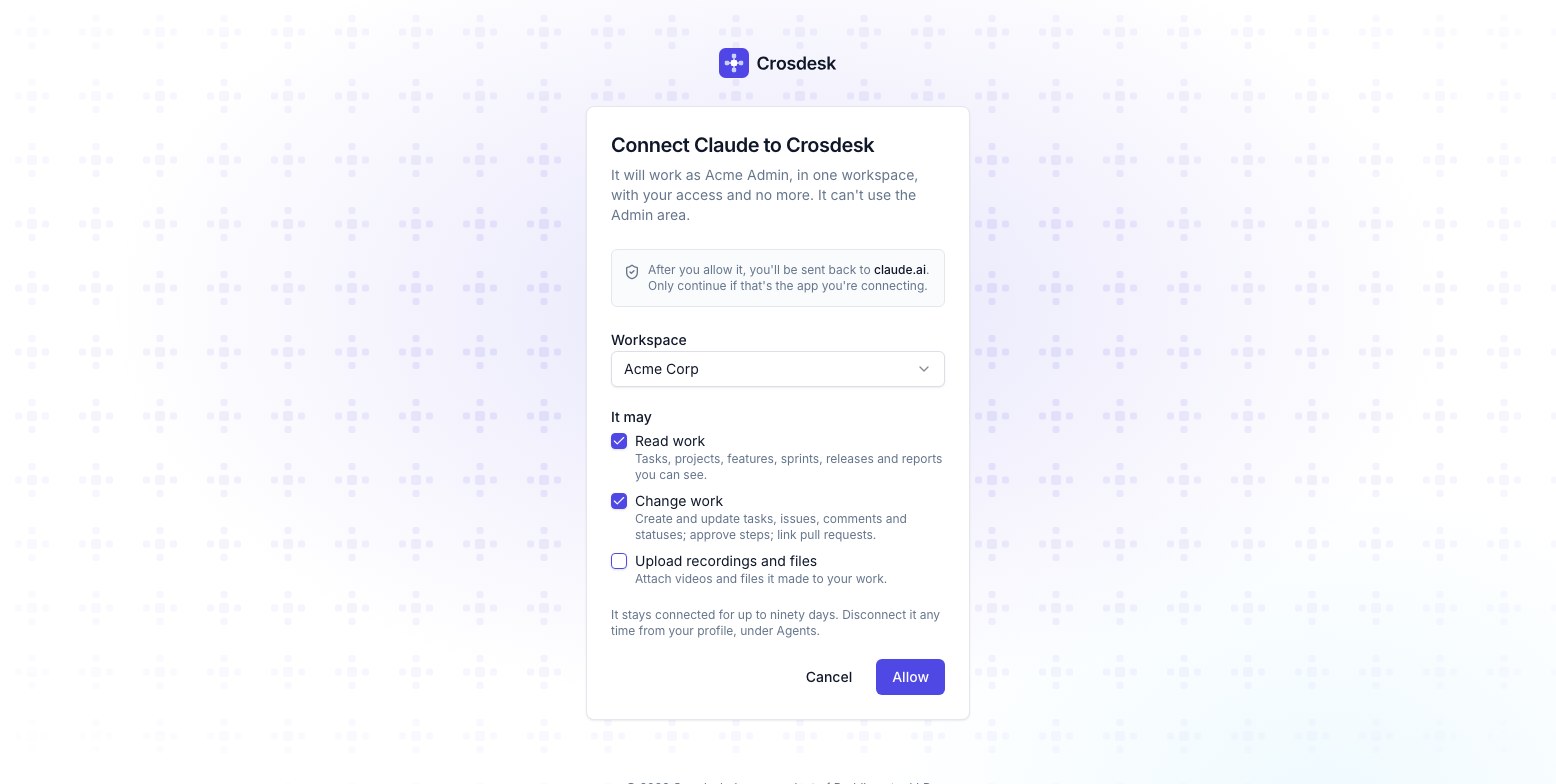
- Check where you'll be sent back to, such as claude.ai. Only continue if that's the app you're connecting.
- Choose the workspace it works in. Only workspaces that allow agents are offered.
- Choose what it may do, as for a token.
- Press Allow. Cancel tells the app you said no.
The app is then listed on your profile under Agents, marked App. It stays connected for up to ninety days and renews itself in the background; after that, it asks you again. Disconnect stops it at once.
Making a token
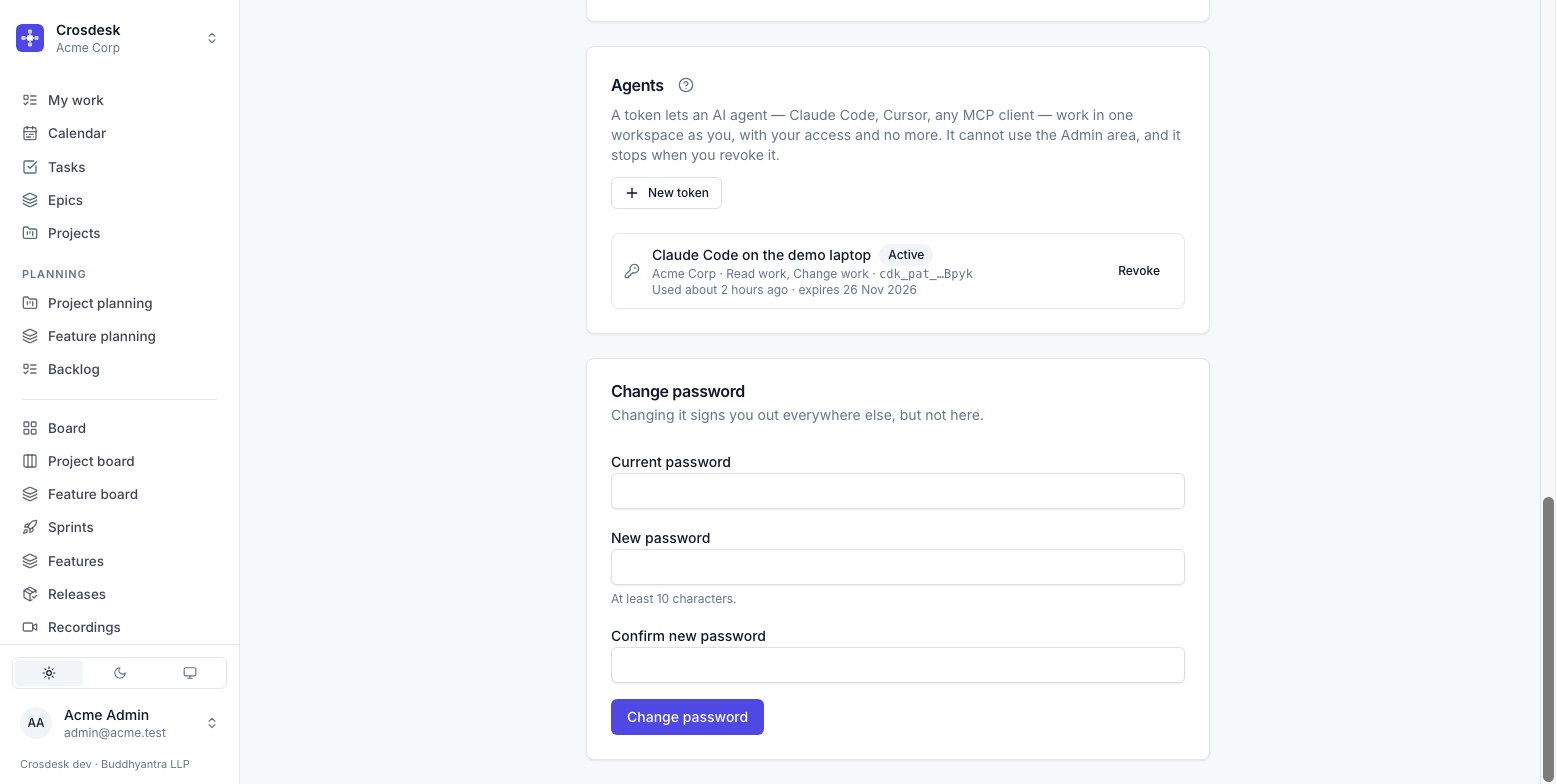
- Open the menu under your name and choose My profile, then find Agents.
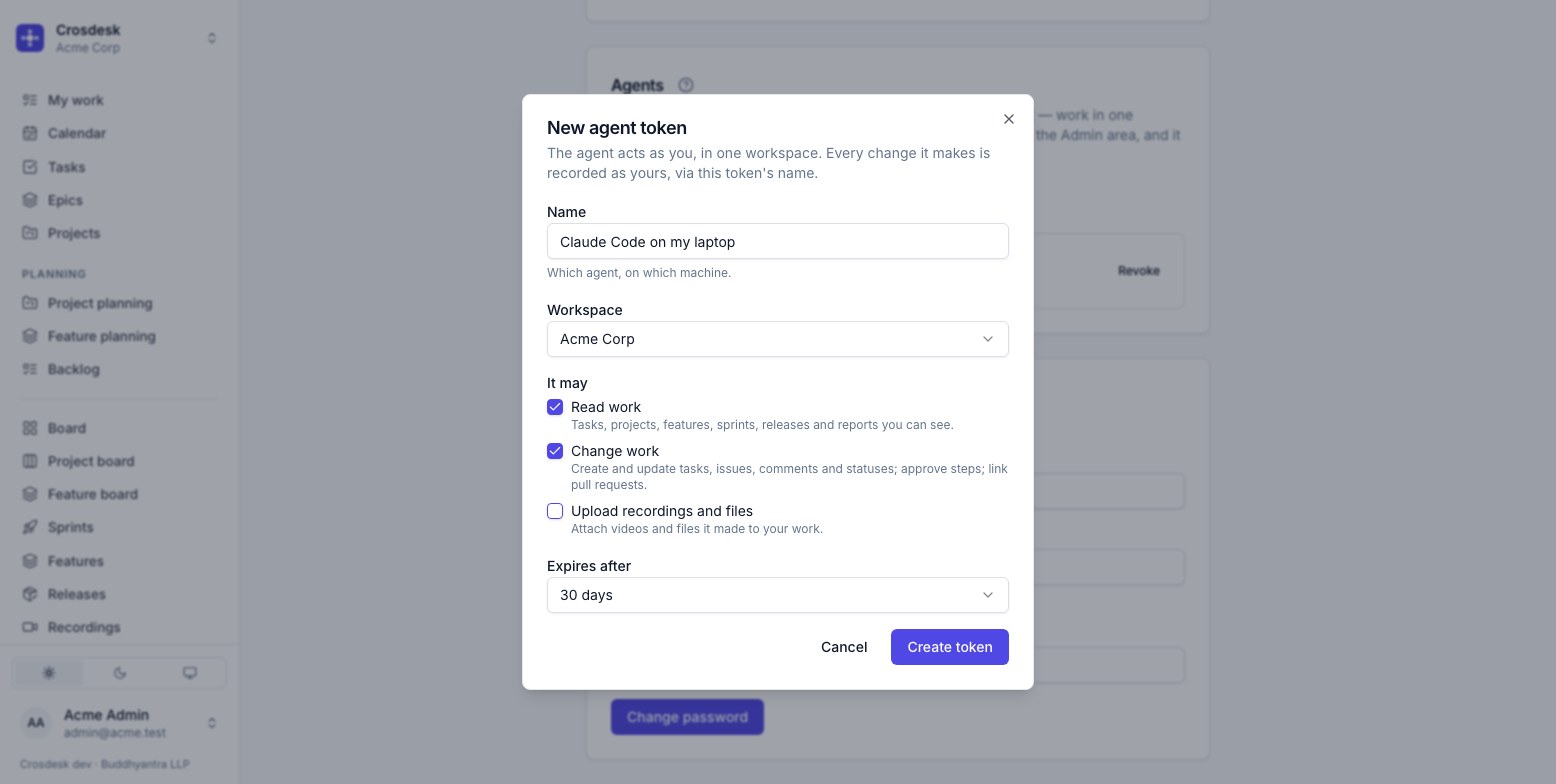
- Press New token.
- Give it a name that says which agent it is and where: Claude Code on my laptop. This is the name the audit log shows.
- Choose the workspace it works in.
- Choose what it may do:
- Read work: tasks, projects, features, sprints, releases, documents and reports you can see.
- Change work: create and update tasks, issues and comments, change statuses, approve feature steps, link pull requests, and write, save, release and link documents.
- Upload recordings and files: attach videos and files the agent made to your work.
- Choose when it expires: 7, 30 or 90 days. A token always ends.
- Press Create token.
The token is shown once. Copy it before you close the dialog. Crosdesk keeps only a fingerprint of it, so nobody can show it to you again; if you lose it, revoke it and make another.
Connecting Claude Code
The dialog shows a ready-made command. It looks like this:
sh
claude mcp add --transport http crosdesk https://desk.example.com/api/mcp \
  --header "Authorization: Bearer cdk_pat_…"
Run it in a terminal, start Claude Code, and ask it "who am I in Crosdesk?" It answers with your name, the workspace and what the token may do.
Connecting another MCP client
Any client that speaks MCP over HTTP and lets you set a header works:
- Address: the MCP address shown in the dialog. It is your Crosdesk address followed by
/api/mcp. - Header:
Authorization: Bearer <your token>
Stopping an agent
Press Revoke beside the token, or Disconnect beside an app, on your profile. The agent is refused from its next request.
A token or app also stops by itself when:
- it expires;
- you're removed from that workspace, or your account is disabled;
- an administrator revokes it or turns agents off for the workspace (Agents);
- the instance operator turns agents off.