Appearance
Projects and the canvas
A project is a body of work with a shape: some of it must happen before the rest. The canvas is where you draw that shape, and Verify is what turns it into dates.
Videos
Creating and reshaping a project needs the project management capability. Everyone in the project's departments can see it.
New to projects? Running a project, step by step walks one from creation to release with pictures; this page is the reference for the rules.
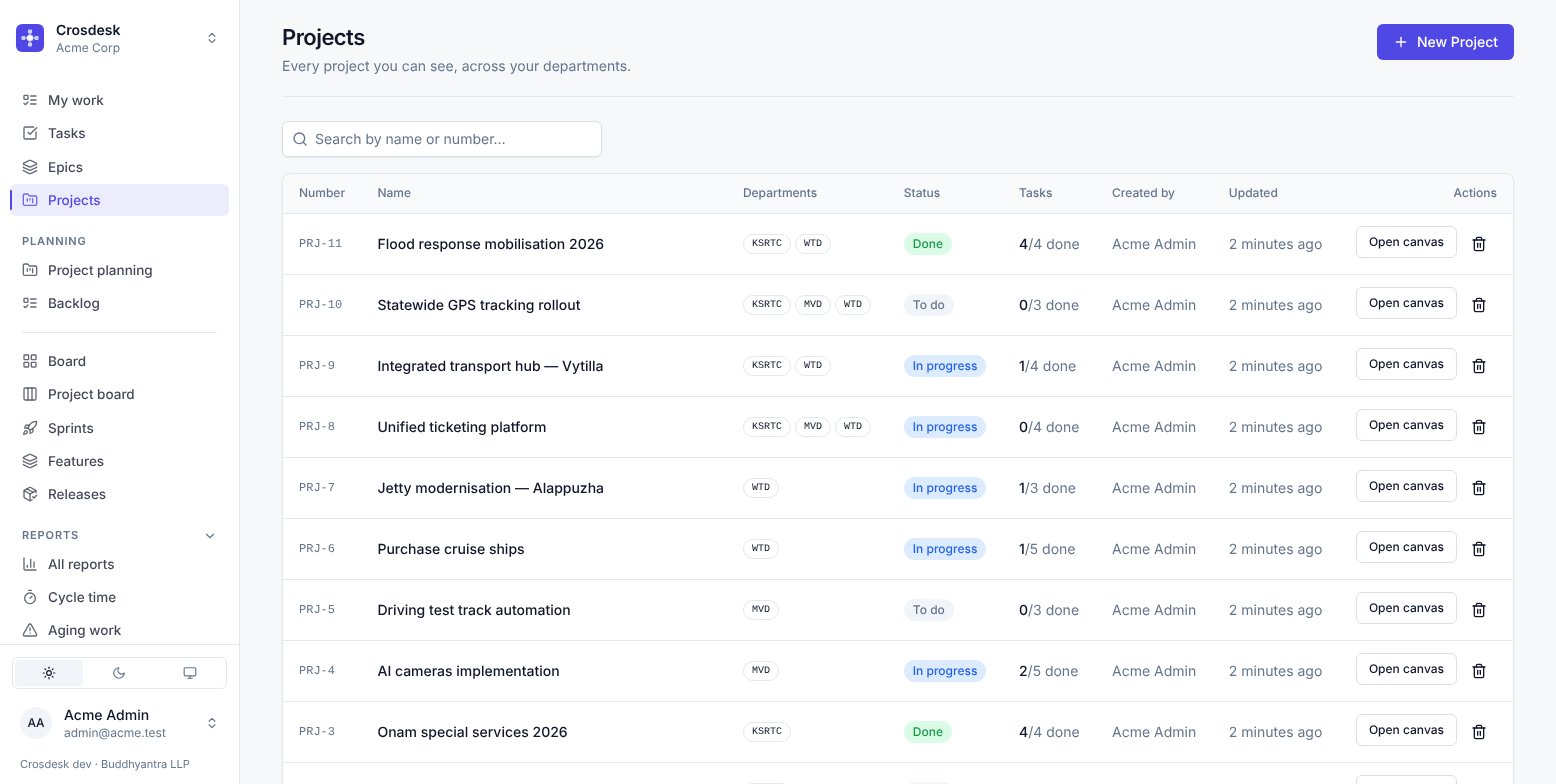
The canvas
Each card is a task. Each line between cards means this follows that. Nothing on the canvas is a date — dates are what Verify produces.
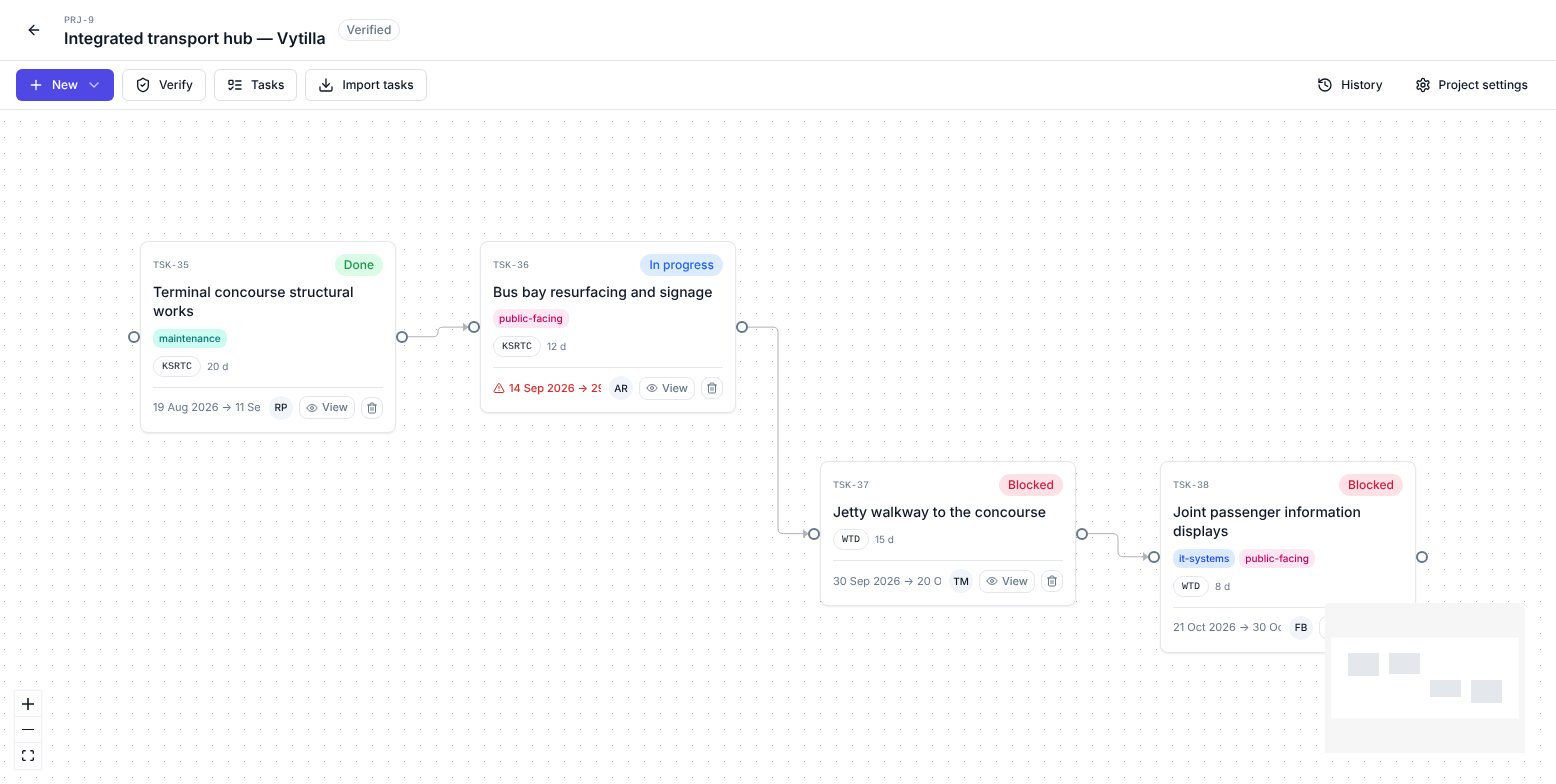
Above: TSK-35 is done, so TSK-36 can run. TSK-37 and TSK-38 are Blocked — not because somebody set them that way, but because the plan says what they wait on has not finished.
Working on the canvas
- New adds a card, an existing task, or a whole epic's worth of tasks.
- Drag from the dot on a card's edge to another card to connect them.
- Import tasks pulls in tasks that already exist, so work created on the Tasks page can be placed later. Only tasks on no other project's canvas are offered, because a task belongs to one project.
- Project settings holds the name, departments, status, and whether the project is ever offered to a release.
Verify
Verify is the step that turns a board into a plan. It checks the board, then lays the work out from a start date you choose, routing around weekends and holidays.
It refuses and tells you what to fix when:
- a card has no estimate — there is nothing to lay out;
- a card is connected to nothing — Crosdesk cannot know when it happens;
- the connections form a cycle — A waits on B waits on A.
It names every problem at once rather than one at a time, so you can fix them in a single pass.
What Verify changes
- Every task gets a start and end date, computed from its estimate and what precedes it.
- Tasks waiting on unfinished work are set to Blocked, and stay that way until the plan says otherwise. You cannot drag them out of Blocked on the board — put them On hold instead if a person has decided to stop.
- The board is marked Verified, and the dates it produced are kept as the baseline — what this project promises. When work slips, the live plan moves and the baseline does not, which is what lets Baseline variance and the project dashboard measure the slip.
Re-verifying replaces the baseline. Pressing Verify again is how a team says the old commitment no longer applies, so every task — finished ones included — takes the new plan's dates as its promise. It is logged on the project dashboard's How the plan moved, with who did it and how far the promise moved, beside the slips it wrote off.
Project status
To do, In progress, Done. A project that is Done is read-only except for its status, so finished work cannot drift.
A project closes itself when the last task on its canvas is done — finished by hand, or by a release going out. The tasks already say the work is over, so nobody has to remember to say it again. An empty canvas never closes. Nothing reopens a project for you: to reopen one, set its status back in Project settings.
Ships in a release
In Project settings. On by default. Turn it off for a project that is internal — a research spike, a migration — so it is never offered to a release and never sits in the picker being skipped over.
Adding a project to a release releases every task on its canvas that has not gone out yet. A finished task can also go out ahead of its project, on its own — see Releases. The project dashboard's Released work shows which tasks went out in which release.
Related
Todos and meetings
Use Todos for short assigned actions on this work. The Meetings section lists linked meetings you organise or are invited to; other linked meetings show only a count. Linking work does not grant diary access. See Todos and Calendar and meetings.