Appearance
Running a project, step by step
This guide takes one project from an idea to finished work: creating it, drawing its plan on the canvas, verifying it, committing its work to sprints, following it on its board and dashboard, and closing it. Each step says who can do it, and links to the page that explains the rules in full.
Videos
The pictures come from the demo workspace — Integrated transport hub — Vytilla (PRJ-9) is a verified project the bus and boat departments share, and Electric depot conversion (PRJ-2) is a draft still being shaped.
Who does what, at a glance
| Step | Who can do it |
|---|---|
| Create the project, draw and verify the canvas, change its settings | People with project management (workspace admins always have it) |
| Create and estimate tasks | Anyone in the task's department |
| Create and start sprints | People with sprint management |
| Move work into a sprint, work the board | Anyone in the department |
| Read the project's board and dashboard | Anyone in one of the project's departments |
The two capabilities come from groups; everything else follows from which departments you are in.
1. Create the project
Projects → New Project. Give it a name, a description that says what done means, and the departments involved. Departments decide who can see the project and whose tasks can go on it, so name every team that will do some of the work — you can only pick your own.
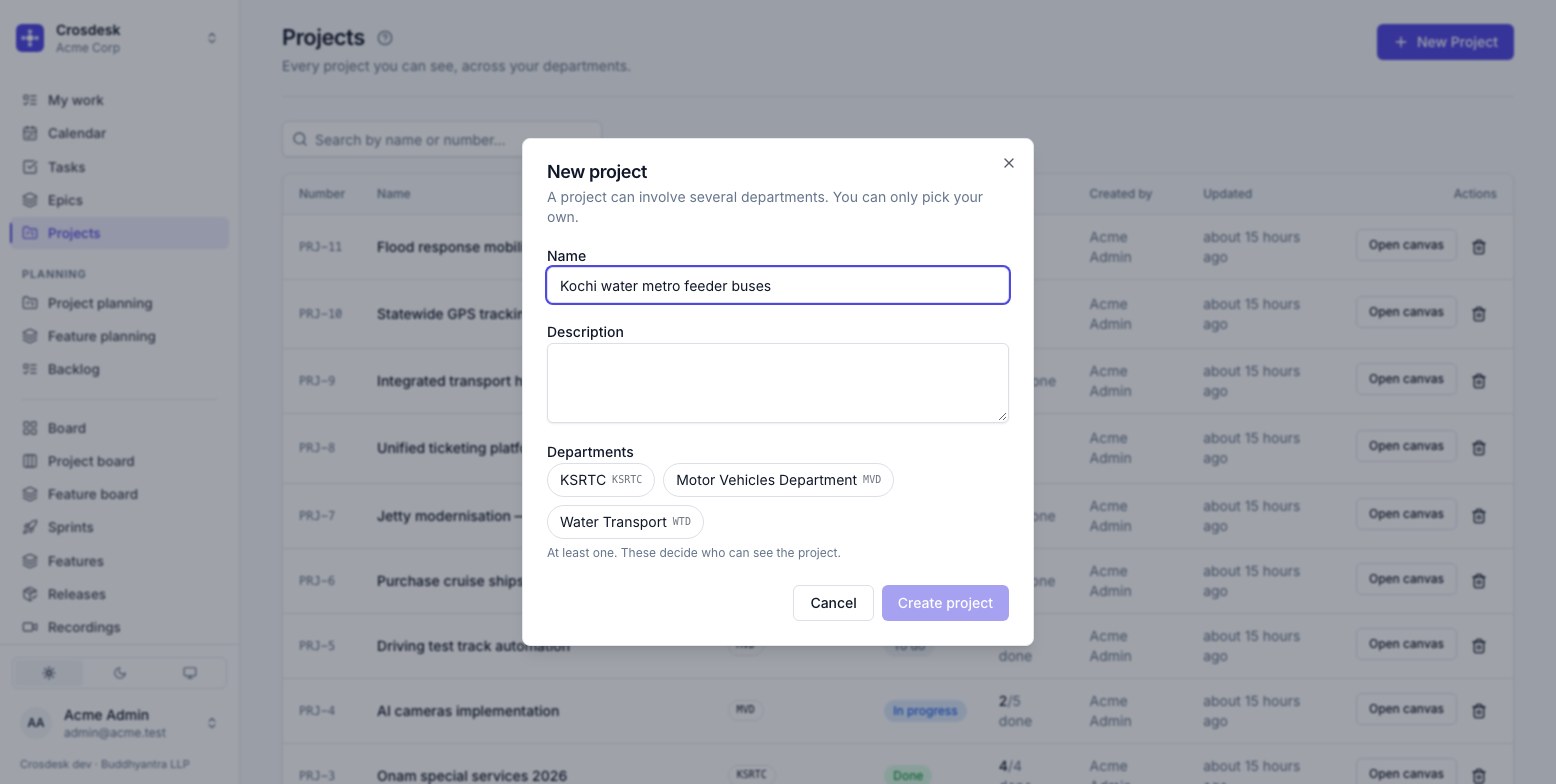
A new project is a draft with an empty canvas. Nothing has dates yet, and nothing is shown on the project board until it is verified.
2. Put the work on the canvas
Open canvas from the projects list. Each card is a task; each line means this follows that.
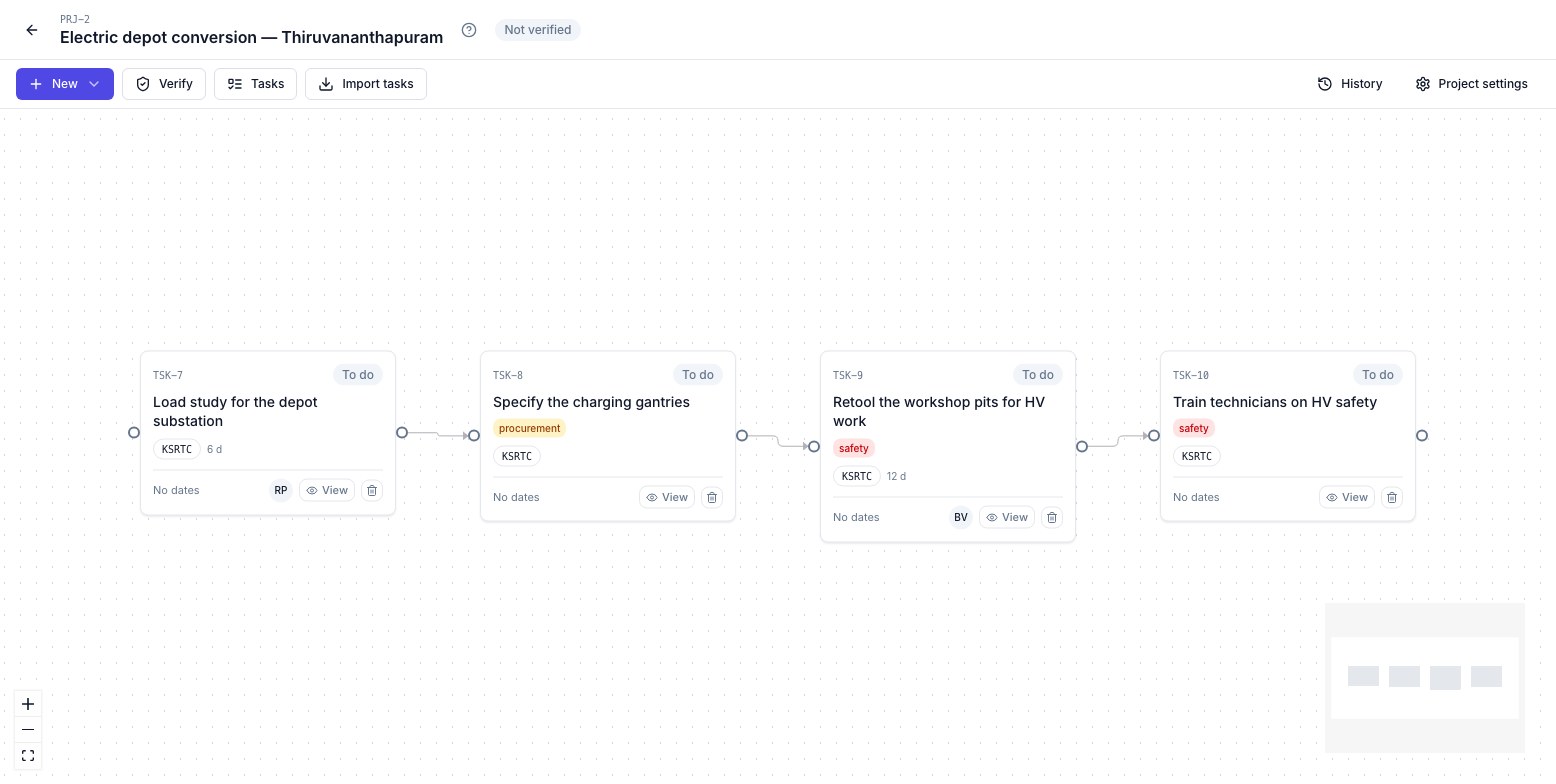
New adds a card — a new task, an existing task, or every task under an epic.
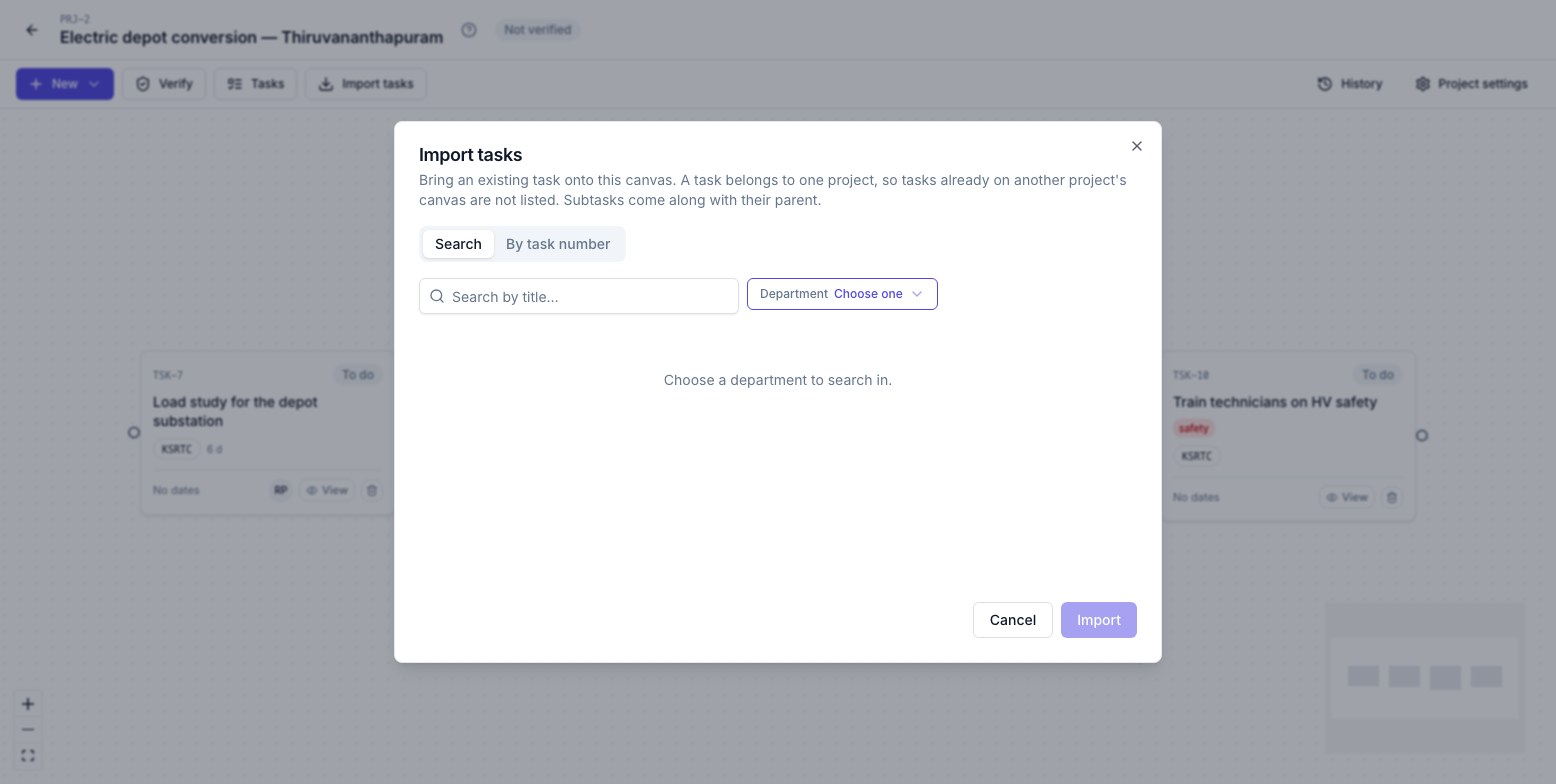
Import tasks brings in tasks made elsewhere, for instance on the Tasks page. Only tasks on no other project's canvas are offered: a task belongs to one project.
Connect the cards. Drag from the dot on a card's right edge to the card that follows it. Two cards that can run side by side both connect from the card before them.
Estimate every card in working days — on the card's task, with View. There are no hours: a day is the unit everywhere.
Every change saves as you make it; the header says Saved. The canvas is desktop-only.
3. Verify the plan
Verify turns the drawing into dates. Choose the day work starts and press Check — a dry run that changes nothing and lists every problem at once:
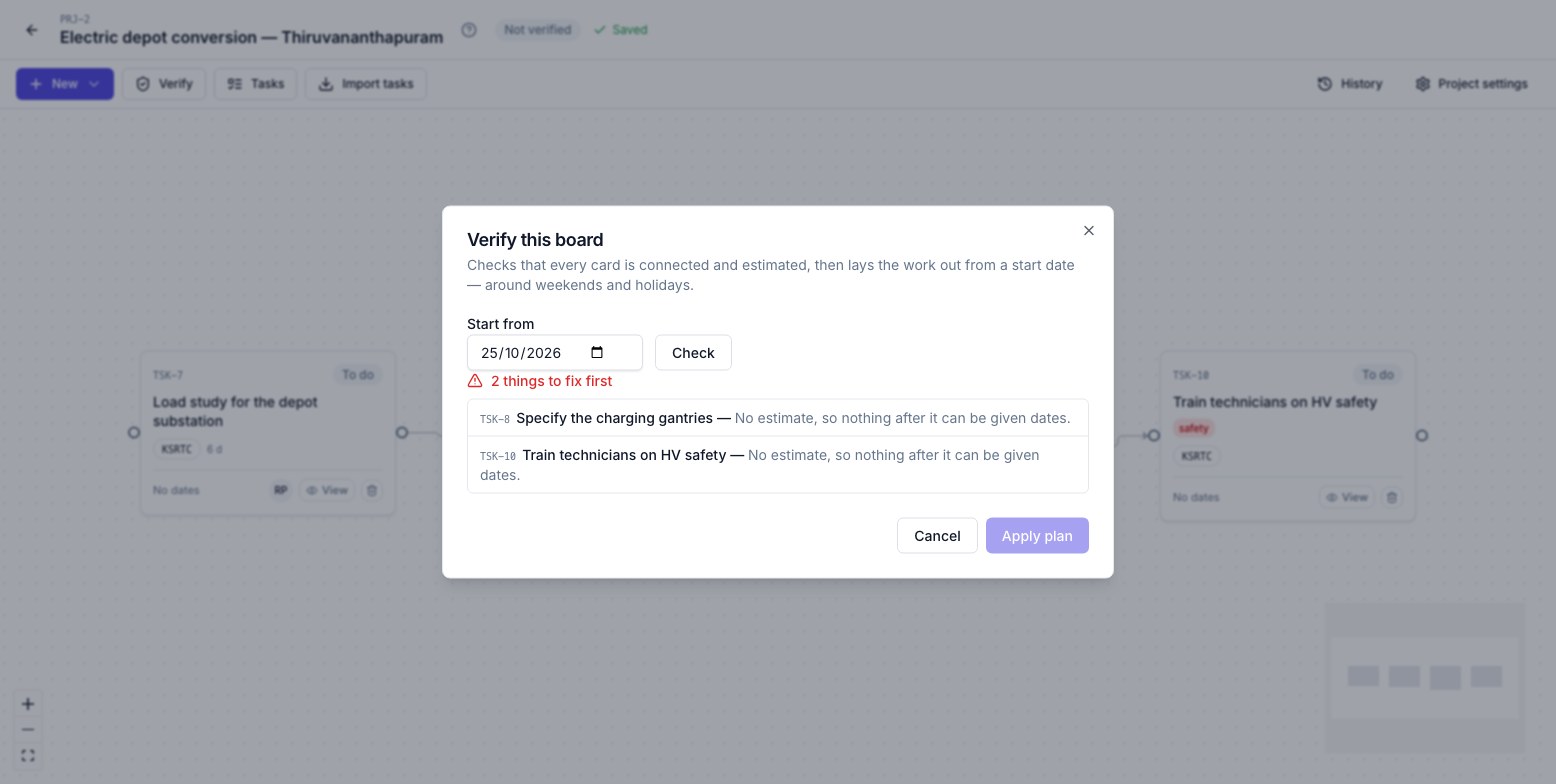
- a card with no estimate, as above — nothing after it can be dated;
- a card connected to nothing;
- connections that form a cycle.
Fix them and check again. When it says Ready, Apply plan: every task gets a start and end date, routed around weekends and holidays, and the project is marked Verified. Tasks waiting on unfinished work become Blocked — set by the plan, and cleared by it when the work in front finishes.
Verifying also records the project's baseline — the promise. Later slips move the live plan, not the baseline, so the dashboard can say how far the work has drifted from what was agreed. Editing a verified canvas shows Changes to verify until you verify again — and verifying again replaces the baseline. That is the way to say the old dates no longer apply; it is logged, with who did it and how far the promise moved, so a re-verify is never a quiet way to clear a slip.
See Projects and the canvas for every rule.
4. Commit the work to sprints
Planning → Project planning, then the project. Choose your department: the page shows the whole plan as a timeline, then your running sprint and each upcoming one with what it holds, then the project's work still in your backlog.
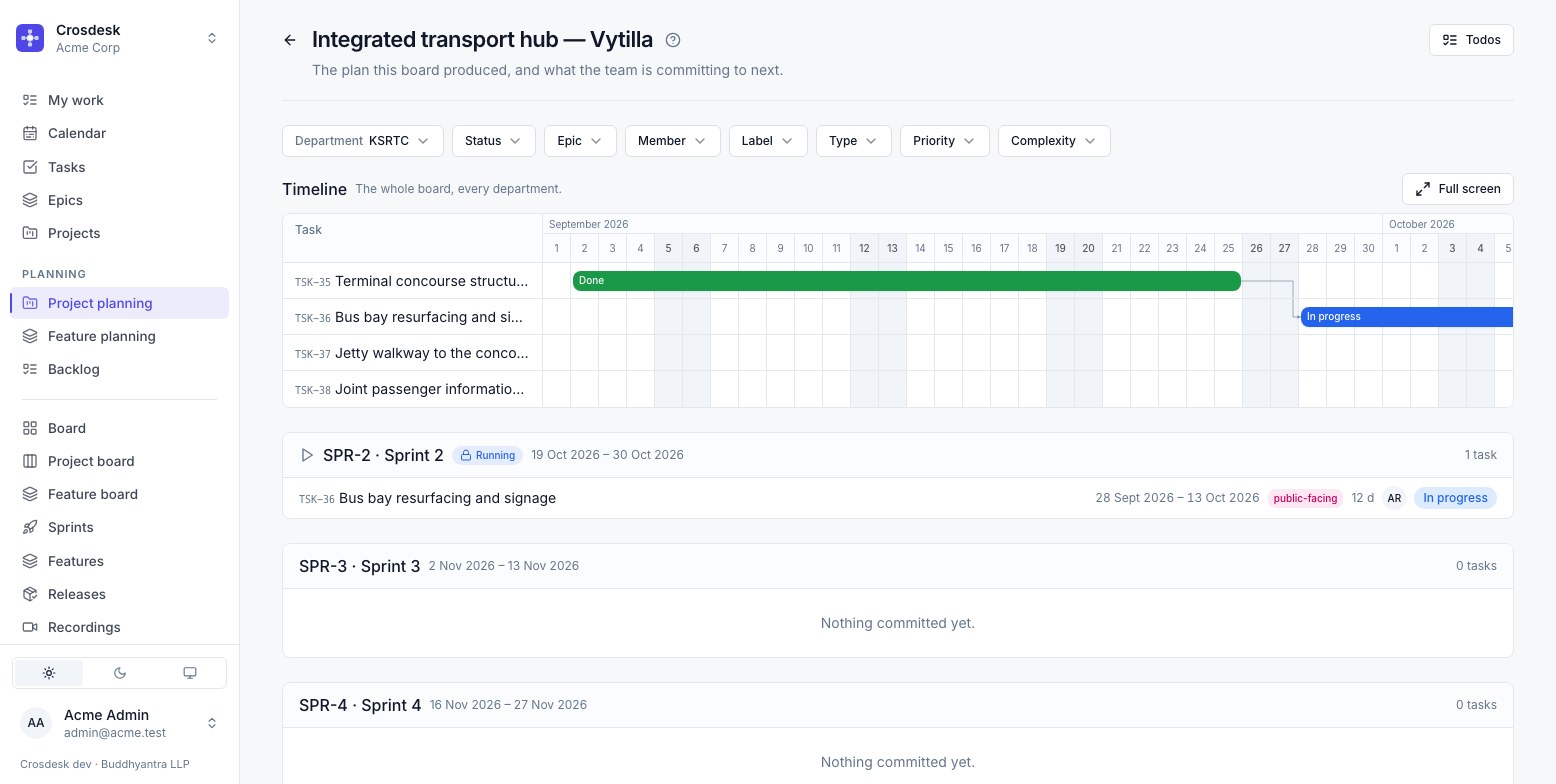
Move on a backlog row puts it into a sprint. The same work is on the Backlog — narrow it with the Project filter to plan a sprint around finishing this project. Creating a sprint needs sprint management; moving work into one does not.
5. Follow it on the project board
Project board, then a department and the project. The same five columns as the sprint board — To do, In progress, Blocked, On hold, Done — for this project's work only.
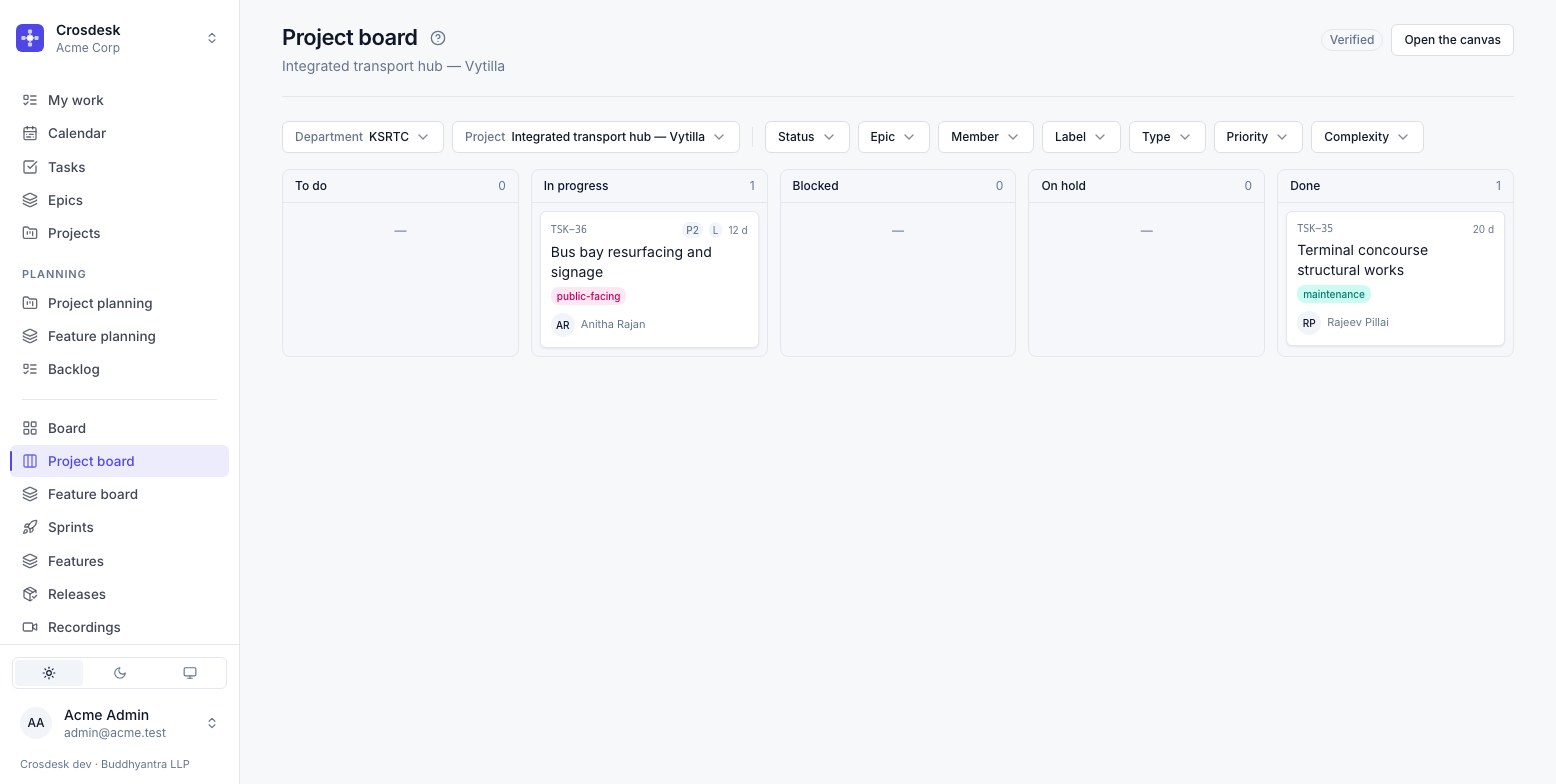
Drag a card to change its status. A Blocked card cannot be dragged: the plan holds it. If a person decides to stop, open the task and put it On hold. Finishing a task re-plans the cards after it, so the next one leaves Blocked on its own.
6. Read the dashboard
Reports → Project dashboard. What the plan said this would cost, against what it is costing: progress, effort, the planned finish and where the project is now heading.
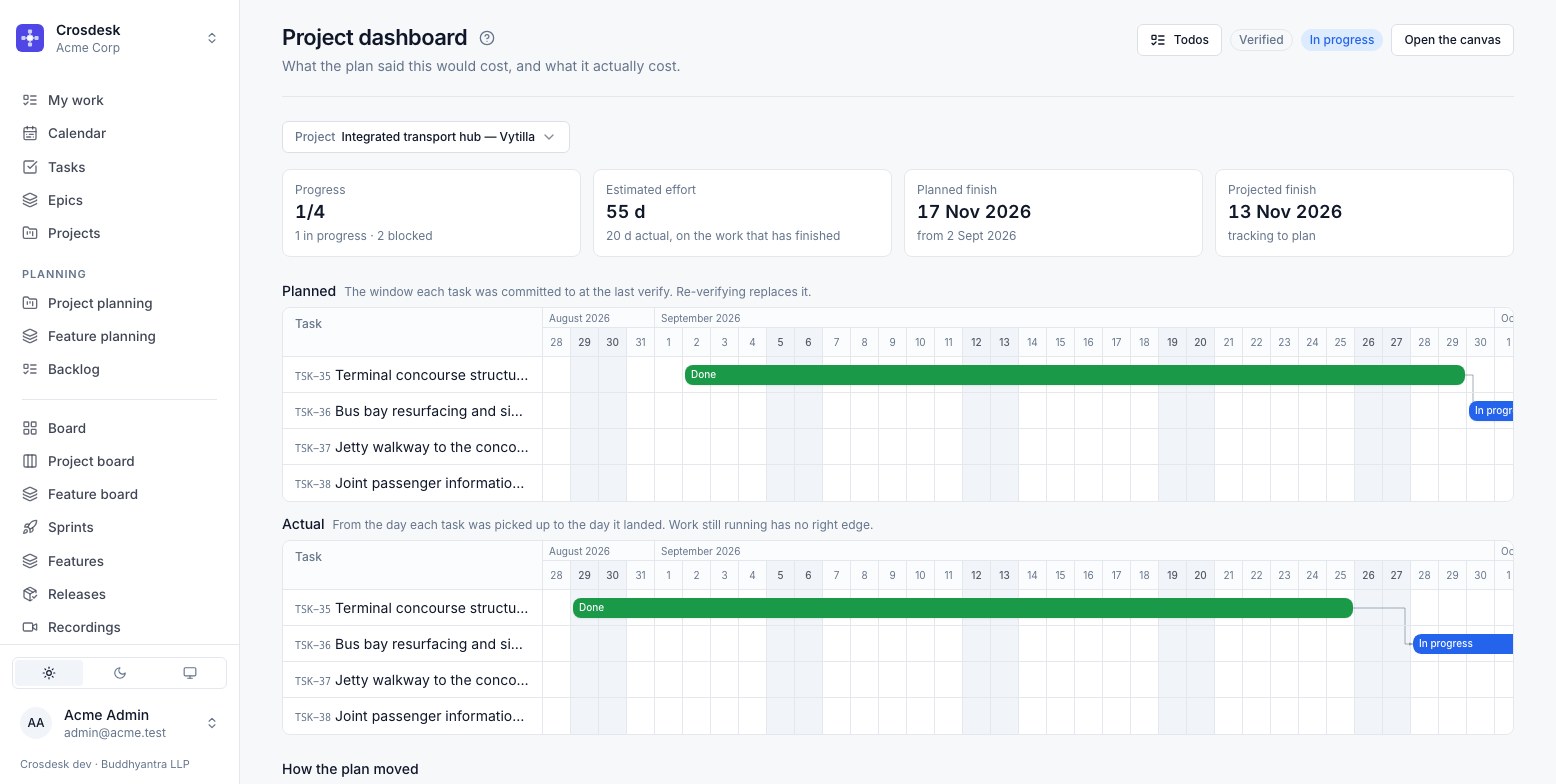
Planned draws each task's window from the last verify; Actual draws when work was really picked up and finished. How the plan moved lists every re-verify, with who did it and by how many days. Everyone in the project's departments can read it — it reports, it does not grade.
7. Finish and ship it
Project settings on the canvas holds the name, description, departments, status and whether the project is offered to releases once it is done.
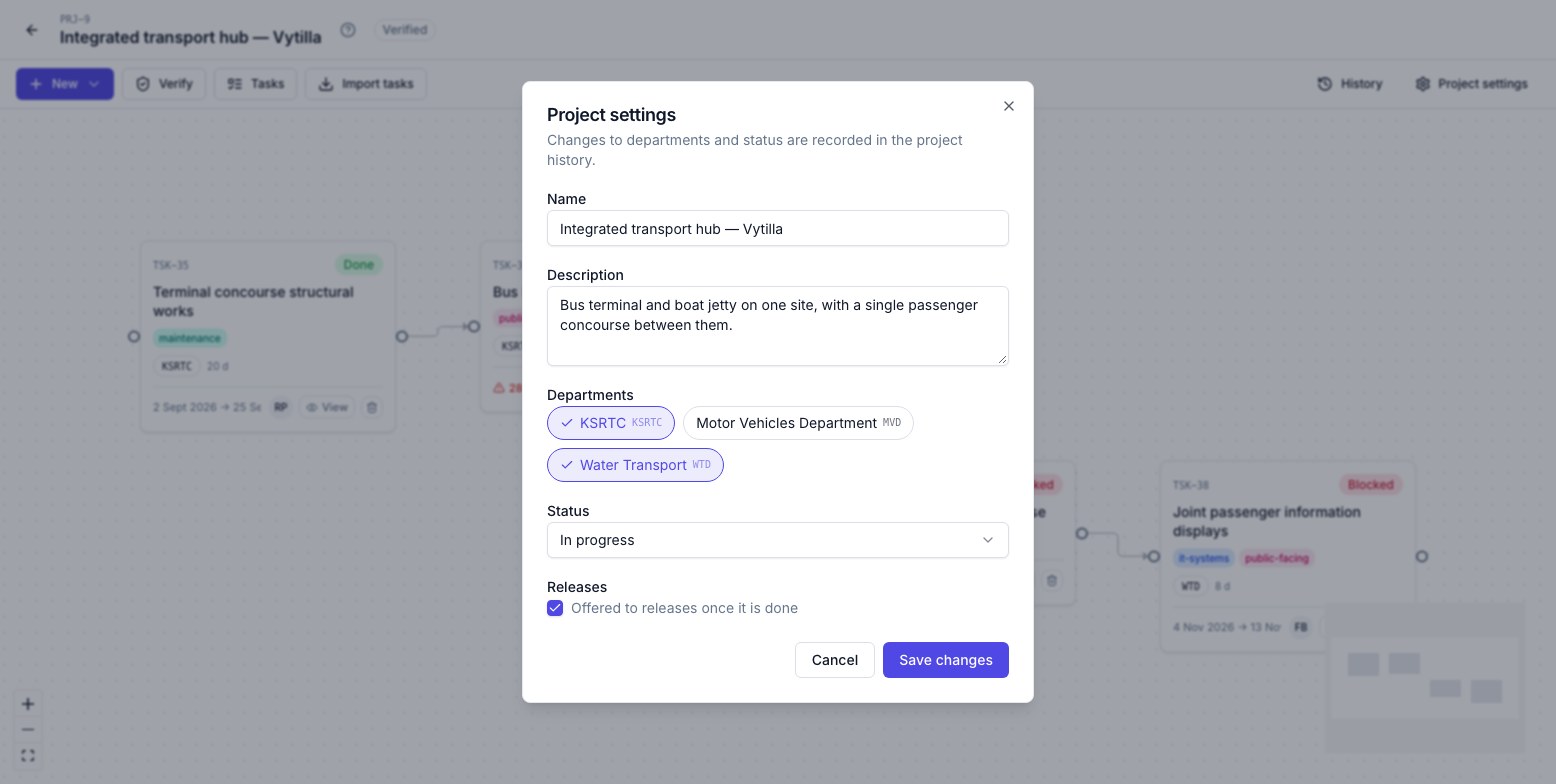
- The project closes itself when the last task on its canvas is done — by hand or by a release. Nobody has to remember to. A finished project is read-only except for its status, so its record cannot drift. To reopen one, set its status back in Project settings.
- To ship it, add the project to a release: every task on its canvas that has not gone out goes out with it. A finished task can also ship ahead of its project, on its own.
- Turn Offered to releases off for internal work — a migration, a research spike — so it never sits in the release picker being skipped over.
Related
- Projects and the canvas — the rules behind each step
- Sprints and the board — the project board
- Reports — baseline variance and the project dashboard
- Running a feature — the other kind of long-running work