Appearance
Users
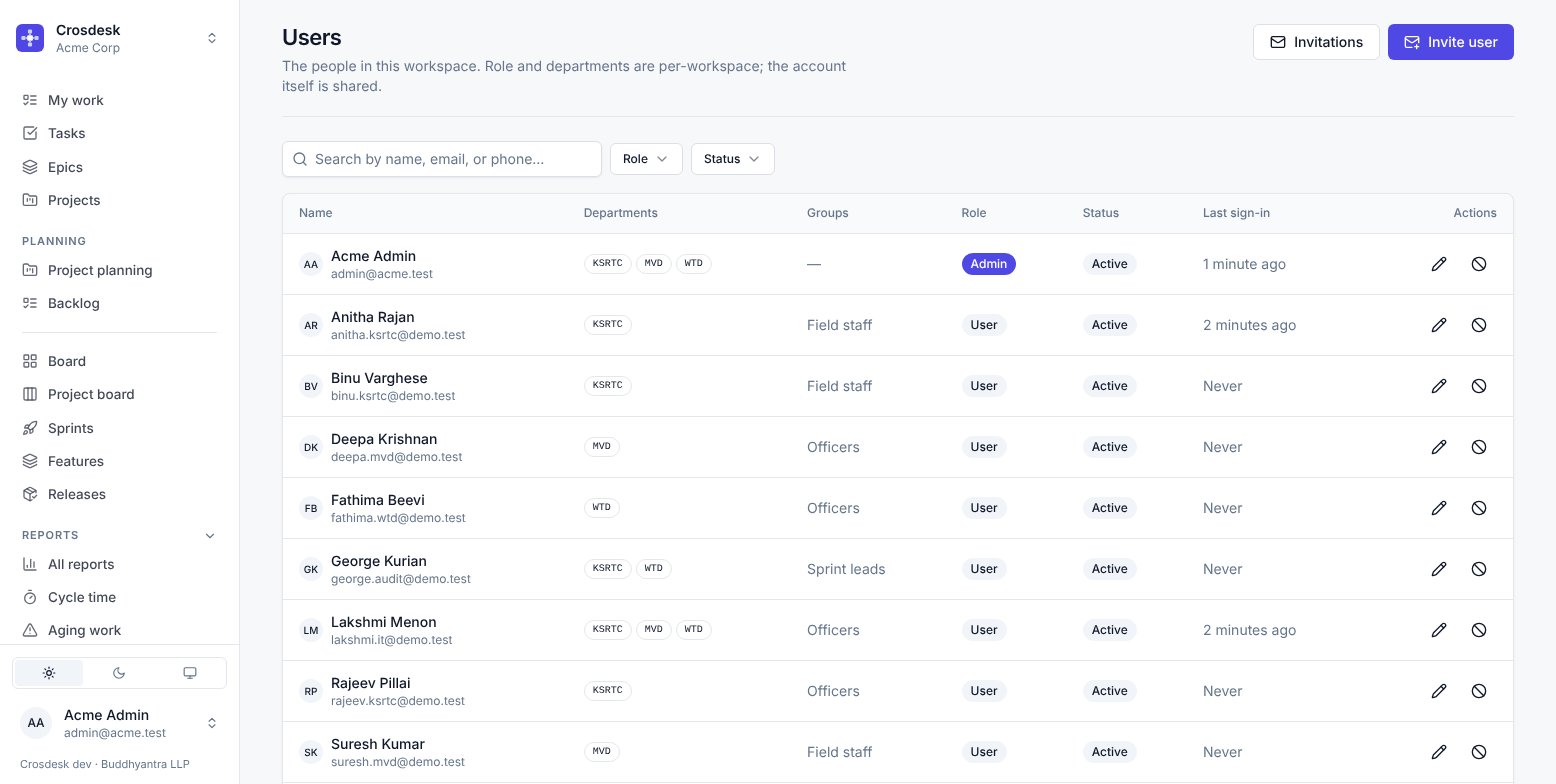
The people in this workspace. Role and departments are per-workspace; the account itself is shared.
Administrators only.
Adding someone
New user takes a name, an email, a role, their departments and their groups. Crosdesk sends an invitation; the person sets their own password from the link.
You never set somebody's password. Until they accept, their account exists but cannot sign in — which is what Never under Last sign-in means.
On a licence with a user limit, an invitation takes one of its seats from the moment it is sent. When every seat is taken, New user is refused with a message saying so — inviting somebody already active in another workspace on the installation still works, since they count once. Withdraw a pending invitation, or deactivate someone, to free a seat; the instance operator can also cancel invitations or raise the limit (The user limit). A workspace can also have a user limit of its own, set by the operator — your My profile → Access shows its plan, the limit and how many people count against it (Workspace plans).
Sharing an invitation yourself
If the instance operator has turned on Let workspace admins copy an invitation link (in the operator console, under Security), each open invitation in Invitations has a Share button. It's for installations where email doesn't arrive reliably.
- Invitation link — the same link that was emailed, to send by chat. An invitation sent before the setting was turned on has no copy kept; Make a new link creates one. A new link is not emailed, and the link sent before it stops working. Neither extends the invitation's week.
- Sign-up code — someone without a Crosdesk account is asked for a code after opening the link, to prove the address is theirs. Generate code makes one you can read out; it works for five to ten minutes, once, and any code sent before it stops working. Someone who already has an account signs in to accept and is never asked for a code, so none is offered.
Give the code only to the person invited. With the link and the code, anyone can join as that address. Every link shown and every code generated is recorded in the audit log; the code itself never is.
What you set on a person
| Field | Effect |
|---|---|
| Role | Admin unlocks the Administration section. User does not. |
| Departments | Where they can act. Nothing else grants visibility. |
| Groups | What they can do. See Groups and permissions. |
A person can be in several departments. Lakshmi Menon is in all three in the demo workspace, which is why her My work page opens as three groups.
Deactivating
The circle-slash icon deactivates someone in this workspace, after asking. They lose access to it at once, in every tab they have open, and their history, assignments and comments stay exactly as they are. Their departments and groups are kept too, and still shown in the list, so you can see what they will have back.
Their other workspaces are not affected. The account is shared and only the membership here is switched off: someone who also works in another organisation stays signed in there, and signing in takes them to a workspace they still have. Someone with no other workspace is signed out.
Deactivate rather than delete. Deleting a person who assigned work, approved a feature step or commented on a task would leave those records pointing at nobody. Deactivation ends access, which is the thing you actually want.
Enable — the person-with-a-tick icon on a disabled row — restores access with the same departments and groups. On a licence with a user limit, Enable needs a free seat unless the person is active in another workspace already. Both are on the audit log, as a deactivation and a reactivation. Disabled by the instance operator reads Disabled, with by the operator beneath it, and has no Enable: the operator switched the account off across the whole installation, and only they can switch it back on. Such people are still listed, under the Disabled filter with everyone else.
The account is shared, the membership is not
The same email address can belong to several workspaces, with different roles and different departments in each. Somebody consulting for two organisations signs in once and switches between them.
Invitation email delivery
Emails are queued in the API process so mail delays and failures do not block invitations, sign-in codes or password resets. The Invitations table shows email delivery separately from the invitation response: PENDING, SENT (accepted by the mail server, or by Mailtrap), NOT_CONFIGURED or ERROR. An error shows a diagnostic and is also logged by the API. Development previews do not count as delivery. Use Resend invitation email to queue a fresh link; the previous link stops working and the invitation gets a new seven-day expiry. You can also copy the link after issuing it.
The queue is held in memory. A process restart can interrupt pending mail; resend an invitation that remains pending after a restart. Delivery is not automatically retried.