Appearance
Tasks
The unit of work. Everything else in Crosdesk is a way of grouping, ordering or reporting on tasks.
Videos
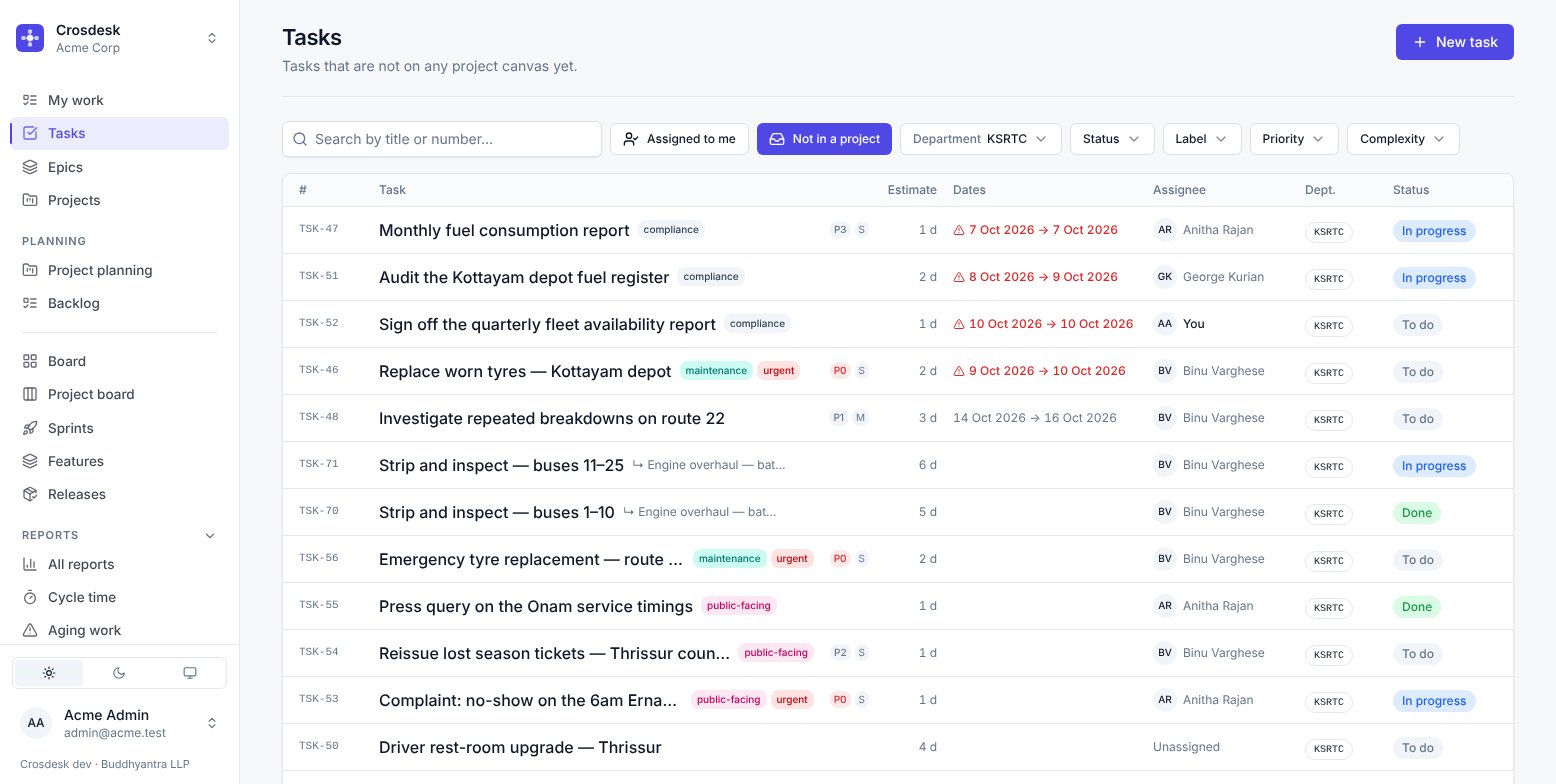
The Tasks page
Lists every task in one of your departments — never a union of several, because a mixed list is one nobody reads to the bottom.
It opens on Not in a project, so the first thing you see is work nobody has placed on a canvas yet. Turn that filter off to see everything. Assigned to me narrows it to yours; it does not unlock anything, since seeing your department's work is what everyone gets.
Filters: search, status, label, priority, complexity, department. All of them live in the address bar, so Back returns you to exactly the list you left.
On a wide screen the list reads as columns — number, task, estimate, dates, assignee, department, status — so you can run your eye down one of them. On a phone each task wraps under its title.
A task
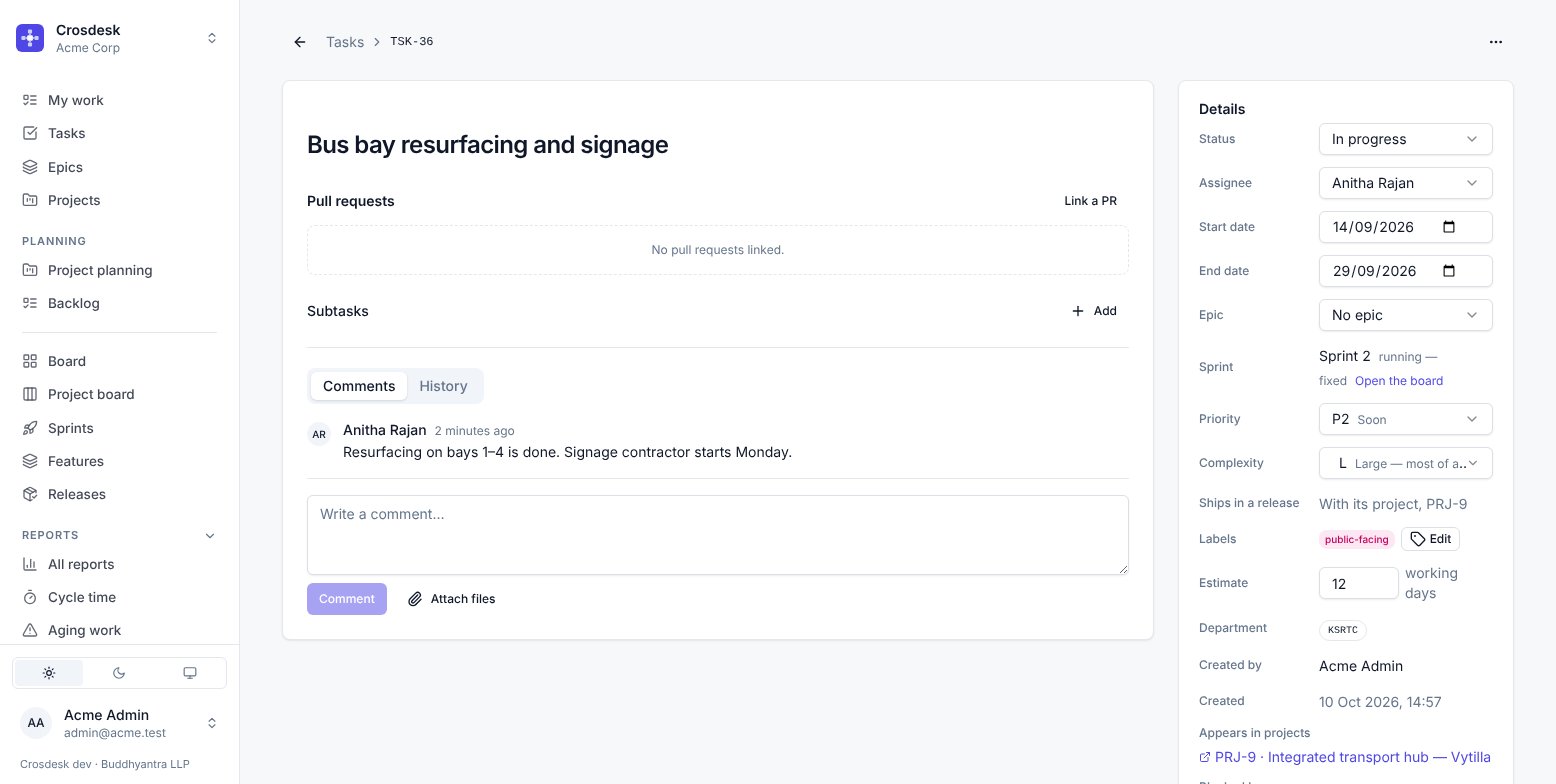
A task opens on its own page, with the way back above the title (Tasks › TSK-36). The work — pull requests, subtasks, comments — sits on the left; the fields sit in the Details panel on the right, which stays in view as you scroll. Every field saves as you change it; the note beside the trail tells you when it has.
| Field | Notes |
|---|---|
| Status | To do, In progress, Blocked, On hold, Done. On a verified board, Blocked is the plan's to set. |
| Assignee | One person, from the task's department. |
| Start / End date | Computed by Verify on a verified board. Set by hand elsewhere. |
| Epic | An optional heading. See Epics. |
| Sprint | Which sprint committed to it, and whether that sprint is running. |
| Priority | P0 drop everything · P1 this sprint · P2 soon · P3 whenever. Empty by default. |
| Complexity | S hours to a day · M a few days · L most of a sprint · XL split it if you can. Empty by default. |
| Ships in a release | On by default. Turn off for work that never ships. A task on a project's canvas ships with its project instead, so it shows the project here rather than a switch. |
| Feature | The feature stage this task is work for, as feature and phase above the stage's name. Link to a stage searches the features the task's department is part of; Change stage moves it; × unlinks it. A task converted from an issue also shows the stage that issue sits under. Linking can raise the stage's estimate — see A step's estimate and its tasks. |
| Estimate | Working days. What Verify lays out and what velocity counts. Raising it can raise the estimate of the feature stage the task is linked to. |
| Department | Fixed at creation. It decides who sees the task. |
| Labels | From the shared vocabulary. See Labels. |
The feature stage
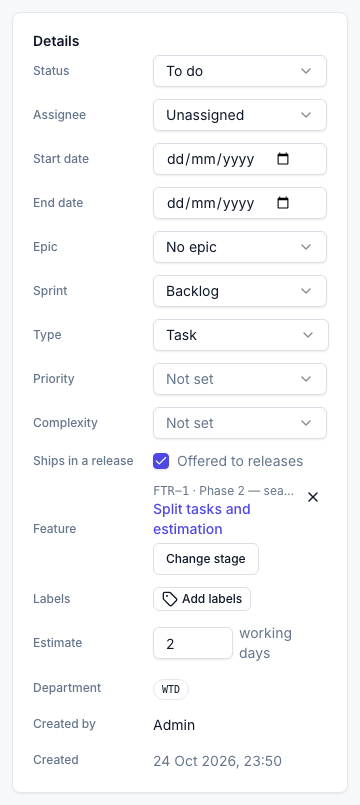
Feature names the stage this task is work for: the feature and phase on the first line, the stage beneath it, which opens the stage. Change stage moves the task to another stage in one step — it is never on two — and × unlinks it, leaving the task as it was. Only features that involve the task's department are offered: a feature's work belongs to its departments.
A task's estimate counts toward its stage. If the tasks on a stage add up to more than the stage was given, the stage rises to cover them — see A step's estimate and its tasks.
Priority and complexity are deliberately empty
Neither is required and neither has a default, because a field everything is born with stops meaning anything. Set them where they tell somebody something.
They are not the same question. Priority is when should this be done; complexity is how big is it. A P0 / S is a fire you can put out before lunch; a P3 / XL is something to plan for.
Blocked by
Shows what stands in front of this task and on which board — only the unfinished ones, because a blocker that is Done is history and listing it would make work that is ready look like work that is not.
Subtasks
A task can have subtasks, which are ordinary tasks with a parent. They appear in lists like any other task, showing ↳ parent so a row never loses its context.
Comments, attachments and history
- Comments — discussion scoped to this task. Editable by their author.
- Attach files — images and PDFs open in a viewer without downloading.
- History — every change to this task, with who made it and when.
Pull requests
Link as many as you need, by URL — paste another and press Link, or paste several at once.
If your workspace has connected GitHub, a pull request that mentions the task's number links itself, and every GitHub link shows whether it is open, a draft, merged or closed. The number beside the task's title copies the reference to write; see Linking pull requests. A link someone pasted from anywhere else shows the URL and who added it, and no state: nothing asked GitHub, so nothing is known.
Recordings
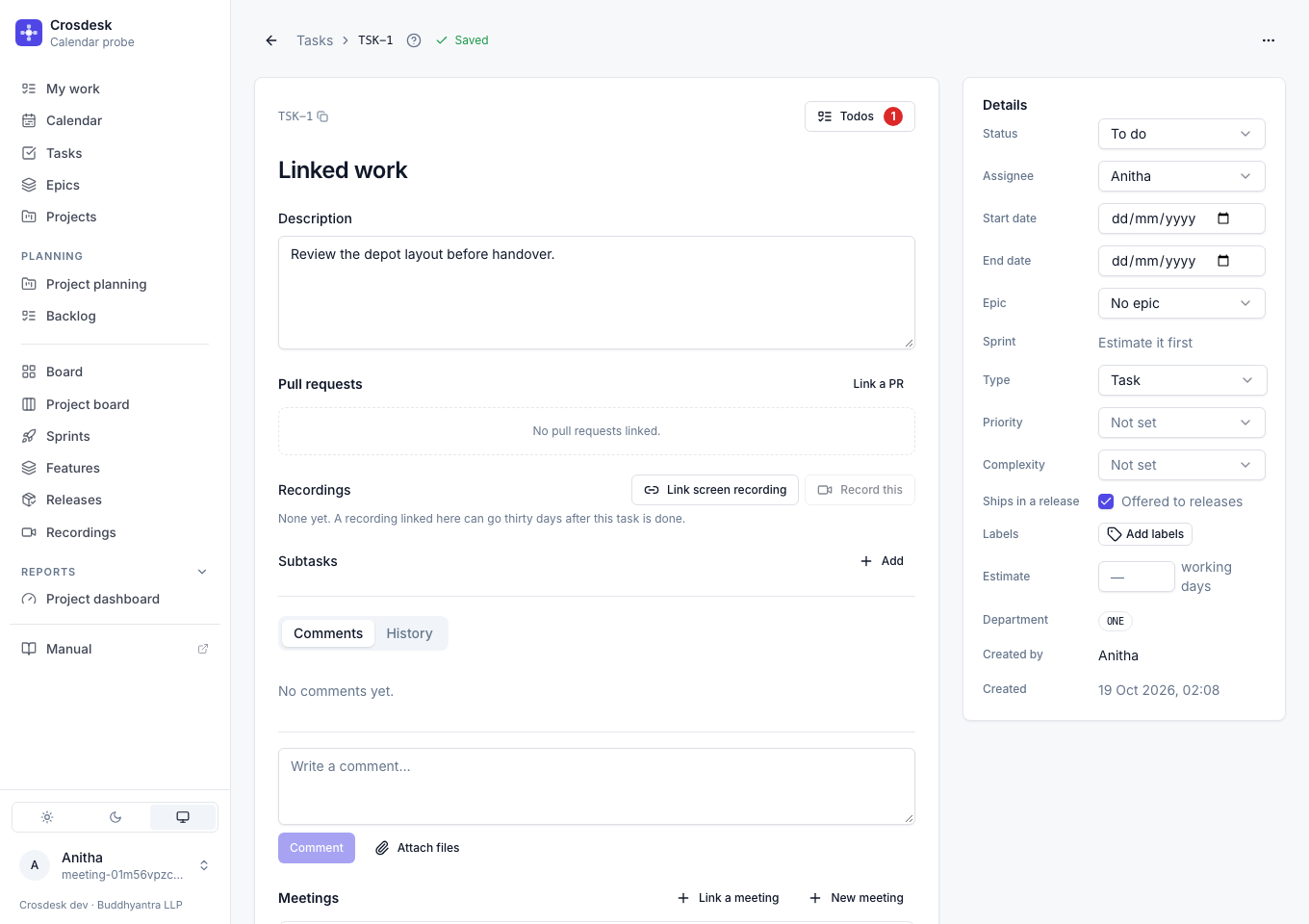
Screen recordings of the problem, made with the Crosdesk Recorder. Link screen recording adds one by its link or from your recent ones; Record this starts a new one already linked here. Linking matters beyond convenience: thirty days after this task is done, the recordings linked to it can go. See Recordings.
Deleting a task
Delete task is under ⋯ at the top right of the task's page. It asks first, and names what goes: the task, its comments, attachments and any subtasks under it. There is no undo, which is why it asks.
Appears in projects
The project whose canvas this task sits on, and how you find your way back. A task belongs to one project at most: releasing a project releases every task on its canvas, so a task on two would ship with whichever went first. To move a task, remove it from one canvas, then import it into the other.
Related
Todos and meetings
Use Todos for short assigned actions on this work. The Meetings section lists linked meetings you organise or are invited to; other linked meetings show only a count. Linking work does not grant diary access. See Todos and Calendar and meetings.
Description and related meetings
The task's Description section stays visible when it is empty. Choose Add description… or Edit description, then Save description; clearing the text removes it. Cancel keeps the saved text. The Todos button is at the right of the task reference row.
Meetings sits below Comments and History, with linked meeting chips and actions at the right, matching Recordings. Link a meeting searches past and upcoming meetings in your own diary.