Appearance
Recordings
A bug report that shows what happened instead of describing it: the tab's video, with its console and its network traffic beside it, kept in step as it plays.
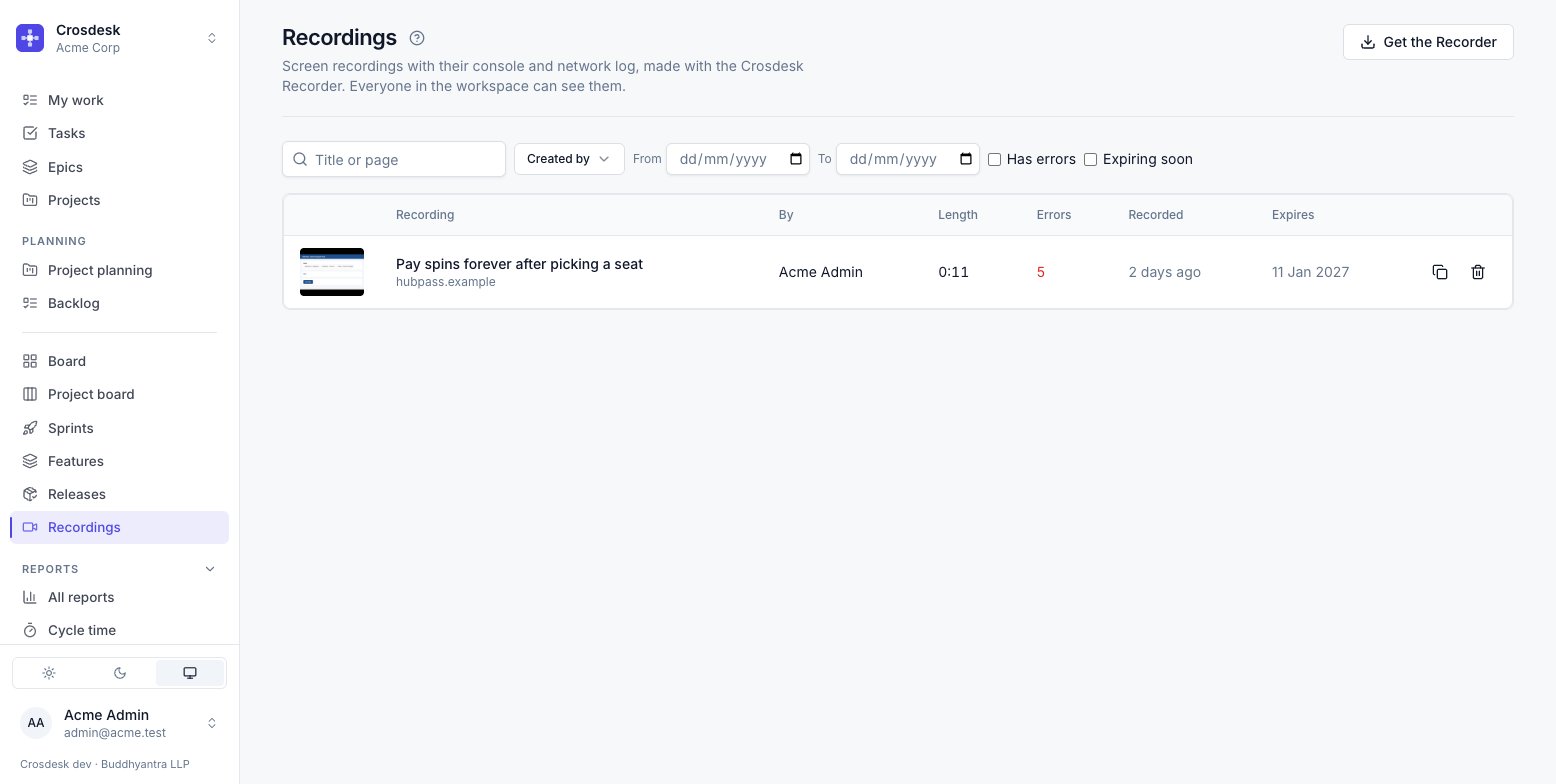
Recordings are made with the Crosdesk Recorder, a browser extension, and saved to a workspace. From there a recording is a link: paste it into a task, an issue, a comment or a chat, and whoever opens it in Crosdesk sees the same thing you saw.
Getting the Recorder
The Recorder runs in Chrome and the browsers built on it — Edge, Brave, Opera — and in Firefox (version 140 or later, on a computer). Safari is not supported yet. Get the Recorder on the Recordings page offers the one for the browser you are using.
In Chrome, Edge, Brave or Opera:
- On Recordings, choose Get the Recorder. It downloads
recorder.zip; unzip it somewhere it can stay. - Open
chrome://extensions, turn on Developer mode, choose Load unpacked, and pick the unzipped folder.
In Firefox:
- On Recordings, choose Get the Recorder. It opens the Crosdesk Recorder on Firefox Add-ons in a new tab.
- Choose Add to Firefox, then Add.
Then, in either: the Recorder opens its set-up page. Type your Crosdesk's address — the one in your address bar, without anything after the domain — and choose Connect. The browser asks to let the Recorder reach that address, and only that one.
Updating. Firefox updates the Recorder by itself, from Firefox Add-ons; to update straight away, open Add-ons and themes, then the gear menu, then Check for Updates. In Chrome, when your Crosdesk has a newer Recorder than the one you installed, New recording says so: download it again the same way and load the new folder in place of the old, then connect again if it asks.
The set-up page then says who you are signed in as, and whether this installation lets the Recorder save recordings. If it does not, the person who runs your Crosdesk has to allow it once — see Recordings settings. Once the Recorder is set up, the button on the Recordings page reads New recording instead.
The Recorder uses your Crosdesk sign-in; it has no password of its own. Sign out of Crosdesk and it is signed out too.
Making one
From Crosdesk. Choose New recording on the Recordings page — or Record this on a task, Record this bug on an issue, which links the recording to it. Choose the workspace it goes into and, optionally, a task to link it to, then Arm the Recorder. Go to the tab with the problem and press the Recorder's button in the toolbar, or Alt+Shift+R.
It takes two steps because the browser insists: an extension may record a tab only after you ask it to on that tab. The choice you armed lasts thirty minutes, or one recording.
From the toolbar. On the tab you want, press the Recorder's button. It shows the workspace it is Recording into — change it there — and Record this tab starts. Tick Narrate with the microphone first to talk over it. Alt+Shift+R starts recording straight away, into the same workspace.
In Firefox, starting opens a small Crosdesk Recorder window. Choose Share and record, and Firefox asks what to share: pick the window that shows the tab — Firefox shares windows, not single tabs, so stay on that tab while you record. The first time you record on a site, Firefox also asks to let the Recorder read that site's console and network; allow it, or the recording follows only the page open now and not the pages you go on to. Keep the small window open until the recording is saved — closing it discards the recording — and stop from its Stop button, the toolbar, or Alt+Shift+R.
A recording stops when you press Stop, or by itself at the length your installation allows (five minutes unless it has been changed). The Recorder then opens a review page:
- Title — the page's title to begin with. Name the problem rather than the page.
- What happened? — optional; the steps, and what you expected instead.
- Save to — the workspace, still changeable. The last chance to catch a bug recorded into the wrong organisation.
- Link to a task — optional, searched in the workspace you are saving to.
Create uploads it and copies its link. Discard throws it away; nothing has left your browser at that point.
What is recorded, and what is removed first
The video of the tab, its console (logs, warnings, errors, uncaught exceptions) and its network requests with their headers and, for text, their bodies.
In Firefox, the console and network are read from inside the page, because Firefox gives extensions no debugger. That sees everything the page's own code does — its logs, its errors, its fetch and XMLHttpRequest calls — but not requests the browser makes by itself (images, stylesheets, a service worker's), nor anything on a site you did not allow. The recording's Info says which way it was captured.
Secrets are removed in your browser, before anything is sent. Cookies, Authorization and similar headers are dropped; query parameters and JSON fields named like passwords, tokens, keys or one-time codes are replaced with [redacted]; bodies are kept only for text, and cut off at 64 KB. The review page says this before you create, because everyone in the workspace can read what is left.
The Recordings page
Every recording in the workspace, newest first, whoever made it. The filters stay in the address bar, so a link to a filtered list shows what you saw:
- Title or page — searches the title and the address that was recorded.
- Only my recordings — the Created by filter set to you alone. Change Created by to anyone else and the button turns off.
- Created by — you, the people in your departments, and whoever made a recording on the page.
- From and To — when it was recorded.
- Has errors — at least one console error or failed request.
- Expiring soon — goes within seven days.
A row opens the recording. Copy link copies its address; Delete asks first.
Watching one
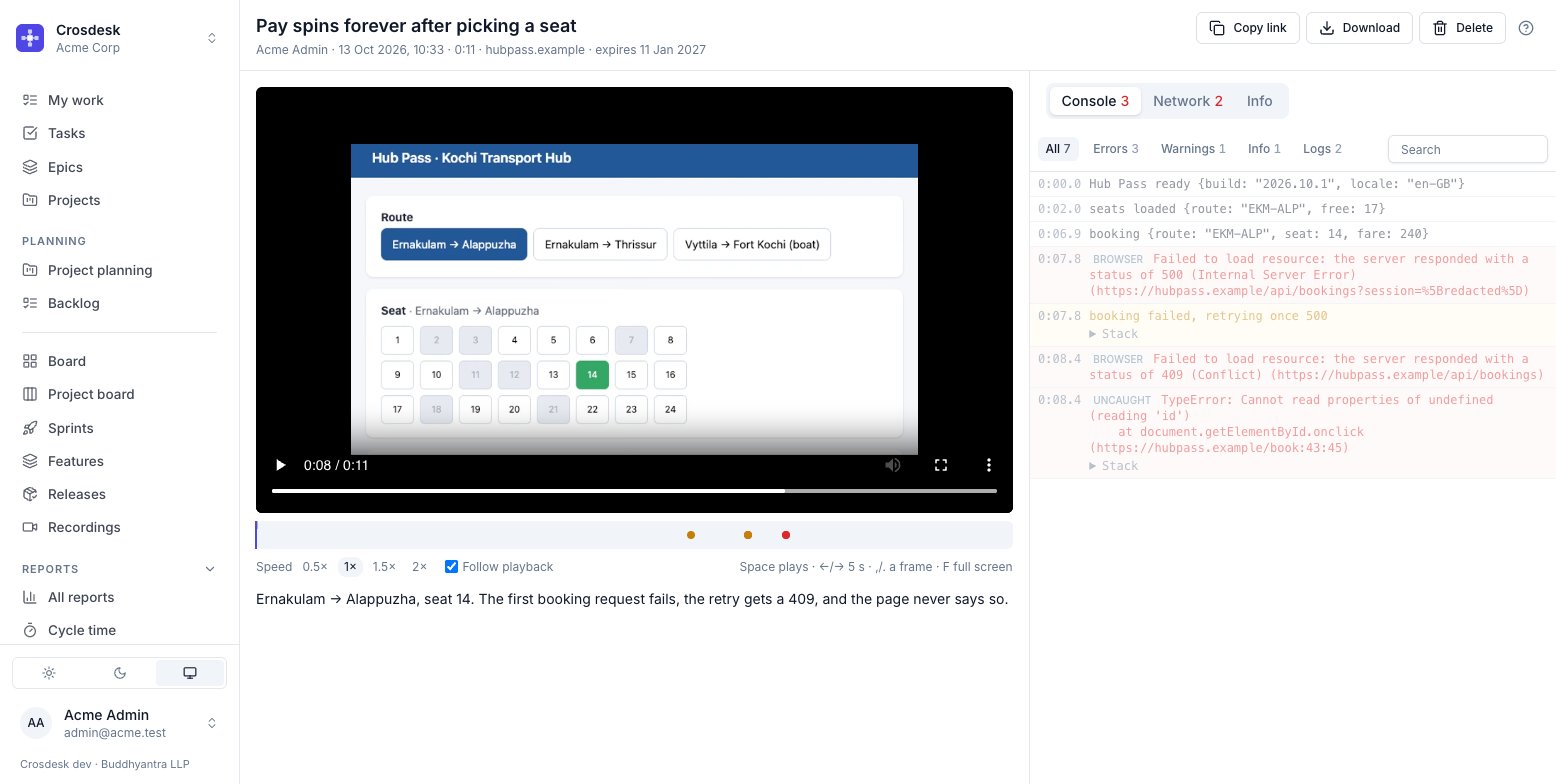
The video plays on the left; the log is on the right, and the line that matches the moment on screen is highlighted as it plays. Click a line to jump the video to it. The arrow beside the title goes back to the list, with the filters you left it with.
Under the video, a timeline marks where the trouble is: errors in red, failed requests in amber, and each page load as a tick. Click a mark to go there. Follow playback keeps the log scrolled to the current moment; turn it off to read ahead while it plays. Speed runs it at half speed to double.
- Console — every message, filtered by level, and searchable. Objects open out; an error shows its stack.
- Network — every request, with its method, address, status and timing. Failed requests are marked. Choose one to see its Headers, Payload, Response and Timing.
- Info — the browser, operating system, window size, time zone and language it was recorded in, what it is linked to, and when it will go.
Keys: Space plays and pauses, ← and → move five seconds, , and . one frame, C comments at the current moment, F goes full screen.
Comments on a moment
Point at the moment something happens: pause there and choose Comment under the timeline (or press C). The comment is pinned to that moment — scrubbing while you write does not move it — and shows as a dot above the timeline. Click a dot to go to its moment.
- Pause on comments (on unless you turn it off) stops the video at each comment as it plays and shows the comment under the video, with Continue. Jumping past a comment does not stop on it. The setting is yours, kept in this browser.
- While it plays, the last comment reached stays under the video until the next one comes.
- Comments, under the video, lists every comment in time order. Click a time to go there.
Anyone in the workspace can comment, as anyone can watch. You can change the words or the moment of your own comments, and delete them; nobody else's. Comments go with the recording when it expires or is deleted.
Anyone in the workspace can change the title and description. Download saves the video and its log as one zip — the way to keep a recording past its date. Open in new tab turns the dialog into a page of its own.
Recordings on tasks and issues
A task's page, and an issue's, has a Recordings section beside Pull requests.
- Link screen recording — paste a recording's link, or choose from the twenty most recent, yours first.
- Record this (on a task) or Record this bug (on an issue) — arms the Recorder with this work as the link.
- × beside a recording unlinks it, after asking. The recording stays in Recordings.
A recording opens over the page you are on; Back or Esc closes it, and you are where you were. The board shows a small video icon with a count on a task that has recordings.
A link pasted into text is shown as the recording, with its picture, title, length and error count, in descriptions and comments — on tasks, issues, feature steps, features, epics and releases. Pasting a link into text does not link the recording to the work — the Recordings section does that, and it is what decides how long the recording is kept (below). A link to a recording in another of your workspaces stays a plain link and opens in a new tab. A recording that is gone shows its link struck through, recording unavailable.
Who can see one
Everyone in the workspace sees every recording in it, and anyone can delete one. This is the one place in Crosdesk where your departments do not decide what you see: the Recorder records a page, not a task, and there is no department to give it at the moment you press Stop. Deleting is recorded in the audit log with the title and who made it.
What a recording is linked to still follows departments: you see only the links to work you could open, and nothing about the rest.
People in other workspaces cannot open it at all, and there is no public link. Copy link copies the address in Crosdesk, which works only for someone signed in to this workspace. A recording carries somebody's network traffic, and a link that worked for anyone it was forwarded to would carry it with it.
How long one is kept
Every recording shows the date it goes, and goes on that date.
- Ninety days after it was made, at most — linked or not. A recording of a bug still open after three months shows a page that has moved on; record it again.
- Thirty days after its linked work is done, if that comes first. A task is done when its status is Done; an issue when it is Fixed or Won't fix. Ready for testing is not done — the tester checks the fix against the recording.
- Linked to several, it waits for the last. A recording of two bugs stays until thirty days after the second is done.
- Linking finished work starts the thirty days then, not from when the work finished.
- Reopening the work, or unlinking it, puts it back on the ninety days.
- Converting an issue to a task links its recordings to the task as well. The issue closes as Won't fix, but the task is open, so the recording waits for the task — the bug, not the issue.
The person who runs your installation can change both numbers, and a change applies to recordings already made. To keep one longer, Download it and attach the file to the task.
Permissions
None. Recording, watching, linking and deleting are things everyone in a workspace can do, so no group setting turns them on.
Related
- Tasks · Features — where recordings are linked
- Recordings settings — for whoever runs the installation