Appearance
Video calls
Crosdesk can create a Zoom or Google Meet room when you save a meeting. The instance operator configures one provider for every workspace on the installation: one Zoom account, one Google Workspace domain, or Google Meet with each person's own Google account. Workspace admins cannot change these settings. Organisers can always paste an https link from another video service instead.
Choosing a provider
Sign in at /super-admin and open Settings → Video calls. Set the provider's credentials before choosing it: Crosdesk checks them before saving your choice. One provider is active at a time.
| Choice | Meeting editors see |
|---|---|
none | The video-call link field only. The default |
zoom | Add Zoom meeting beside the link field |
google-meet | Add Google Meet beside the link field; rooms come from your Google Workspace |
google-meet-oauth | Add Google Meet, made with each person's own Google account, which they connect on their profile |
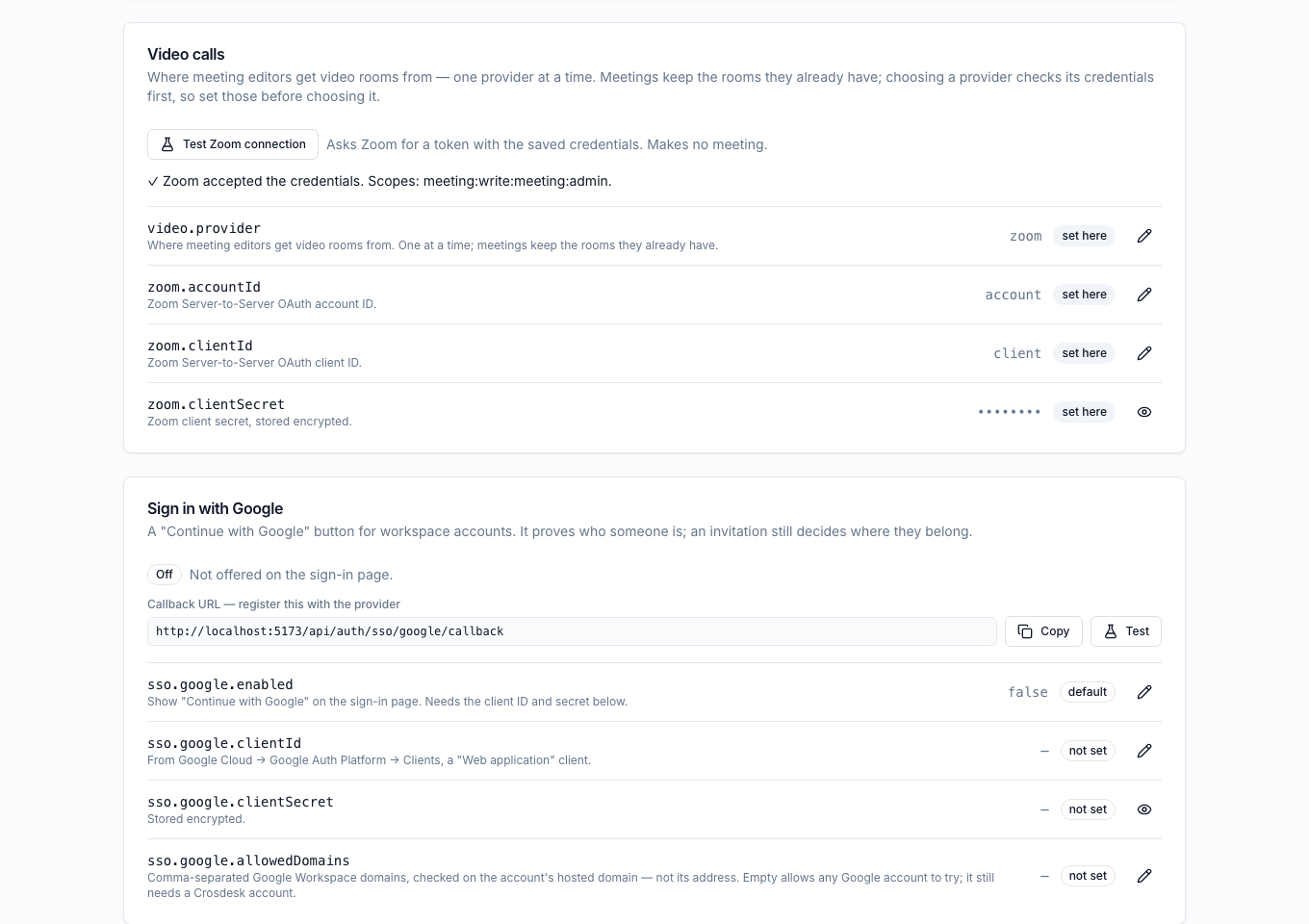
Switching provider, or to none, stops new rooms being made by the old one. Meetings that already have a room keep their link and still show Join Zoom meeting or Join Google Meet. Switching does not clear any saved credentials.
Zoom
You need a Zoom account whose owner or administrator can create Server-to-Server OAuth apps and grant meeting scopes. Each organiser must be an active user in that Zoom account, with the same email address they use in Crosdesk. Guests do not need to belong to that account to receive the join link; Zoom's meeting access settings still apply.
Create the Zoom app
- Sign in to the Zoom App Marketplace and open Build an app from the developer area.
- Select Server-to-Server OAuth app and choose Create. Name it Crosdesk.
- Under Information, complete the required company and developer contact details. For the short description, use Creates Zoom meeting links for meetings scheduled in Crosdesk. The company name is the organisation operating the Zoom account.
- Leave Event subscriptions off under Feature. Crosdesk does not need webhooks for room creation.
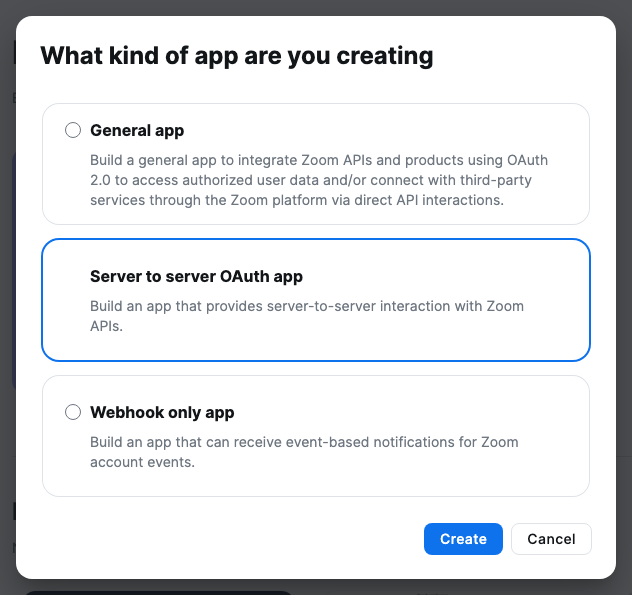
This is an internal, account-level app. Activate it for your own Zoom account; it does not need publishing to the public Marketplace. Other installations using their own Zoom accounts create their own apps and configure their own credentials.
Copy the credentials
Open App Credentials and copy the three values into Crosdesk as shown below. The screenshots use example values; keep your own client secret private.
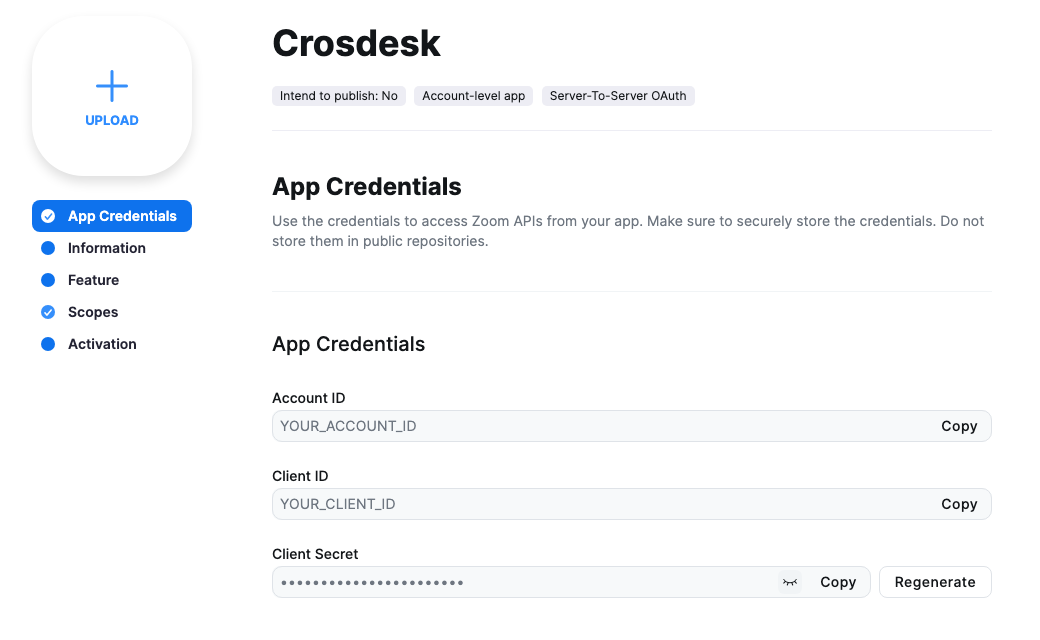
| From Zoom | Setting in Crosdesk |
|---|---|
| Account ID | zoom.accountId |
| Client ID | zoom.clientId |
| Client Secret | zoom.clientSecret |
Add the scope and activate
Under Scopes, choose Add Scopes, find meeting:write:meeting:admin, and add it. This lets Crosdesk create meetings for users in the Zoom account. No read-user, update-meeting or delete-meeting scope is needed.
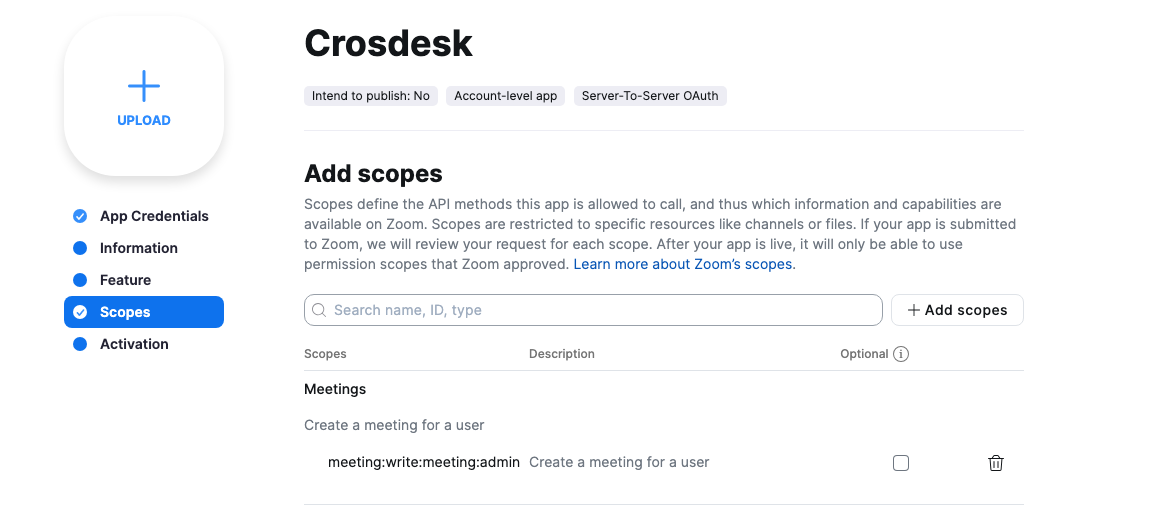
Open Activation and choose Activate your app after completing the required information. For an app that is already active, the page shows its active status and a Deactivate button; leave it active.
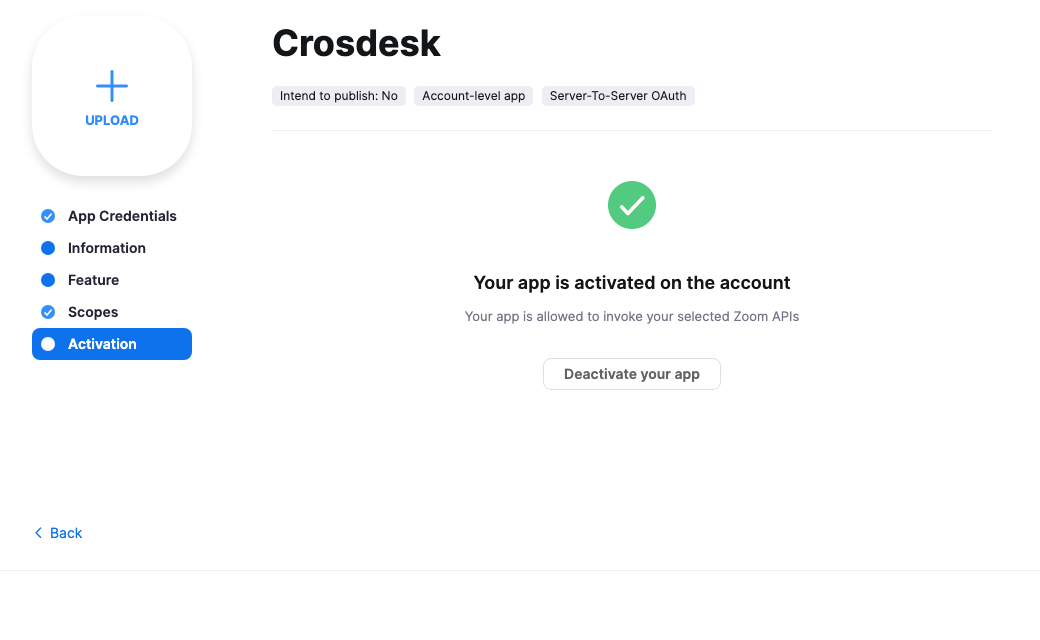
If Zoom does not offer the app type or scope, ask the account owner to check your developer and scope permissions. See Zoom's app setup guide.
Configure Crosdesk
- Sign in to Crosdesk at
/super-adminand open Settings → Video calls. - Edit
zoom.accountIdandzoom.clientId, copying each value from Zoom's App Credentials. - Choose Replace beside
zoom.clientSecretand save the client secret. The field starts empty. Crosdesk encrypts the secret and never returns its value; the row shows only whether it is set. - Choose Test Zoom connection. A successful test says Zoom accepted the credentials and lists
meeting:write:meeting:admin. The test creates no meeting. - Edit
video.provider, choosezoom, and save. Crosdesk checks the credentials and scope again before accepting the choice. - In a workspace, choose Calendar → New meeting → Add Zoom meeting, then save. See Video calls in the meeting editor.
Changing a credential while Zoom is selected saves it without a test. Use Test Zoom connection after every change. If you regenerate the secret in Zoom, replace it in Crosdesk too; no restart is needed.
Test from localhost
You can use the same app from a local Crosdesk installation. The API makes outbound HTTPS calls to Zoom; this integration needs no public callback URL, redirect URI or tunnel. Configure the credentials on your local instance's operator console, then test and select Zoom as above.
The organiser's email still needs to match an active user in the Zoom account. A demonstration account such as admin@acme.test will not host a room unless that email also belongs to a user in Zoom. Zoom's plan limits still apply: a Basic account can create rooms, with its 40-minute meeting limit. See Zoom's meeting duration limits.
How the rooms behave
Rooms have no fixed time. A repeating meeting shares one room across its occurrences, and a This and following edit keeps the same link unless you ask for a new room. The organiser hosts the room even when an invited workspace admin adds it.
Crosdesk sends Zoom the meeting's title and room type, with no description, guests or schedule. Zoom applies the account's own waiting-room and passcode defaults. Renaming, moving or cancelling a meeting changes nothing in Zoom. Removing its link in Crosdesk leaves the room in Zoom too. If Zoom creates a room and the meeting then fails to save, that unused room remains in Zoom; you can remove it there.
Troubleshooting
| What you see | What to check |
|---|---|
| Zoom refused the instance credentials | Check the three values, confirm the app is active, then test again. Replace the secret if it was regenerated in Zoom |
Missing meeting:write:meeting:admin | Add the scope in Zoom and confirm the app is active |
| The organiser's email is not an active user in the Zoom account | Check the organiser's Crosdesk email against an active user in the connected Zoom account |
| Video rooms are turned off, or the provider changed | Reopen the meeting to load the current choice; you can save a pasted link instead |
| Zoom did not respond | Try again and check the API server's outbound access to Zoom |
| No Add Zoom meeting button | Check that the operator selected zoom. For a repeating meeting, edit all or following occurrences; a room cannot be added to one occurrence only |
Google Meet
Crosdesk makes Meet rooms with a service account that Google Workspace lets act for the people in your domain — domain-wide delegation — limited to one scope: https://www.googleapis.com/auth/meetings.space.created, which lets Crosdesk create and manage the rooms it creates. Nobody connects a Google account; each organiser must be a user in that Google Workspace domain, with the same email address they use in Crosdesk. A personal @gmail.com account cannot host a room this way.
You need a Google Cloud project you can create service accounts in, and a Google Workspace super admin to grant the delegation.
Create the service account
- In the Google Cloud console, choose or create a project for Crosdesk.
- Open APIs & Services → Library, find Google Meet REST API, and choose Enable.
- Open IAM & Admin → Service accounts → Create service account. Name it Crosdesk Meet. It needs no roles in the project; skip the optional steps.
- Open the new account, choose Keys → Add key → Create new key, pick JSON, and download the file. Keep it private: it is the only copy, and Google cannot show it again.
- On the account's Details tab, copy the Unique ID (also called the client ID). It is the
client_idin the JSON file as well.
Grant the delegation
A Google Workspace super admin does this, in the Admin console:
- Open Security → Access and data control → API controls, then Manage Domain Wide Delegation.
- Choose Add new. Enter the service account's client ID, and as the only OAuth scope
https://www.googleapis.com/auth/meetings.space.created. - Choose Authorise.
A new delegation can take a while to reach every Google service — often minutes, and Google says up to 24 hours. A test that fails with not delegated straight after granting it may only be early; try again later before changing anything.
Configure Crosdesk
- Sign in to Crosdesk at
/super-adminand open Settings → Video calls. - Choose Replace beside
meet.serviceAccountKeyand paste the whole JSON key file. Crosdesk refuses anything that is not a service account key, encrypts it, and never returns it; the row shows only whether it is set. - Under Test Google Meet connection, type the email of someone in your Workspace domain and choose the button. Success says Google issued a token for them, and names the service account and client ID it used. The test makes no room.
- Edit
video.provider, choosegoogle-meet, and save. Crosdesk checks that Google accepts the key before accepting the choice. That check cannot prove the delegation — a delegation is granted per person — which is why step 3 asks for an email. - In a workspace, choose Calendar → New meeting → Add Google Meet, then save.


What a leaked key can do
The key lets whoever holds it create Meet rooms as any user in your domain — nothing more, because the delegation grants that one scope. It cannot read mail, calendars or files, and the rooms it makes are empty until someone joins. Still, treat it as a credential: if it leaks, delete the key on the service account's Keys tab, create a new one, and paste that into Crosdesk. Deleting the service account, or its delegation, turns Meet rooms off at once.
How the rooms behave
As with Zoom, rooms have no fixed time, a repeating meeting shares one room, and the organiser owns the room even when an invited workspace admin adds it. Crosdesk sends Google nothing from the meeting — not even its title, since a Meet room has none — so your Workspace's default Meet access settings apply. Renaming, moving, cancelling or unlinking a meeting leaves the room in Google Meet.
Troubleshooting
| What you see | What to check |
|---|---|
| Google refused the instance service account key | The key was deleted or the service account disabled. Create a new key and replace it. Check the Google Meet REST API is enabled in the key's project |
The service account is not delegated …meetings.space.created | Add the delegation, with exactly that client ID and scope. If you just added it, wait and test again |
| The organiser's email is not a user in the Google Workspace | The organiser's Crosdesk email must be a user in the delegated domain. Personal Gmail accounts cannot host |
| Google Meet did not respond | Try again and check the API server's outbound access to oauth2.googleapis.com and meet.googleapis.com |
Google Meet with personal accounts
Use this option when people use personal Google accounts, or belong to different Google Workspace domains. The instance operator sets up one Google OAuth client. Each person then connects their own Google account in each Crosdesk workspace where they want to make rooms.
A room belongs to the person who adds it, through their connected Google account. The Google address can differ from their Crosdesk sign-in address. Any participant may add a room to a meeting that has no video link.
If everyone is in one Google Workspace domain and should not have to connect individually, use Google Workspace delegation instead.
1. Create a Cloud project and enable Meet
- Sign in to the Google Cloud console with the account that will manage the integration.
- Open the project selector at the top. Choose an existing project for Crosdesk, or choose New project, enter a name such as Crosdesk Meet, and choose Create. Select that project before continuing; the API and OAuth client must be in the same project.
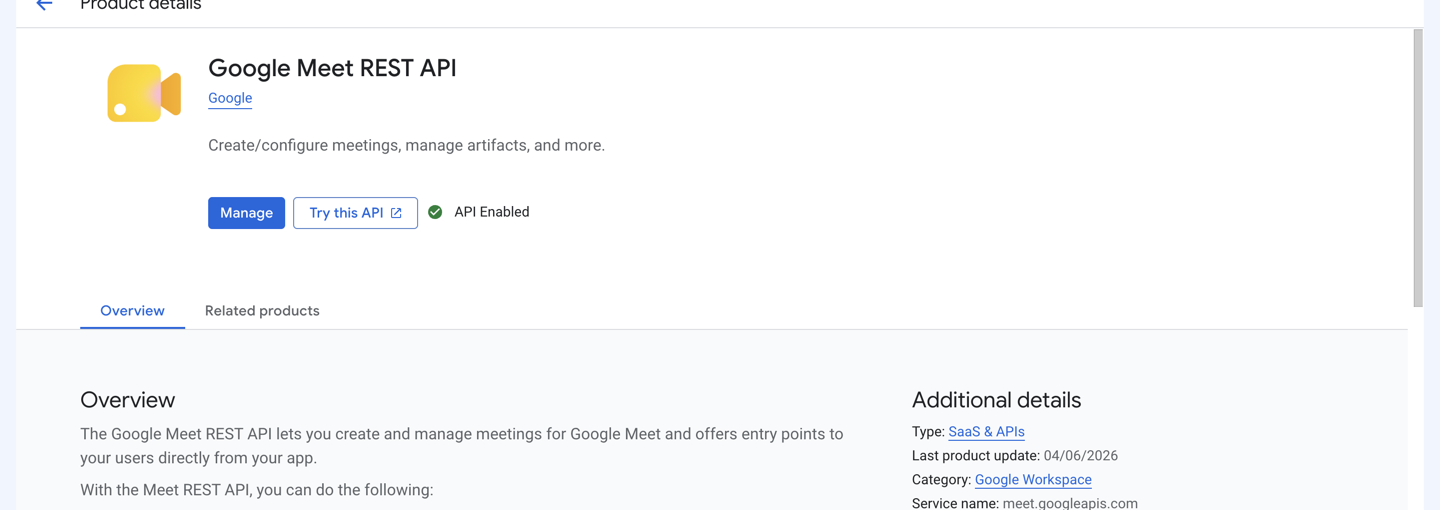
- Open APIs and services → Library, search for Google Meet REST API, and open it.
- Choose Enable. If the page already says API Enabled and offers Manage, this step is complete.
2. Set up the consent screen
- Open Google Auth Platform → Branding. For a new project, choose Get started.
- Enter an App name, such as Crosdesk Meet, and choose a User support email. These identify the app to the people connecting their accounts.
- Under Audience, choose External for personal Gmail accounts or people outside your Google Workspace organisation. Internal is available for an organisation's own users only.
- Enter the developer contact email, review Google's user-data policy, then choose Continue → Create.
- On Branding, complete the app's home page, public privacy-policy link and any other fields Google requires before publishing. Use your organisation's real pages.
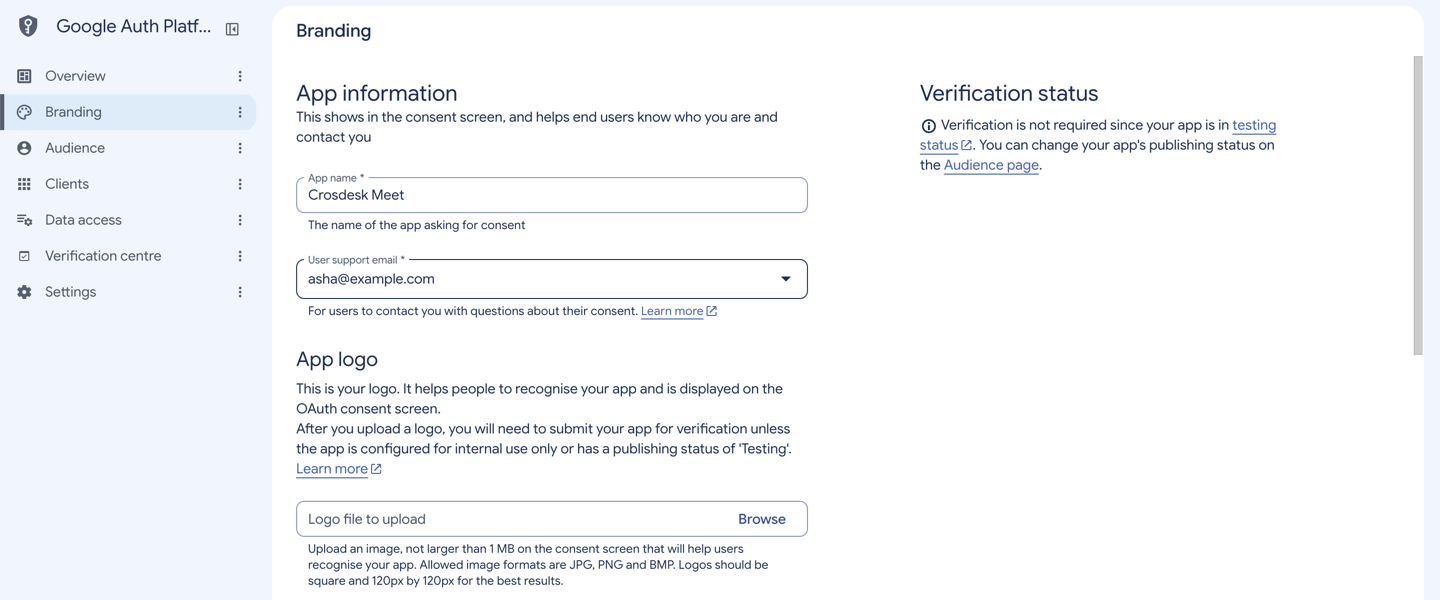
The screenshots use example addresses and client details. Copy the values from your own installation and Cloud project, not the examples in the pictures.
3. Choose who can connect
For a first test with an External app:
- Open Google Auth Platform → Audience. The initial publishing status is Testing.
- Under Test users, choose Add users.
- Enter the Google email address of each person testing the connection, then choose Save. Use the address they will choose at Google, which may differ from their Crosdesk address.
- Confirm that each address appears in the test-user list before trying to connect.
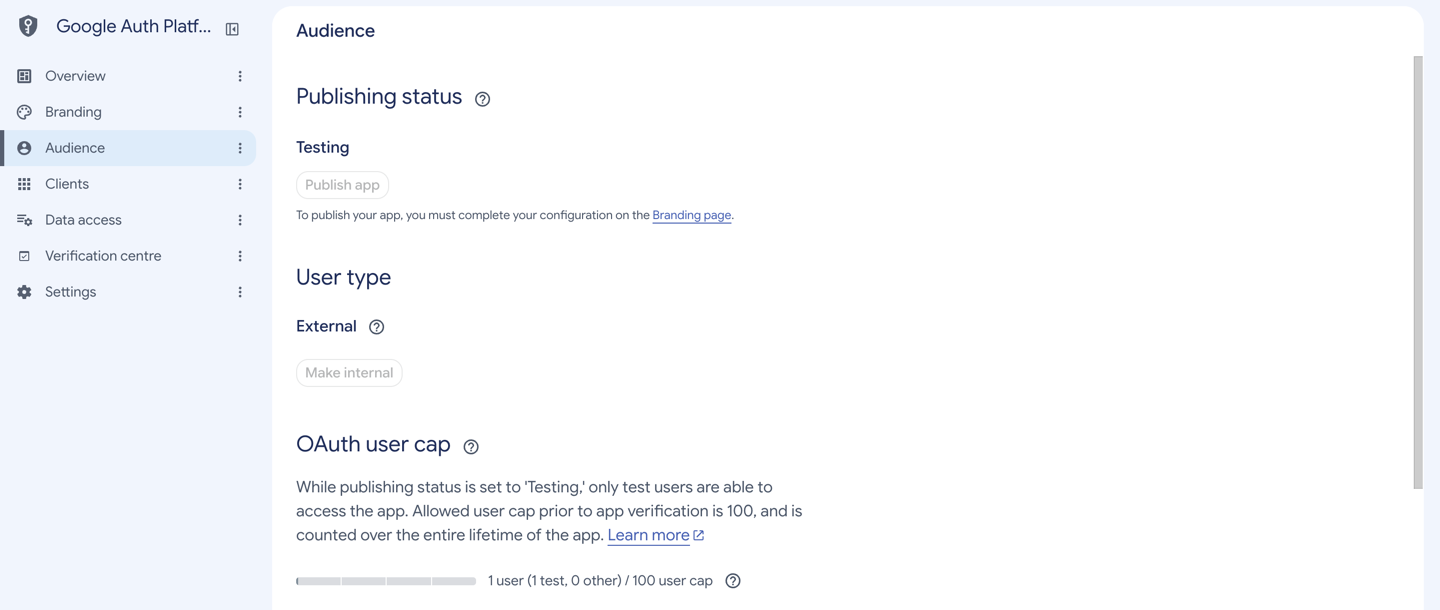
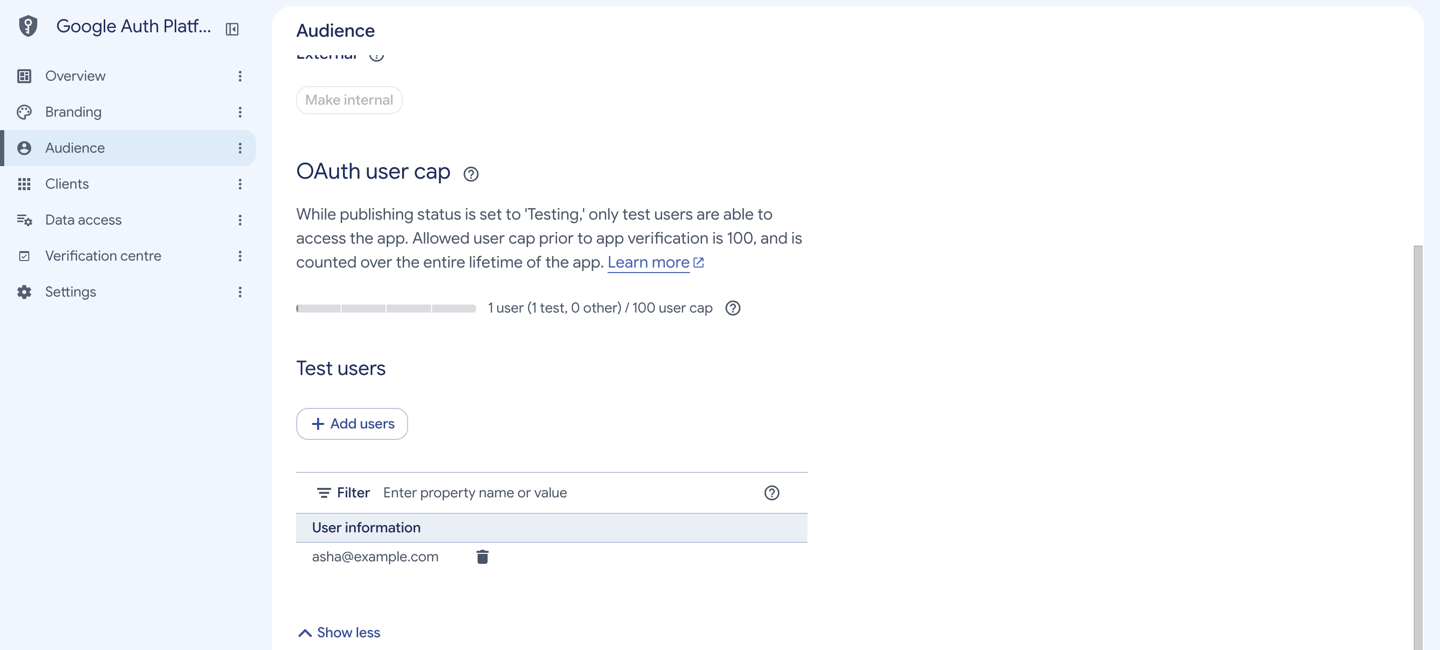
For regular use, finish the Branding requirements and choose Audience → Publish app. Google may require verification; follow Verification centre for the project's outstanding steps. Publishing and verification are separate: publishing alone does not make an app verified. The Meet scope is sensitive, so an unverified External app can show a warning and be subject to Google's user cap. See Google's consent-screen setup and audience and publishing rules.
Testing connections expire after seven days
An External app left in Testing gives connections that expire seven days after consent. People must reconnect after that. For ongoing use, publish the app and complete any verification Google requires, or use Internal for an organisation's own users. A person who is not in the test-user list cannot connect while the app is in Testing.
4. Add the permissions
- Open Google Auth Platform → Data access → Add or remove scopes.
- Select openid and …/auth/userinfo.email. They identify the connected Google account; the latter is Google's email permission.
- Under Manually add scopes, paste
https://www.googleapis.com/auth/meetings.space.created, then choose Add to table. - Choose Update, then Save on the Data access page.
- Check that the email and OpenID scopes appear under Your non-sensitive scopes, and the Meet scope under Your sensitive scopes.
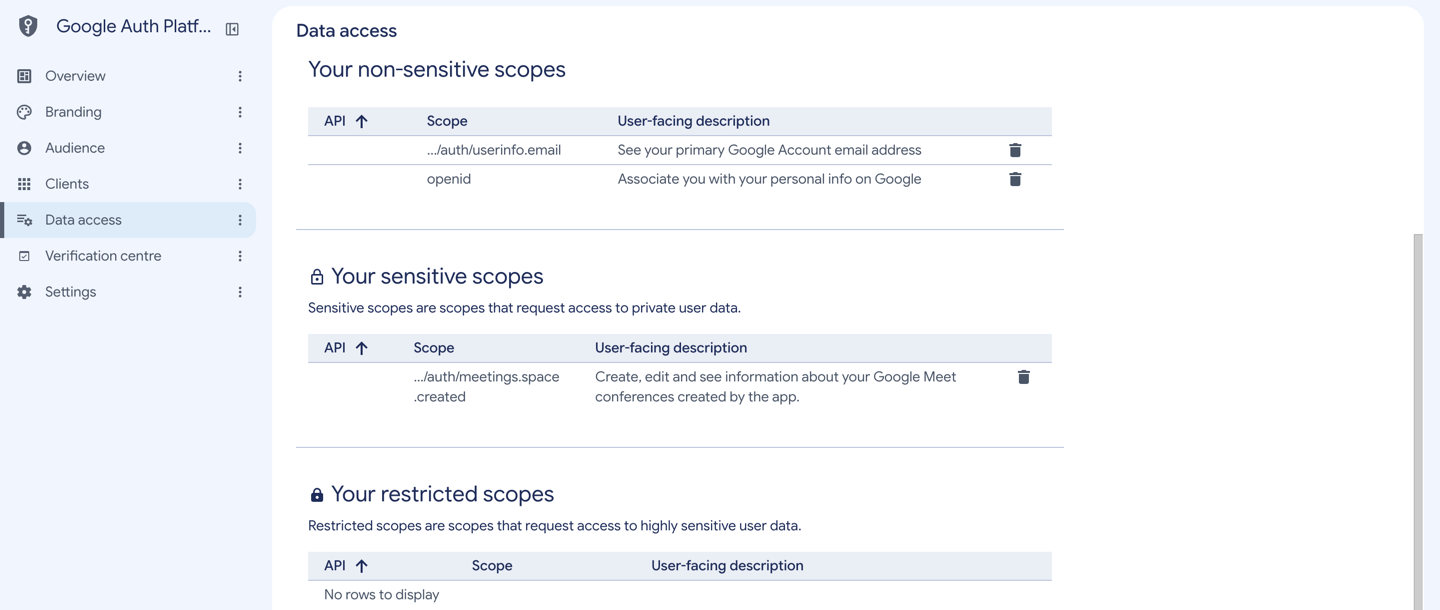
Crosdesk requests openid, email and meetings.space.created. The Meet permission lets it create and manage the rooms it creates. It requests no Calendar, Drive or Gmail access. See Google's Meet scope reference.
5. Create the web OAuth client
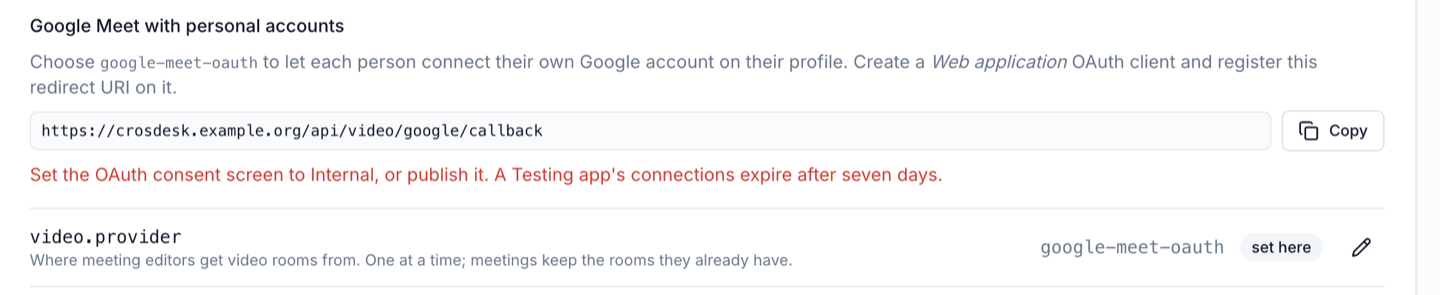
- In Crosdesk, sign in at
/super-adminand open Settings → Video calls. - Under Google Meet with personal accounts, choose Copy beside the redirect URI. It is your installation's address followed by
/api/video/google/callback. - In Google Cloud, open Google Auth Platform → Clients → Create client.
- Choose Web application as the application type and name the client, for example Crosdesk Meet.
- Under Authorised redirect URIs, choose Add URI and paste the address copied from Crosdesk. Leave Authorised JavaScript origins empty; this flow uses the server callback.
- Choose Create. Copy the Client ID and Client secret. Store the secret securely before closing the creation dialog; Google may not show it again.
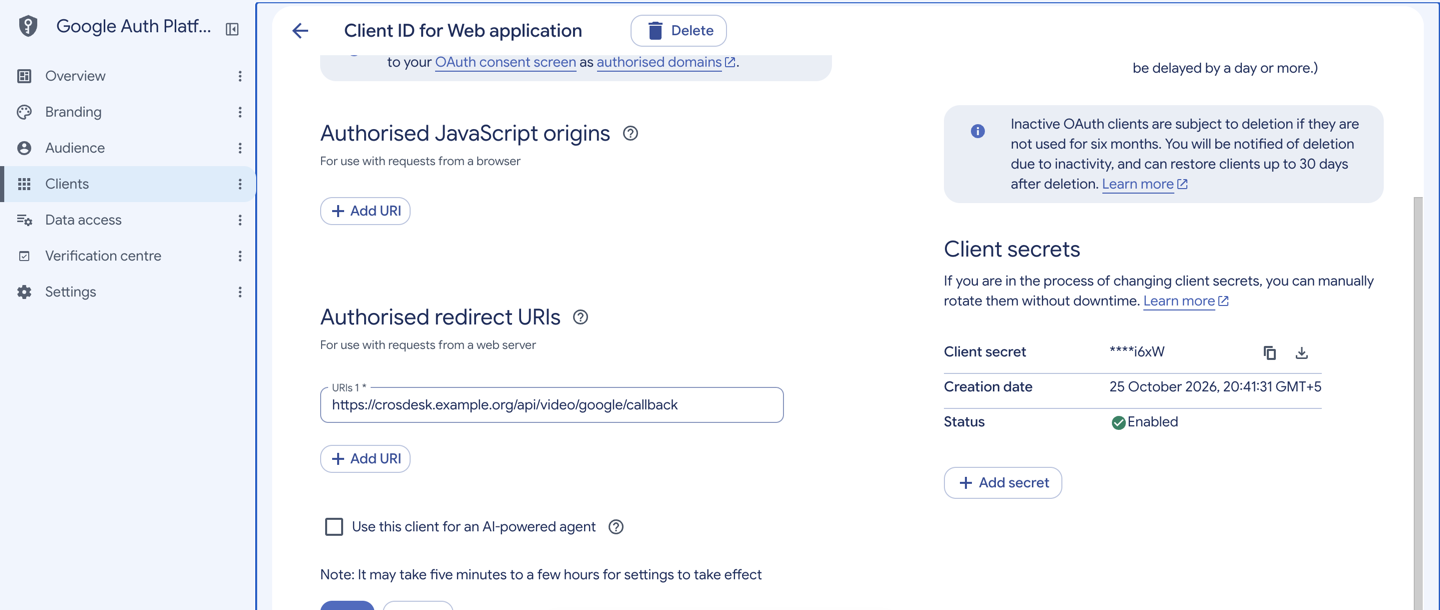
The redirect must match exactly, including https, the hostname and the path. Do not use the sign-in callback /api/auth/sso/google/callback: connecting Meet and signing in are separate integrations. Use a separate client from the one configured for Google sign-in.
For a local installation, copy its own redirect from the console, for example http://localhost:5173/api/video/google/callback. Google accepts localhost HTTP redirects for a Web application client. Register each address you use; a production callback does not cover localhost.
6. Save the client in Crosdesk
- Return to Settings → Video calls in the instance operator console.
- Edit
meet.oauthClientId, paste the Client ID and save. - Choose Replace beside
meet.oauthClientSecret, paste the Client secret and save. The saved row shows that it is set; Crosdesk never returns the secret's value. - Edit
video.provider, choose google-meet-oauth, and save. - Confirm the selected provider is
google-meet-oauth, then ask people to connect their Google account from their profile.
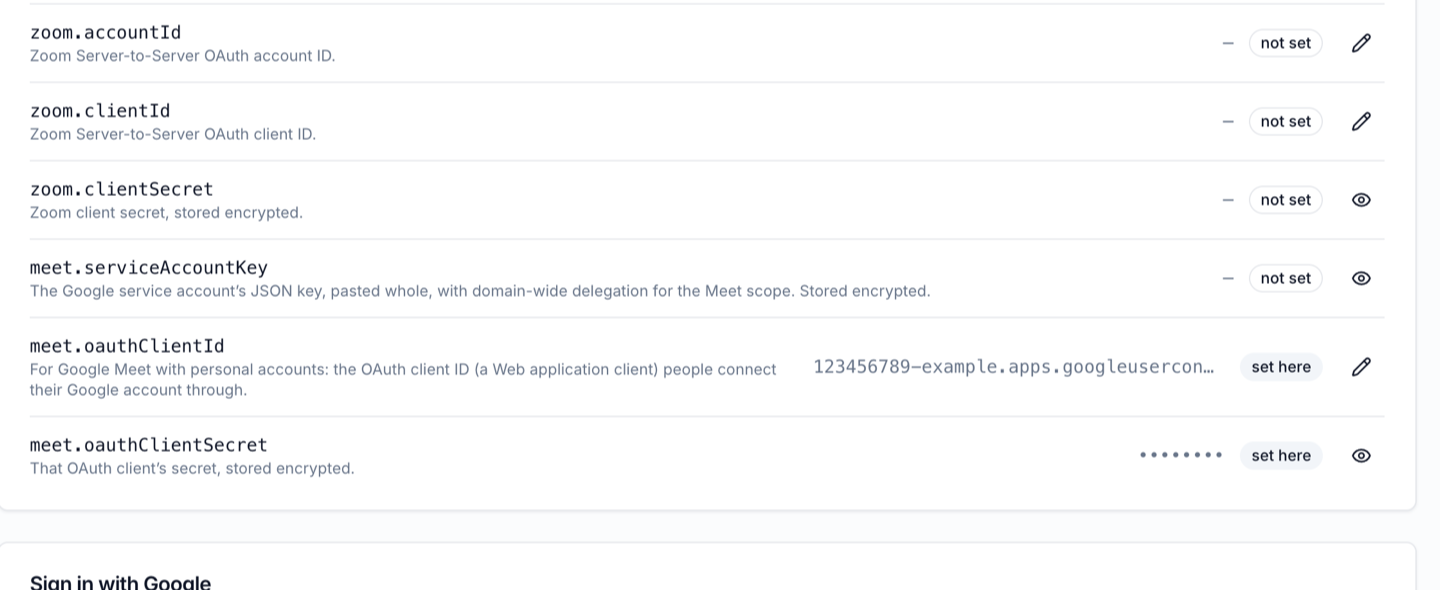
The choice checks that both client fields are present and Google can be reached. The first person's connection verifies the secret during Google's code exchange. The separate Test Google Meet connection email field is for Workspace delegation, and is not needed for personal accounts. No restart is needed after saving these settings.
7. Connect an account and add a room
Each person follows Your own Google account: open Profile → Connected accounts → Connect Google, choose their Google account, and allow the Meet permission. Back in Crosdesk, their Google address appears under Connected accounts. They can then add Google Meet to a meeting they organise or are invited to.
Connections are encrypted and belong to one membership in one workspace. Connecting Google in one workspace does not connect it in another. Disconnecting or leaving a workspace removes that workspace's saved connection and asks Google to revoke its access; rooms already made remain.
Troubleshooting
| What you see | What to check |
|---|---|
| Google says access is blocked because the app is being tested | Add the chosen Google address under Audience → Test users and save it, or finish publishing the app |
Google reports redirect_uri_mismatch | Register the exact URI copied from Crosdesk under the Web client's Authorised redirect URIs, not JavaScript origins |
| Google says the app is unverified | Check that this is the client your operator configured. For regular use, the operator completes Google's publication and verification requirements |
| Google could not be connected after consent | Check the client ID and secret belong to the same web client, and that its redirect URI matches exactly |
| Crosdesk needs permission to create Meet rooms | Connect again and tick the Meet permission on Google's screen |
| Your Google connection has expired | Reconnect on Profile. The grant may have been revoked, or the External app is still in Testing and seven days have passed |
| Add Google Meet is greyed out | Connect Google in the current Crosdesk workspace; a connection in another workspace does not apply here |
Without the console
In an operator session, write each credential through POST /api/super-admin/settings, for example { "name": "zoom.accountId", "value": "YOUR_ACCOUNT_ID" }. Set all three credentials, then send { "name": "video.provider", "value": "zoom" } to the same endpoint. POST /api/super-admin/settings/zoom/test checks the saved credentials without creating a room.
For Google Meet, save meet.serviceAccountKey the same way, test with POST /api/super-admin/settings/meet/test and { "email": "someone@your-domain" }, then choose google-meet.
A meeting create or update may send "videoRoom": "ZOOM" or "GOOGLE_MEET" without a videoUrl. An inactive provider returns 409; an unreachable provider returns 503; invalid credentials, a missing scope or delegation, or an organiser outside the Zoom account or Workspace domain returns 422.